

One of the most noticeable changes in iOS 26 is Apple’s new Liquid Glass design language. It makes your Home Screen, widgets, and system UI feel lighter and more translucent. By default, it applies a subtle frosted look to app icons, folders, and the dock. But Apple didn’t stop there, you can now tint Liquid Glass with custom colors.
This option, sometimes referred to as Liquid Color, gives your iPhone’s interface a more personal feel, whether you want soft pastels or bold hues. Here’s how it works and how to customize it.
Table of contents
What Is Liquid Color in iOS 26?
Liquid Glass is the underlying design system that gives icons and widgets their layered, translucent appearance. Liquid Color is the customization layer on top of it. It lets you apply a global color tint to app icons and widgets so your iPhone looks consistent with your wallpaper or personal style.
Don’t miss the best of The Mac Observer
Set us as a preferred source and our Apple reporting ranks higher in your Google Search results and Discover feed — one tap, no account changes.

Apple already experimented with color-matching icons back in iOS 18 with tinted icons, but iOS 26 takes it further. Now, you can:
- Choose a preset color tint.
- Pull colors directly from your wallpaper.
- Or even let icons adapt automatically to match your iPhone 17 finish or MagSafe case color.
How to Change Liquid Color in iOS 26
Follow these steps to give your iPhone’s Liquid Glass a custom tint:
- Long-press on the Home Screen
Press and hold until your icons enter jiggle mode. - Tap “Edit” in the corner
You’ll see options pop up for customization. - Select “Customize”
This opens the new panel for icons and widget styles. - Choose “Tinted”
Under the style options, tap Tinted.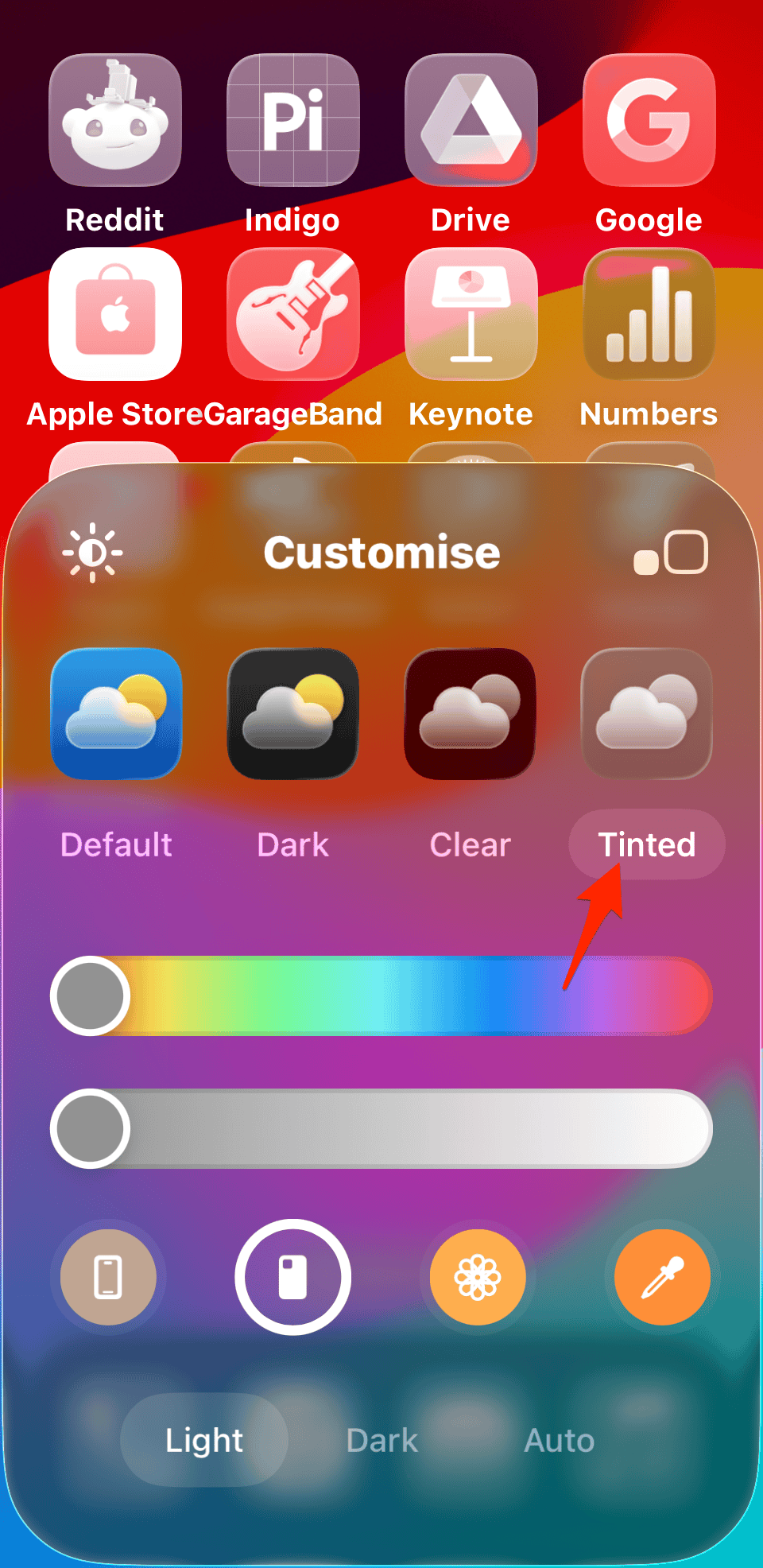
- Pick a color
- Choose from Apple’s preset palette.
- Tap the wallpaper picker to grab a dominant color from your background.
- Or select the Auto option to let iOS adapt the tint to your iPhone’s case or hardware color.
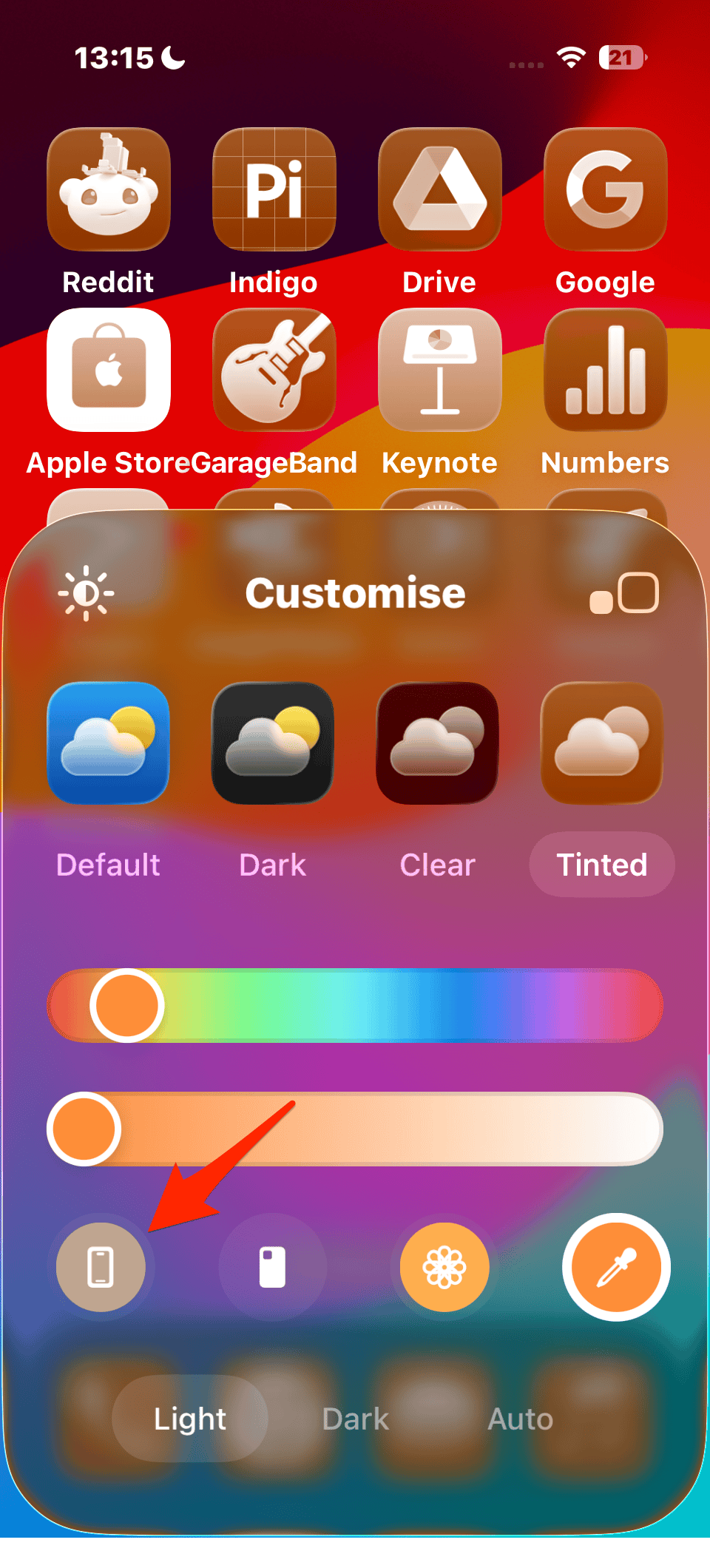
- Preview and apply
Swipe through previews to see how different colors look with your setup. Tap the checkmark in the top-right to confirm.


Tips for the Best Look
- Match with wallpaper: If you’ve downloaded the official iPhone 17 wallpapers, try pulling colors directly from them for a more unified design.
- Experiment with dark mode: Liquid Color interacts differently in Light and Dark Mode. Switching modes can completely change the vibe.
- Use Auto with MagSafe cases: Apple’s official cases trigger automatic tinting. So if you’re rocking the new iPhone Air, your icons can mirror the case color.
Troubleshooting
If you don’t see the Liquid Color options:
- Make sure you’re actually on iOS 26. If the update isn’t showing up, here’s how to fix it.
- Restart your iPhone after updating.
- Double-check you’re holding long enough to enter jiggle mode.
Pair this with other new features like custom snooze durations or Spatial Scenes wallpapers, and you’ve got the most customizable iPhone experience yet.


Wow. The 26.0.1 color scheme really sucks!!!! Where’s the button to make it look like it used to?