

Managing subscriptions on your iPhone has become more important than ever in iOS 26. Between streaming apps, AI tools, cloud storage plans, fitness memberships, and premium app upgrades, it is easy to forget what is renewing every month.
Apple has also expanded App Store subscription options in iOS 26.5, including new monthly plans tied to 12-month commitments in some regions, so checking your subscriptions regularly can help you avoid surprise charges.
Related: How to Use Apple’s new App Store 12 Month Subscription Payment System
Don’t miss the best of The Mac Observer
Set us as a preferred source and our Apple reporting ranks higher in your Google Search results and Discover feed — one tap, no account changes.
The good news is that Apple still keeps subscription management simple on iPhone. You can view active subscriptions, expired plans, renewal dates, pricing, and cancellation options directly from the Settings app or App Store. There is also a faster method using the Shortcuts app if you want one-tap access.
This guide covers every working method to check App Store subscriptions in iOS 26.
Why You Should Check Your App Store Subscriptions Regularly
Many users install apps for a free trial and forget to cancel them later. Over time, those small monthly payments add up.
Here’s why checking subscriptions matters:
- Track recurring monthly expenses
- Cancel services you no longer use
- Avoid accidental auto-renewals
- Check upcoming billing dates
- Compare subscription costs
- Review trial periods before charges begin
- Manage newer App Store commitment plans in iOS 26.5
Apple now sends clearer renewal reminders for some subscription plans, but manually reviewing your subscriptions is still the safest approach.
Table of contents
- Why You Should Check Your App Store Subscriptions Regularly
- Method 1: Check App Store Subscriptions From Settings
- Method 2: Check Subscriptions Directly From the App Store
- Method 3: Use the Shortcuts App for One-Tap Subscription Access
- Method 4: Check for Hidden or Forgotten Charges
- Things to Know About App Store Subscriptions in iOS 26
- FAQs
- Summary
- Conclusion
Method 1: Check App Store Subscriptions From Settings
This is the easiest and most common method in iOS 26.
The Subscriptions page inside Settings gives you a complete overview of all active and expired subscriptions linked to your Apple Account.
Steps to Check App Store Subscriptions in Settings

- Open the Settings app on your iPhone.
- Tap your Apple Account name at the top.
- Select Subscriptions.
- Wait for the page to load your active and expired subscriptions.
- Tap any subscription to see:
- Renewal date
- Subscription cost
- Billing cycle
- Available plans
- Cancellation options
If a subscription is active, you will see the next billing date directly below the app name.
Expired subscriptions appear separately, which makes it easier to review services you used previously.
Apple also shows Family Sharing subscriptions if they are shared with your account.
Method 2: Check Subscriptions Directly From the App Store
iOS 26 also lets you access subscription settings directly from the App Store.
This method is useful if you are already browsing apps or checking purchase history.
Steps to Check Subscriptions From the App Store

- Open the App Store.
- Tap your profile picture in the top-right corner.
- Select Subscriptions.
- You will now see your active and expired subscriptions.
From here, you can:
- Upgrade plans
- Downgrade plans
- Cancel subscriptions
- Renew expired services
- Compare pricing tiers
This page works almost identically to the Settings version but is faster for users already inside the App Store.
Method 3: Use the Shortcuts App for One-Tap Subscription Access
If you check subscriptions frequently, this method saves time.
The Shortcuts app in iOS 26 can create a direct launcher that instantly opens the subscriptions page.
Instead of navigating through multiple menus, tapping the shortcut immediately opens your App Store subscriptions screen.
This is especially useful for users who regularly monitor free trials or shared subscriptions.
Steps to Create a Subscription Shortcut

- Open the Shortcuts app.
- Tap the + icon to create a new shortcut.
- Tap Add Action.
- Search for Open URL.
- Select the Open URLs action.
- Enter this URL:
itms-apps://apps.apple.com/account/subscriptions

- Tap the shortcut name and rename it to something like:
- Check Subscriptions
- My App Plans
- Subscription Manager
- Tap Done.
Optional: Add the Shortcut to Your Home Screen
For even faster access:
- Open the shortcut.
- Tap the Share button.
- Select Add to Home Screen.
- Tap Add.
Now you can check subscriptions with a single tap.
Method 4: Check for Hidden or Forgotten Charges
Sometimes users forget that certain subscriptions are billed through Apple instead of directly through the app company.
To verify unfamiliar charges:
- Open Settings
- Tap your Apple Account
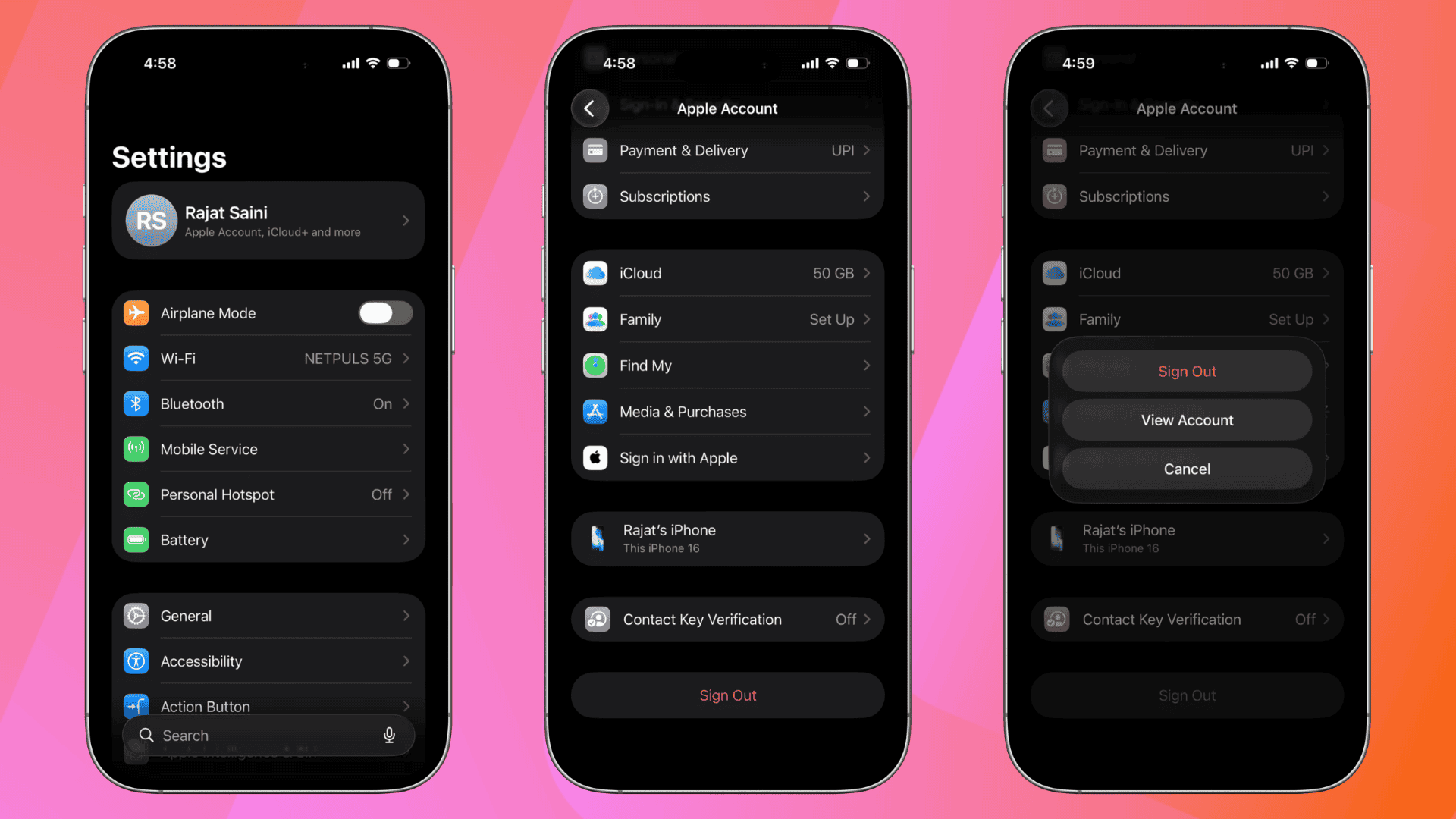
- Select Media & Purchases
- Tap View Account
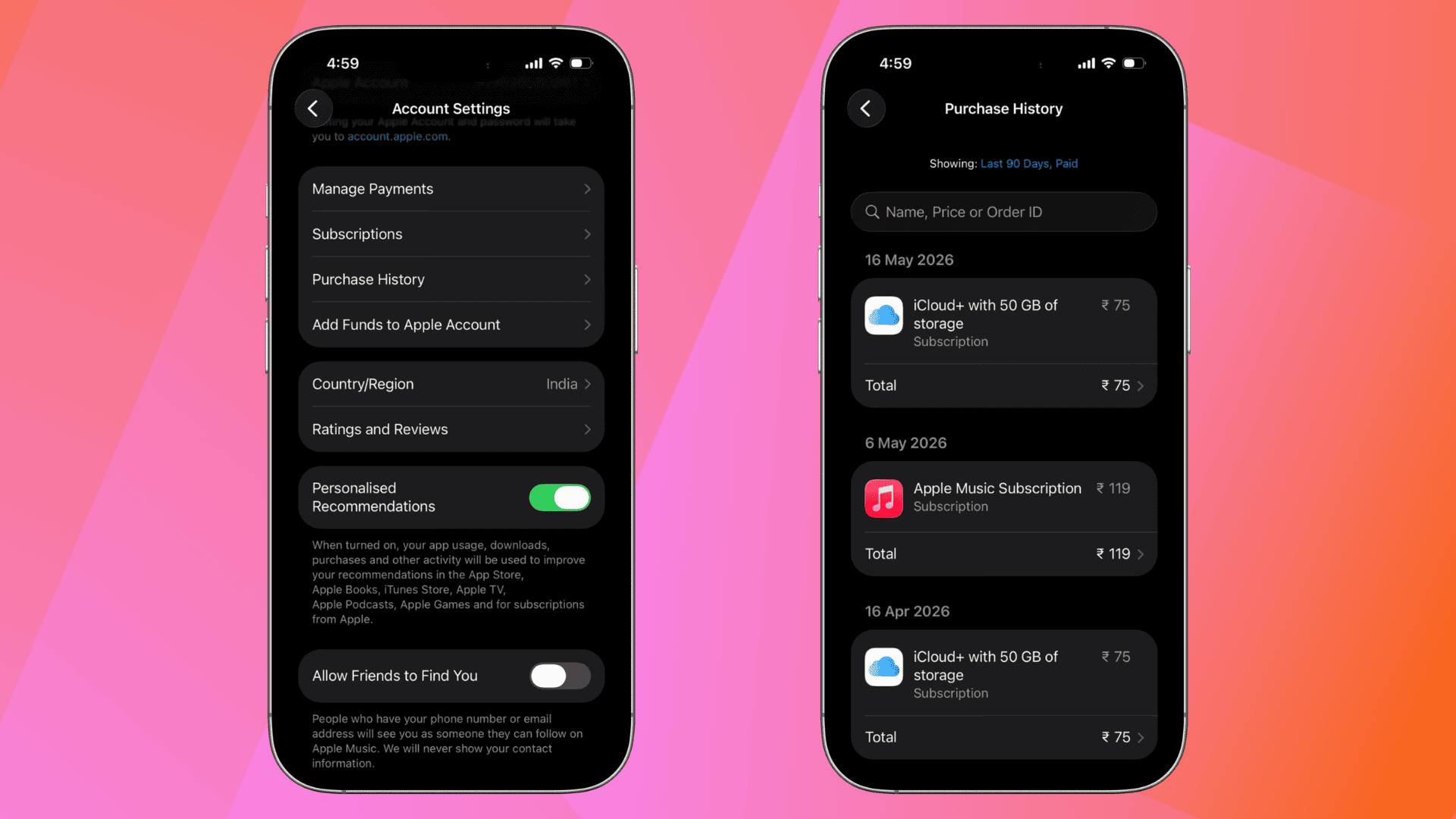
- Open Purchase History


You can compare charges with your active subscriptions list to identify unknown renewals.
Apple also provides billing support and refund tools through its subscription support pages.
Things to Know About App Store Subscriptions in iOS 26
Apple has made a few changes to subscriptions in recent iOS 26 updates.
Here are some important things users should know:
- Some developers can now offer monthly payments tied to a 12-month commitment in supported regions.
- Apple may send reminders before renewal dates.
- Family Sharing subscriptions can appear inside your subscription list.
- Cancelling a subscription usually keeps access active until the billing period ends.
- Deleting an app does not automatically cancel its subscription.
That last point still catches many iPhone users off guard.
FAQs
Yes. Open the subscription page, tap the service, then select Cancel Subscription. Access usually continues until the current billing cycle ends.
The subscription may:
– Be linked to another Apple Account
– Be billed directly through the company instead of Apple
– Already be expired
No. Removing the app from your iPhone does not stop billing.
In some cases, yes. Apple allows refund requests for eligible purchases through its billing support system.
The layout is mostly familiar, but Apple continues to improve subscription visibility and billing transparency in newer iOS 26 updates.
Summary
- Open Settings > Apple Account > Subscriptions to view all active plans.
- You can also access subscriptions directly from the App Store.
- Use the Shortcuts app for one-tap subscription access.
- Check Purchase History to identify unknown charges.
- Deleting an app does not cancel subscriptions.
- iOS 26.5 introduces newer subscription billing options in some regions.
Conclusion
Checking your App Store subscriptions in iOS 26 only takes a minute, but it can save you a surprising amount of money over time. With subscription apps becoming more common across entertainment, productivity, AI, and cloud services, it is easy for recurring payments to pile up unnoticed.
Whether you use the standard Settings method, the App Store shortcut, or a custom Shortcuts automation, regularly reviewing your subscriptions helps you stay in control of your digital spending and avoid paying for services you no longer use.


Reset my apple balance pls