
A regular Contacts list is handy for a fixed guest list. A Smart List is better for a question such as “Which of our suppliers are based in Denver?” Set the conditions once, and Contacts checks the information on each card. When an address changes, that person can enter or leave the list without any manual sorting.
Build a rule you can test
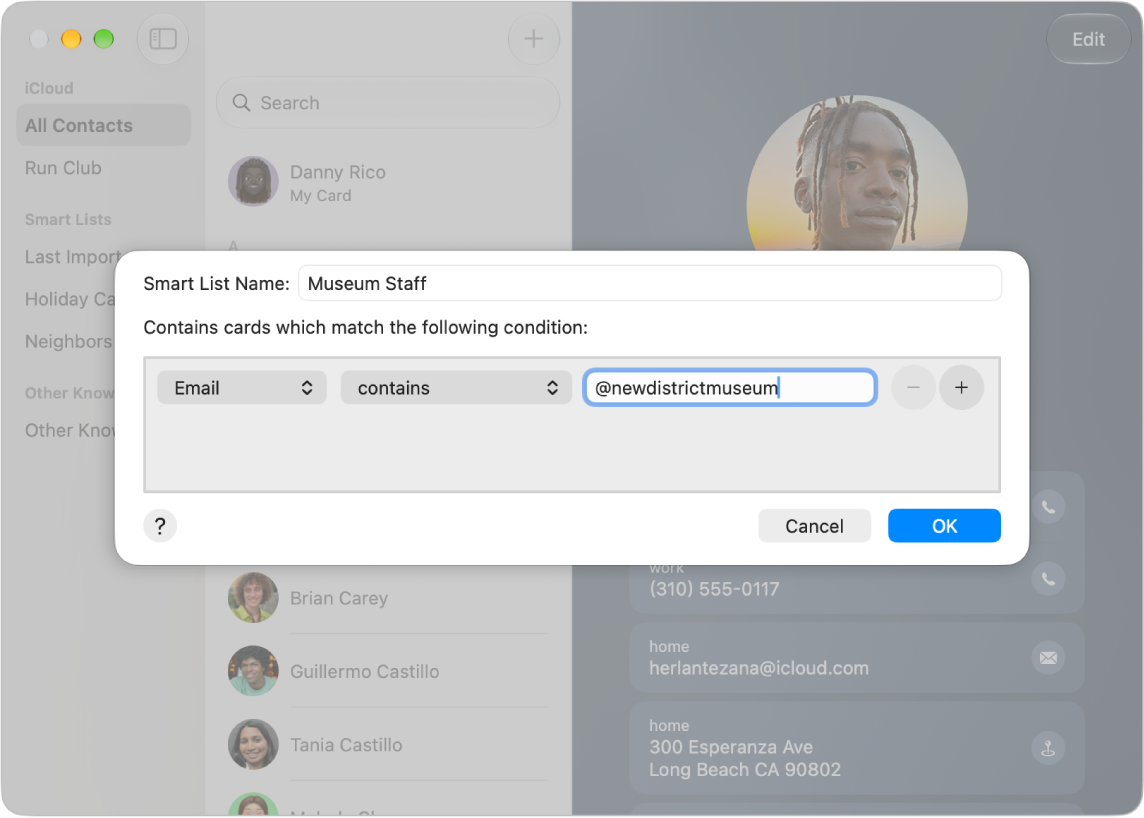
- Open Contacts on the Mac and choose File > New Smart List. Give it a name that describes the rule, such as Denver suppliers.
- Start with one condition, City is Denver. Click OK, select the new list in the sidebar and look for one person you know lives there. If they are missing, open their contact card and inspect the city in the address field. An address typed only into a note will not satisfy a City rule.
- To narrow the list, select it and choose Edit > Edit Smart List. Add a second condition. For example, if your supplier cards carry the word supplier in their Note field, add a rule matching that word.
- Choose all if both conditions must match. With any, a supplier in another city and a Denver contact who is not a supplier can both appear. Click OK and check one card you expect to qualify and one you expect to stay out.
When someone needs to be added or removed
You cannot drag an exception into a Smart List. Correct the card when its information is wrong, or change the rule when your definition changed. If a Denver colleague needs an invitation just this once, use a regular list for that mailing instead of changing their address to force a match.
Apple allows a Smart List to draw from more than one contact account. If a person appears twice, inspect the underlying cards before deciding whether one is obsolete. A list can faithfully match two separate records. Naming the list after its conditions also helps you remember why a card appears there months later.
Don’t miss the best of The Mac Observer
Set us as a preferred source and our Apple reporting ranks higher in your Google Search results and Discover feed — one tap, no account changes.




Discussion