
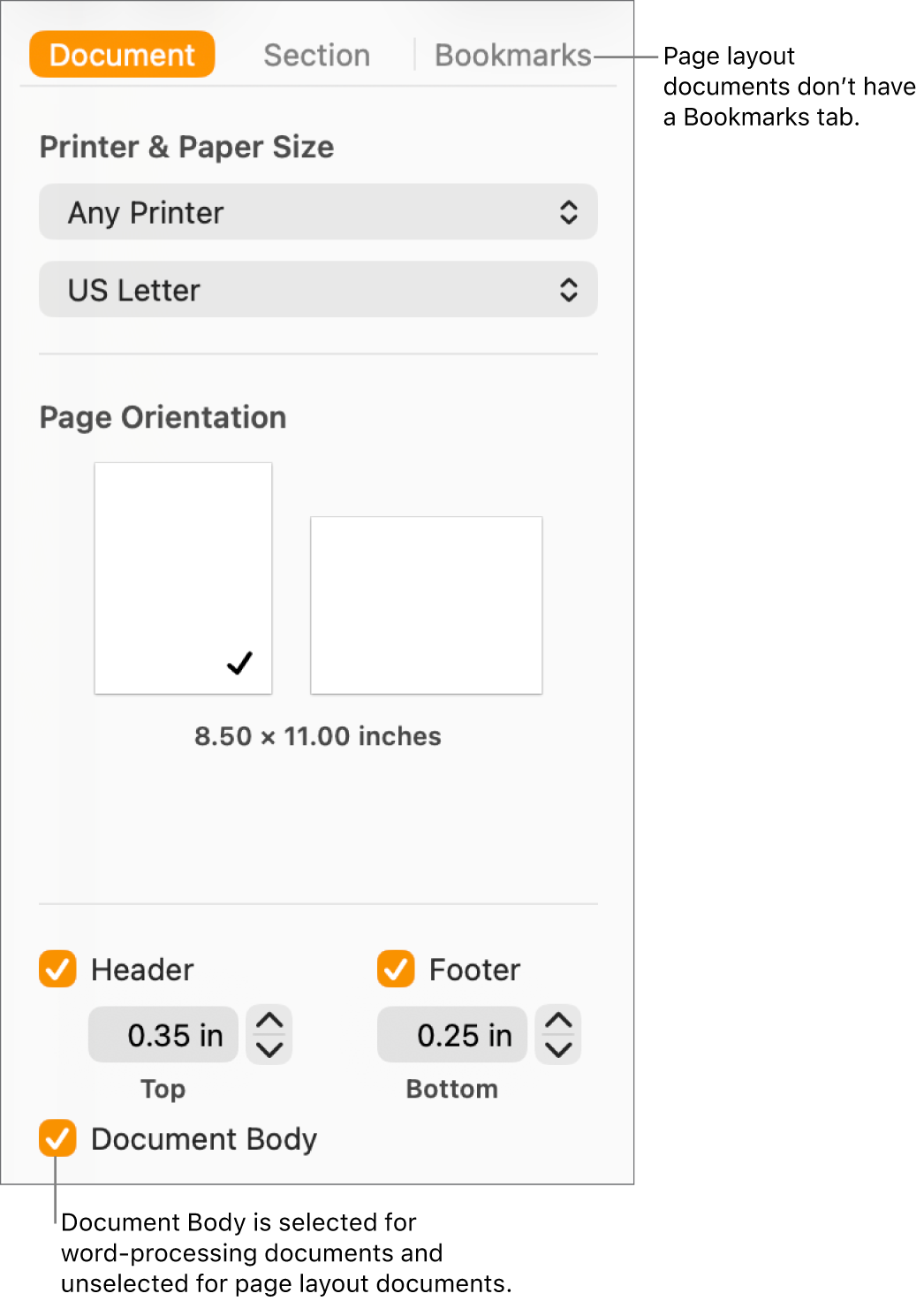
Before converting a Pages document to page layout, duplicate it. Turning off Document Body removes the flowing body text and objects that move inline with that text. A layout document expects you to place content on pages in text boxes and other objects. Save the source copy before you clear that setting.
Check which content you need to carry over
A letter with two paragraphs and a logo can contain three different kinds of content. The paragraphs may be in the document body. The logo may sit inline with a paragraph or be positioned independently on the page. Apple says objects set to stay on the page survive conversion. Inline objects need to be copied with the body content you intend to keep.
- Open your working duplicate. Select the body text and the inline objects you need, then copy them. Keep the original document open or available so you can return to it for anything you missed. For a long source, moving one section at a time from the intact original is easier to verify.
- In the duplicate, open the Document sidebar and its Document tab. Deselect Document Body and read the conversion prompt before confirming.
- Add a text box to the converted page, click inside the box and paste the copied material. Adjust the box and any images for the new layout. Inspect the last line of text, as well as the first: fitting the title on the page says little about whether a longer paragraph still fits.
Decide which document to send
For a one-page brochure, check every object against the original and export a proof PDF for a visual check. For a manuscript with text flowing over dozens of pages, a word-processing document may still suit the editor better. Converting a layout file back to word processing leaves its existing text boxes as objects; it does not automatically rebuild a single stream of body text.
If the conversion was accidental and you are still editing, use Command-Z promptly. Otherwise return to your intact duplicate or source to recover the body content. Simply turning Document Body back on is not a substitute for that copy.
Apple’s conversion and preservation instructions · Which Pages document type you have
Don’t miss the best of The Mac Observer
Set us as a preferred source and our Apple reporting ranks higher in your Google Search results and Discover feed — one tap, no account changes.




Discussion