

The release of iOS 26 introduced powerful new accessibility features, but it also surfaced a bug for users who rely on the Display Zoom setting. Specifically, when the Display Zoom is set to Larger Text, the green Call button on the Phone app’s keypad screen becomes blocked by the bottom menu bar, making it impossible to dial a number manually.
This issue, largely reported on newer devices like the iPhone 17 Pro, requires immediate workarounds until Apple issues an official patch. If you find your iPhone’s Phone App not working correctly due to this overlap, the following fixes are essential.
Table of contents
Essential Workarounds for the iOS 26 Dialing Bug
1. Revert to Default Display View
This is the most consistent and effective solution, as the bug primarily affects the Larger Text setting. By switching back to the standard or Default zoom setting, the Phone app’s layout instantly corrects itself, placing the Call button back in its proper, accessible position.
Don’t miss the best of The Mac Observer
Set us as a preferred source and our Apple reporting ranks higher in your Google Search results and Discover feed — one tap, no account changes.
If you are experiencing issues where Apple could improve the Phone app experience, returning to the default view is currently the most reliable fix.
- Navigate to Settings on your iPhone.
- Tap Display & Brightness.
- Select Display Zoom.
- Change the setting from Larger Text (or Zoomed) to Default.
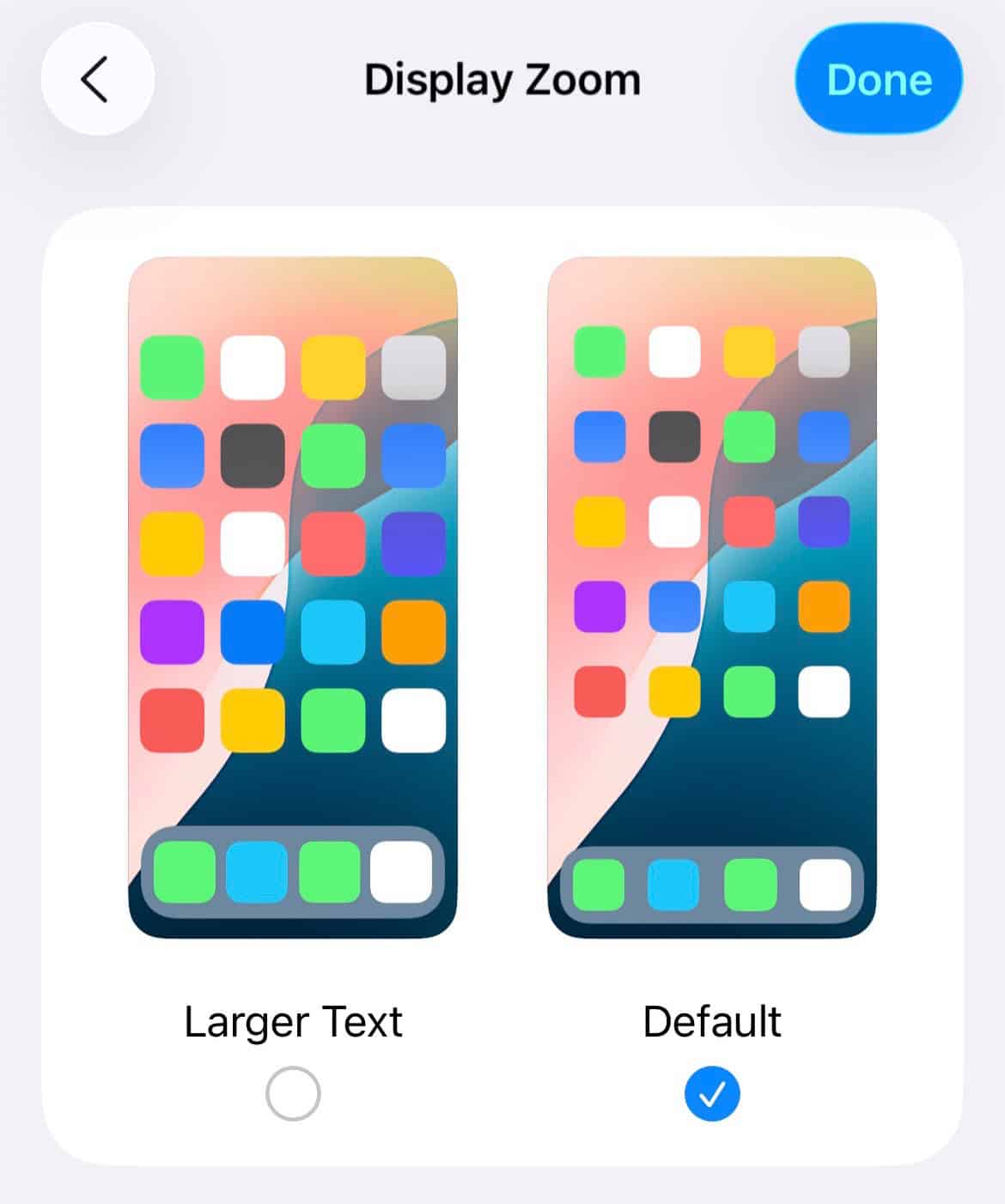
- Tap Done.

2. Utilize Siri for Handsfree Dialing
If you prefer to keep your Display Zoom setting on Larger Text for systemwide text visibility, you can circumvent the Keypad tab bug entirely by using Apple’s digital assistant, Siri. This method allows for quick, voice-activated dialing of any number.
This powerful voice assistant provides a reliable way to troubleshoot the iPhone Phone app not working correctly when the keypad is nonfunctional. Simply invoke Siri and ask her to initiate the call to a specific number or contact name.
- Activate Siri by holding the side or Home button, or by saying “Hey Siri.”

- Tell Siri to “Call” a specific number, for example: “Call 555-0123.”
- Siri will place the call directly, bypassing the need to use the blocked keypad Call button.

3. Make Calls From Contacts or Recents
Another easy workaround is to avoid the key-in process altogether. The bug specifically impacts the Keypad tab of the Phone app. The Recents and Contacts tabs, which do not rely on the on-screen dialer button, remain fully functional, allowing you to initiate calls normally.
When dialing a number manually is difficult, accessing your stored contacts list or calling back a number from your call history are fast alternatives. This ensures you can still reach anyone without changing your primary display settings.
- Open the Phone app.
- Tap the Contacts tab or the Recents tab at the bottom of the screen.
- Select a contact or a number from your history.
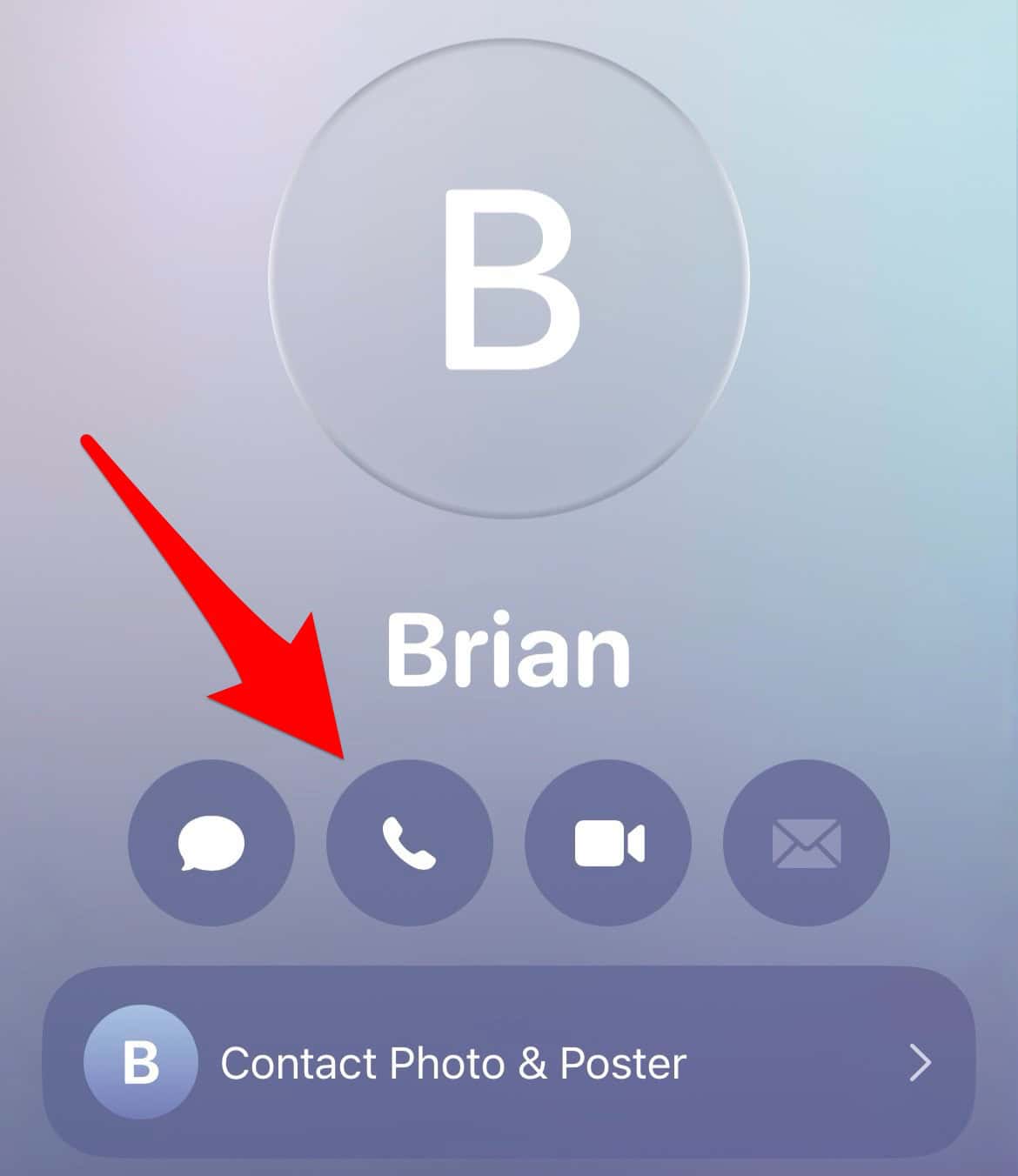
- Tap the phone icon next to the entry to initiate the call.

4. Try the Accessibility Zoom Toggle
Some users have reported an inconsistent but sometimes effective “jolt” fix that temporarily resizes the Phone app’s interface without permanently altering Display Zoom. This involves briefly enabling and disabling the separate Accessibility Zoom feature.
This method may force the Phone app’s UI to recalibrate its dimensions, allowing it to display correctly even while Display Zoom is active. It is not a permanent solution, but it can provide temporary relief from the obstructed button.
- Go to Settings and tap Accessibility.
- Select Zoom and turn the feature On.

- Open the Phone app to see if the keypad is correctly resized.
- Return to Settings > Accessibility > Zoom and turn the feature Off.

FAQ
Reports indicate the bug is most common on newer Pro models, but it can potentially affect any device running iOS 26 with Display Zoom set to Larger Text.
No. Adjusting the system text size in the Accessibility menu is distinct from Display Zoom and does not typically resolve the keypad layout problem.
Yes. Many users report that both the green Call button and the number backspace button are partially or fully obscured by the menu bar.
Optimizing Your iPhone Experience After the iOS 26 Update
While the bug preventing the use of the Phone app’s keypad is inconvenient, the multiple community-driven workarounds offer temporary relief. Users can switch to the Default display view, utilize voice commands via Siri, or rely on the Recents and Contacts tabs to continue making calls without interruption. Apple is expected to address this layout error in an upcoming software patch, restoring full functionality to the Display Zoom feature. In the meantime, remember that the Display Zoom setting itself is a separate feature from what we see in the Phone app on iPadOS 26, which handles its phone capabilities differently.


Discussion