

If you updated to iOS 26 and regret it, maybe your iPhone feels laggy, battery life tanked, or some apps don’t play nice yet, you can still go back. Apple is currently signing iOS 18.5, which means you can downgrade your device as long as that window stays open. Once Apple stops signing 18.5, downgrades won’t be possible.
Here’s how to roll your iPhone back safely.
What to know before you start
- Backups don’t go backward: If you created a backup on iOS 26, you can’t restore it onto iOS 18.5. You’ll need an older backup from 18.5 or set up your iPhone as new.
- You need a Mac or PC with Finder (macOS) or iTunes (Windows).
- You need the iOS 18.5 IPSW file for your exact iPhone model. Only download IPSWs from trusted sources.
- This erases your iPhone: Downgrading wipes everything, so back up what you can first.
Step 1: Download the iOS 18.5 IPSW
Head to a reputable site like ipsw.me and grab the iOS 18.5 firmware for your iPhone model. Make sure it says “Signed” — that means Apple still allows installation.
Don’t miss the best of The Mac Observer
Set us as a preferred source and our Apple reporting ranks higher in your Google Search results and Discover feed — one tap, no account changes.
Step 2: Connect your iPhone to your computer
- On a Mac running macOS Catalina or later, open Finder.
- On Windows or older macOS, open iTunes.
- Plug in your iPhone with a Lightning or USB-C cable.
Step 3: Put your iPhone into Recovery Mode
Depending on your iPhone model:
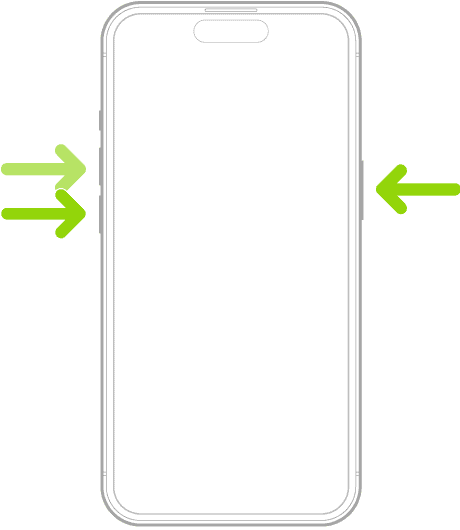
- iPhone 8 and newer: Quickly press and release Volume Up, then Volume Down, then hold the Side button until you see the recovery mode screen.
- iPhone 7/7 Plus: Hold Volume Down + Side button until recovery mode appears.
- iPhone 6s or earlier: Hold Home + Top/Side button.
Step 4: Install iOS 18.5
- In Finder or iTunes, locate your iPhone.
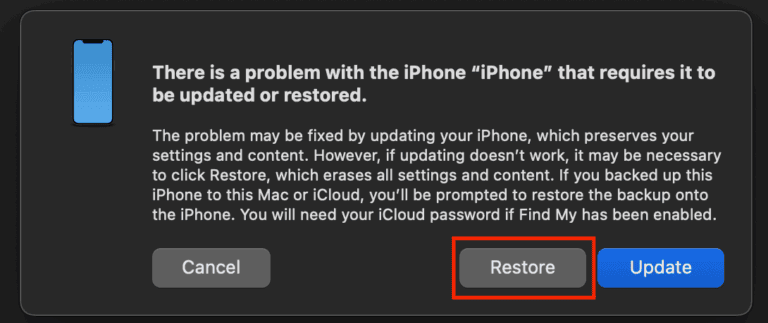
- Hold Option (Mac) or Shift (Windows) and click Restore iPhone.
- Select the iOS 18.5 IPSW file you downloaded.
- Confirm, and let your computer erase your iPhone and install iOS 18.5.
This process can take 10–20 minutes.
Step 5: Set up your iPhone
Once the downgrade finishes:
- If you have an old backup from iOS 18.5, restore it.
- If not, set up as a new device and sync your data from iCloud, Photos, Mail, or other services.
Should you downgrade?
iOS 26 brings new features like Call Screening, Hold Assist, and Genmoji. But if your daily experience is worse, whether it’s lag, or battery drain, rolling back to 18.5 can give you some breathing room until Apple smooths things out.
Related guides
- iOS 26 stuck on Update Requested? Fix it
- iOS 26 overheating: how to fix it
- All reported iOS 26 bugs and fixes
You can downgrade from iOS 26 to iOS 18.5 while Apple is still signing it. Grab the IPSW, restore with Finder or iTunes, and set your iPhone back up. Just remember that backups from iOS 26 won’t work — you’ll need an older backup or start fresh.


Wiped phone with no way to restore to recent backup, even manually backing up. Was this written with ChatGPT?
As mentioned in Things To Do Before You Roll Back from iOS 26 to iOS 18.5, “Apple doesn’t allow you to restore backups created on beta software. To avoid losing your important data, make sure to back up your iPhone data to an external drive or a cloud storage service.” Before upgrading to a beta or major new version, it’s best to archive a backup while still on the older iOS, either in Finder (Mac) or iTunes (Windows).