

If you’ve ever tried installing an app on an older iPhone only to be told it “requires a newer version of iOS,” you know how frustrating it feels. It makes it seem like your device is locked out of the entire App Store. Here’s the thing. You can usually still get older, compatible versions of many apps. Apple just doesn’t make it obvious, and you have to know where to look. So let’s walk through the methods that actually work.
Table of contents
Try downloading from your Purchased list
If you’ve downloaded the app before — even years ago, even on a different device — there’s a good chance you can grab an older version again.
Do this:
Don’t miss the best of The Mac Observer
Set us as a preferred source and our Apple reporting ranks higher in your Google Search results and Discover feed — one tap, no account changes.
- Open the App Store
- Tap your profile icon
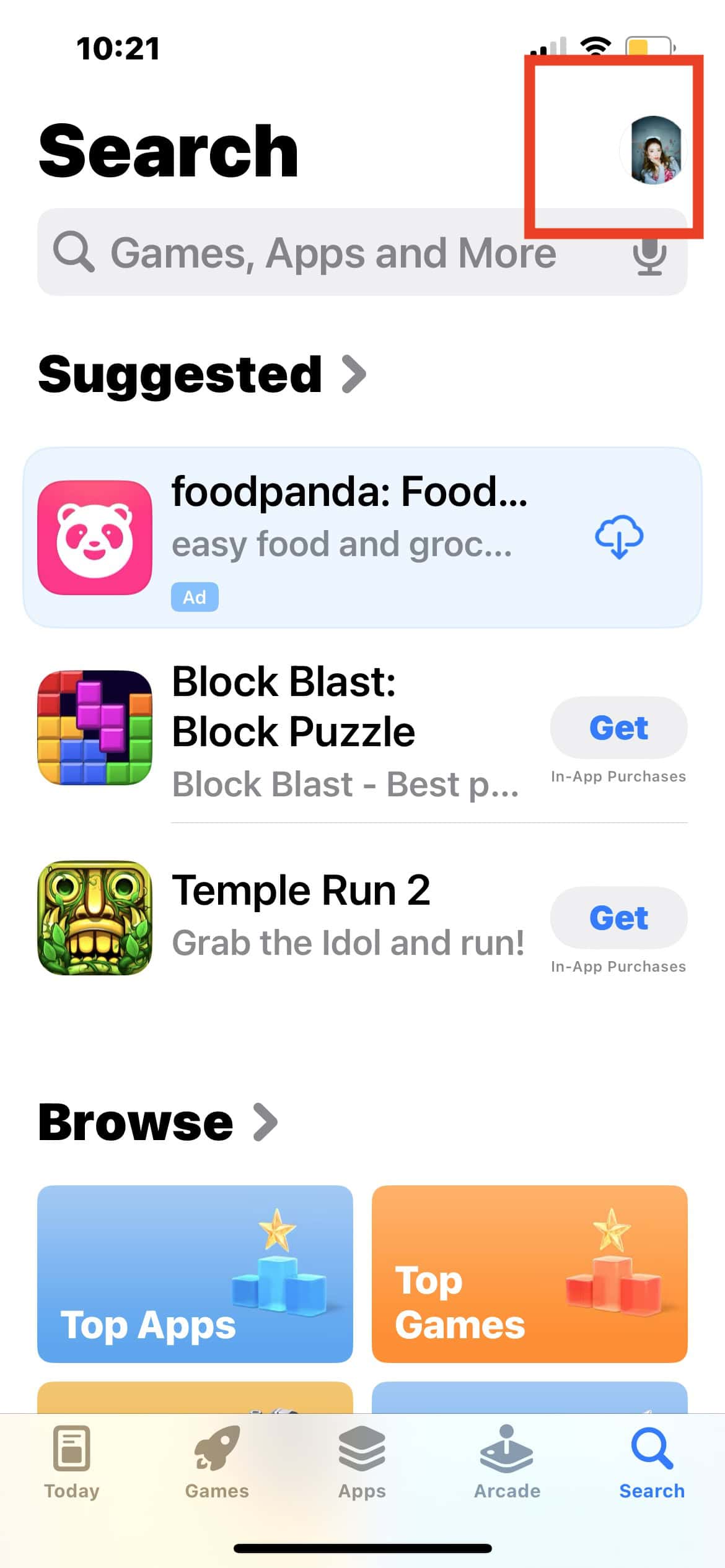
- Open Purchased or Apps
- Search for the app
- Tap the cloud icon to re download
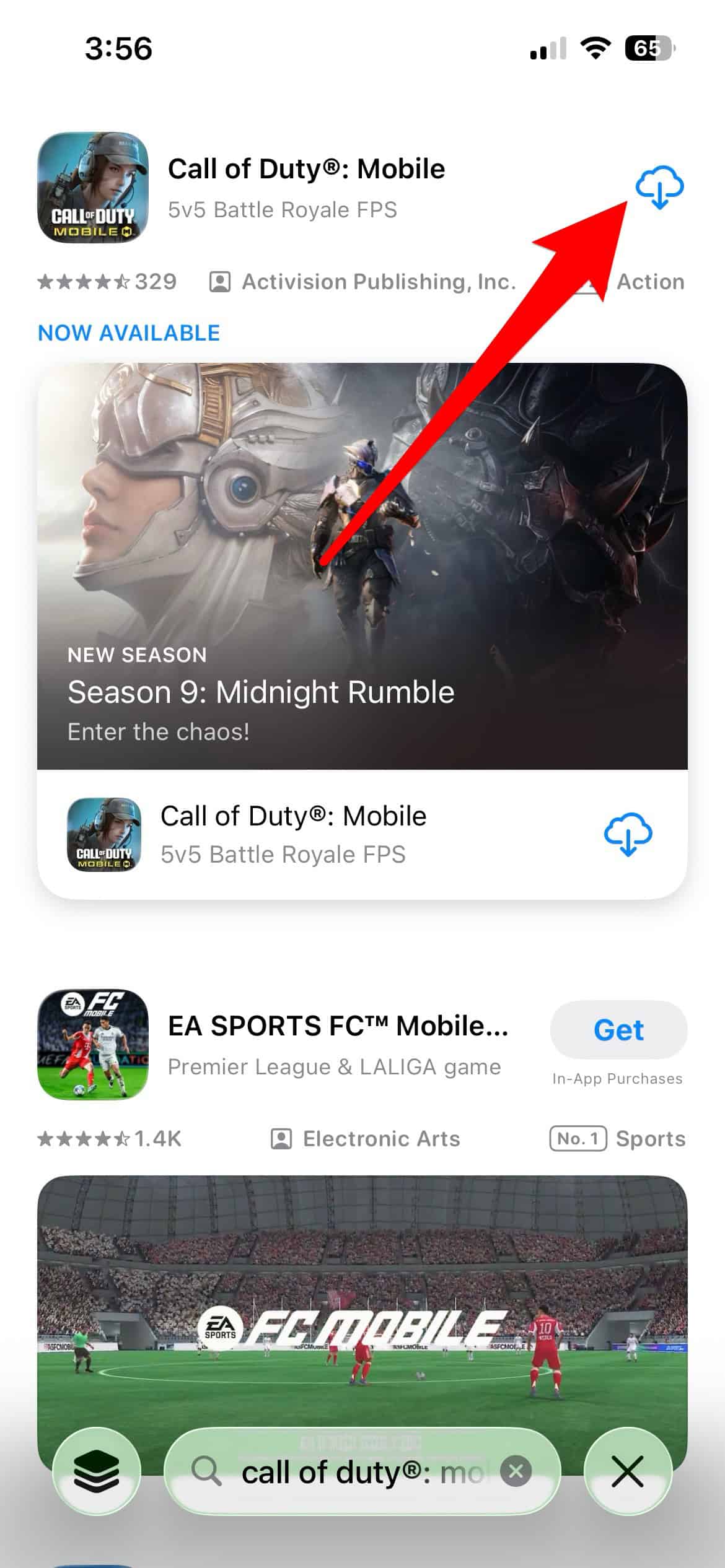


If the developer still offers an older build, you’ll see a prompt asking if you want to download a previous version. Tap Download and you’re set.
If the app isn’t in your Purchased list, it means you never downloaded it with this Apple ID. But you still have options.
Use a newer device to “unlock” the app

This trick solves the problem for a lot of people. Your Apple ID just needs the app in its history once. That’s it. And the easiest way to do that is by installing the app on a newer device first.
Here’s how:
- Borrow a newer iPhone or use another one you already own
- Sign in with the same Apple ID
- Download the app
- Go back to your older iPhone
- Download it again from the App Store or from Purchased
This usually triggers the prompt asking if you want the older version. Accept it, and it installs.
Sign in with a friend or family member’s Apple ID
Not ideal, but it works. If someone you trust already owns the app, have them sign into the App Store on your device long enough to download it from their Purchased list. Once it’s installed, they can sign out and you can switch back to your own account.
The catch is you’ll need them again if you ever delete the app. So use this only when you’re out of other options.
Try the older iTunes method
If you’re sitting at a computer, you can use iTunes 12.6.5 or earlier. These versions still include the App Store. Download the app there, and it gets added to your purchase history. Then your older iPhone should offer the older version.
This method is fading as Apple moves on, but it’s still possible if you can install that version of iTunes.
Look for alternative apps
Sometimes the app you want simply doesn’t offer backward compatibility. When that happens, scroll to the You Might Also Like section in the App Store or search for similar tools. There’s often another app that does the job and still supports older iOS versions.
What to keep in mind
Older apps can be unstable. They don’t receive updates. They may have security risks. And eventually, even the older compatible versions may stop working entirely.
Still, if you’re holding onto a vintage iPhone, these methods give you a fighting chance at keeping it useful.
Final takeaway
Your older iPhone isn’t out of the game yet. With the right steps — Purchased history, a newer device, or a bit of creativity — you can still download a surprising number of apps that seem “incompatible” at first glance. You just need to know where the door is.


Thanku brobro will use on the iPhone 3