
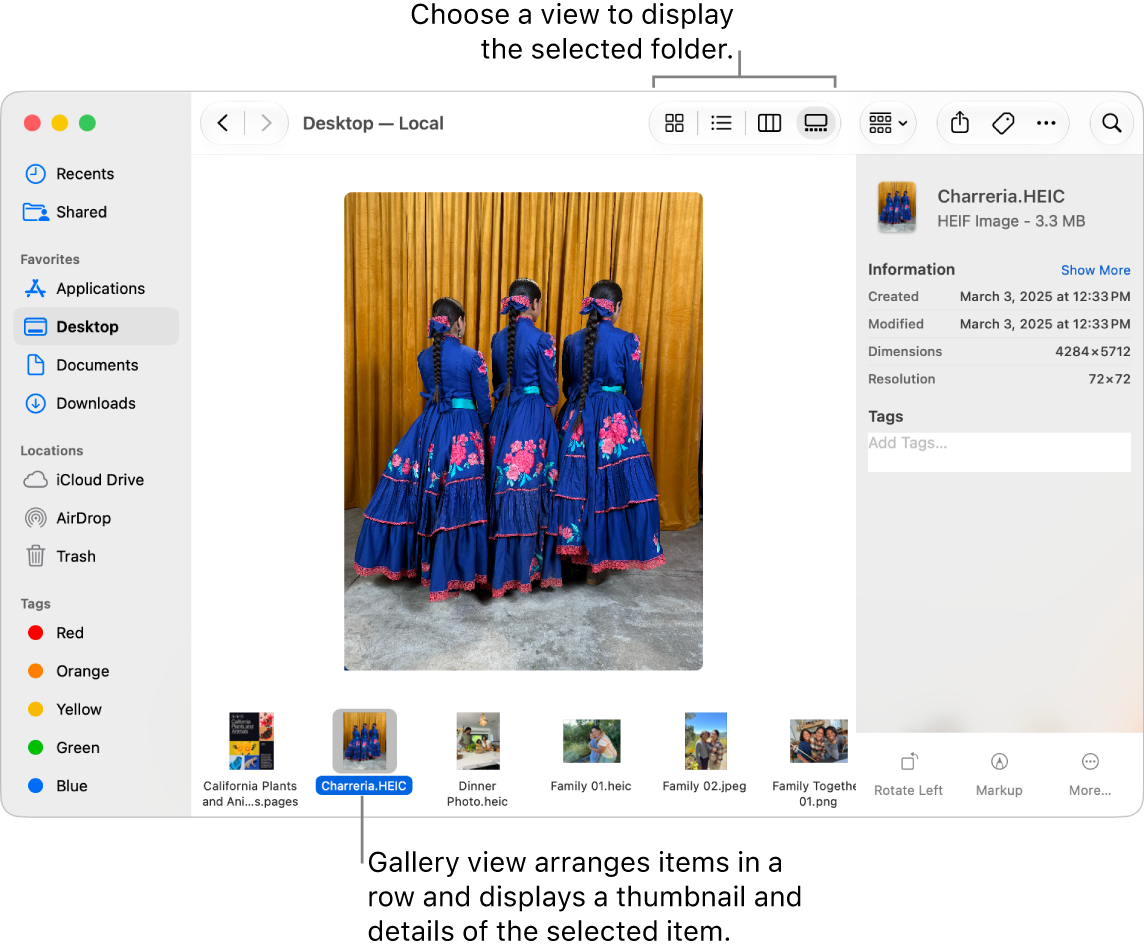
Open the parent folder, switch it to List view and press Command-J. Select Always open in list view and Browse in list view. If one subfolder keeps opening as icons, check that subfolder’s own settings. It can have a saved view that takes precedence.
Set the parent folder first
- Open the actual folder you want to change, such as Receipts. The name at the top of the Finder window should be the parent folder, rather than its containing folder with Receipts merely selected.
- Choose View > as List, then View > Show View Options. Enable the two list-view options. “Always open” controls the folder itself. “Browse in” carries that view into its subfolders.
- Set the columns that make the list useful. For example, Control-click a column header to show Date Modified or Size. Click a visible column heading to sort by it. If you want dates like “Nov 23” instead of “Today,” you can also change relative dates in Finder.
- Close View Options and open a subfolder from within the parent. Check whether it opens as a list. Then open a second subfolder to distinguish a folder-specific override from a parent setting that didn’t take.
Fix one folder without changing the rest of Finder
Open the subfolder that behaves differently and press Command-J. Clear its Always open in and Browse in settings. Leave those settings enabled on the parent. Go back up and enter the subfolder again to check the result.
Use as Defaults has a wider effect. It applies the view’s settings to folders using the same view and is unavailable for Column view. If you want List view across one client’s project folders but prefer Gallery view for your photo archive, leave that button alone. Apple describes Finder’s folder-level and default view rules.
Featured image: Finder in Gallery view; the view buttons switch between layouts. Credit: Apple.
Don’t miss the best of The Mac Observer
Set us as a preferred source and our Apple reporting ranks higher in your Google Search results and Discover feed — one tap, no account changes.




Discussion