

TerminalTime™
Now it’s time to head into the Terminal. Apple Mail signatures are saved as special files with the .mailsignature extension. These aren’t easy to find when browsing in Finder, even if you show hidden files. Instead, it’s much easier to use Terminal.
Since we used iCloud to save the signature, the code you can copy and paste is:
ls -laht ~/Library/Mobile\ Documents/com~apple~mail/Data/V4/Signatures/
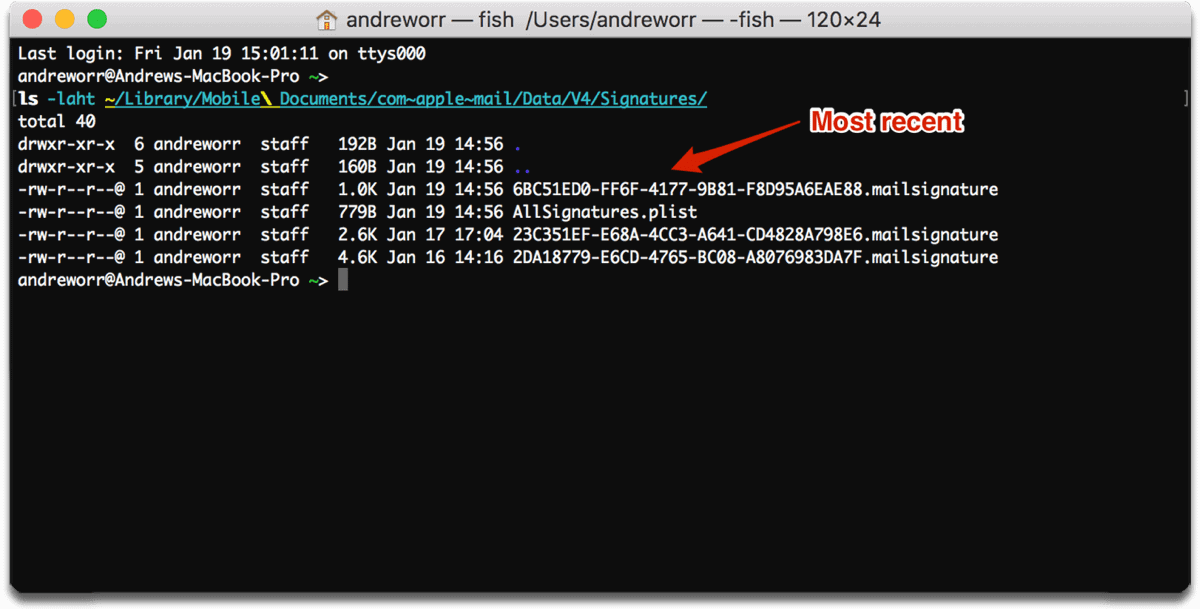
This will bring up a list of email signature code. Your most recently created signature will be at the top of the list, ending with .mailsignature. Now, we’re going to open those files in TextEdit with the following command:
open -a TextEdit ~/Library/Mobile\ Documents/com~apple~mail/Data/V4/Signatures/*.mailsignature
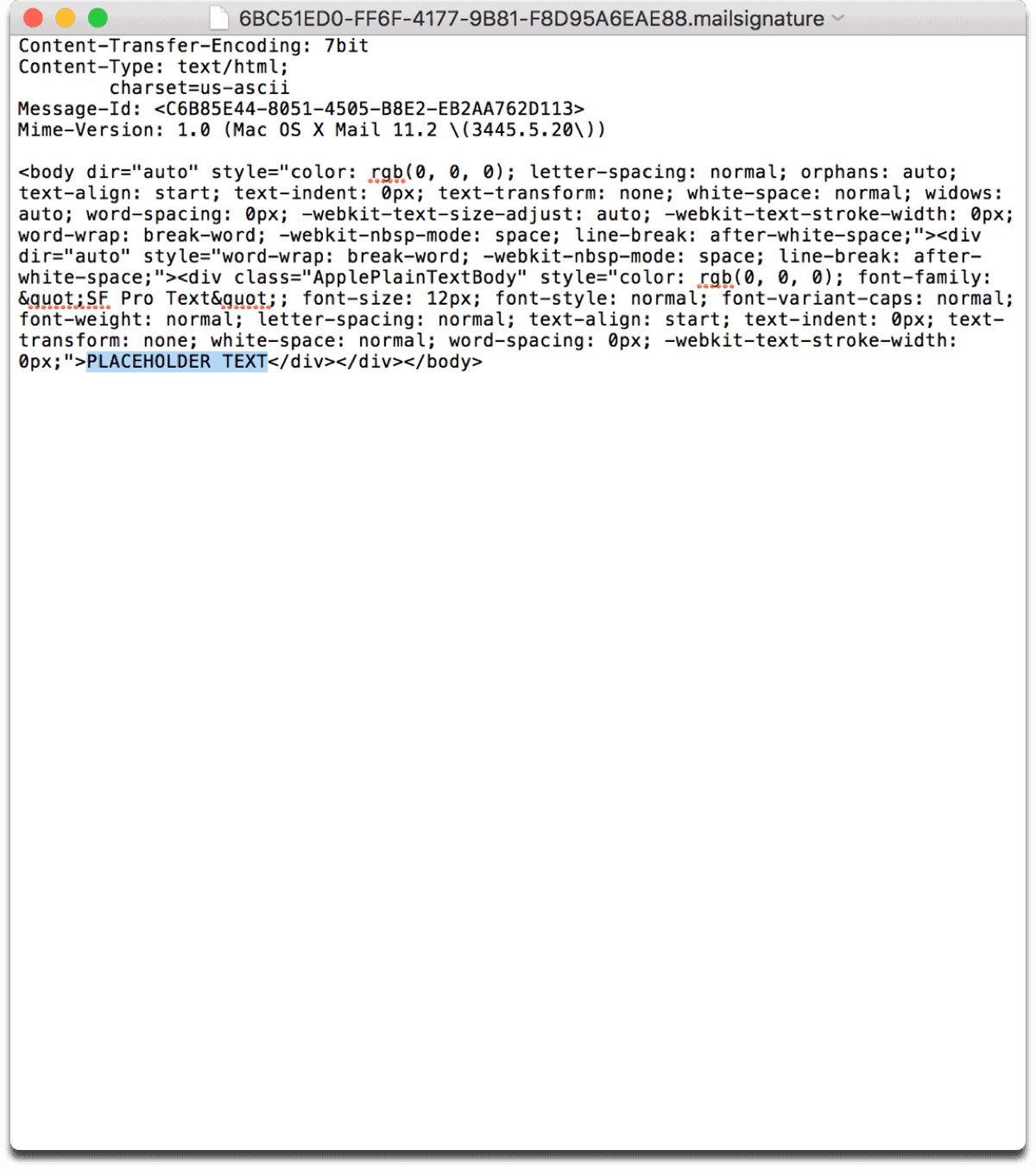
This will open TextEdit with each .mailsignature file. If you have more than one signature, more than one TextEdit tab will open. Find the one that matches the corresponding most recent file in Terminal. For me, I have to search for the one that begins with 6BC. It will probably be the first tab.
Remember when we used PLACEHOLDER TEXT? It should be easy to find in the TextEdit window, so you know you have the correct one.
Don’t miss the best of The Mac Observer
Set us as a preferred source and our Apple reporting ranks higher in your Google Search results and Discover feed — one tap, no account changes.




What an absolutely bloody fantastically clear guide to doing this. Thank you so much. Brilliant!
Wow, super job Andrew! Sad that Apple doesnt let you do this easier, but really appreciate you showing us the flaming hoops!
Thanks John, this was a bit more complex than I thought at first!