

Cut & Paste
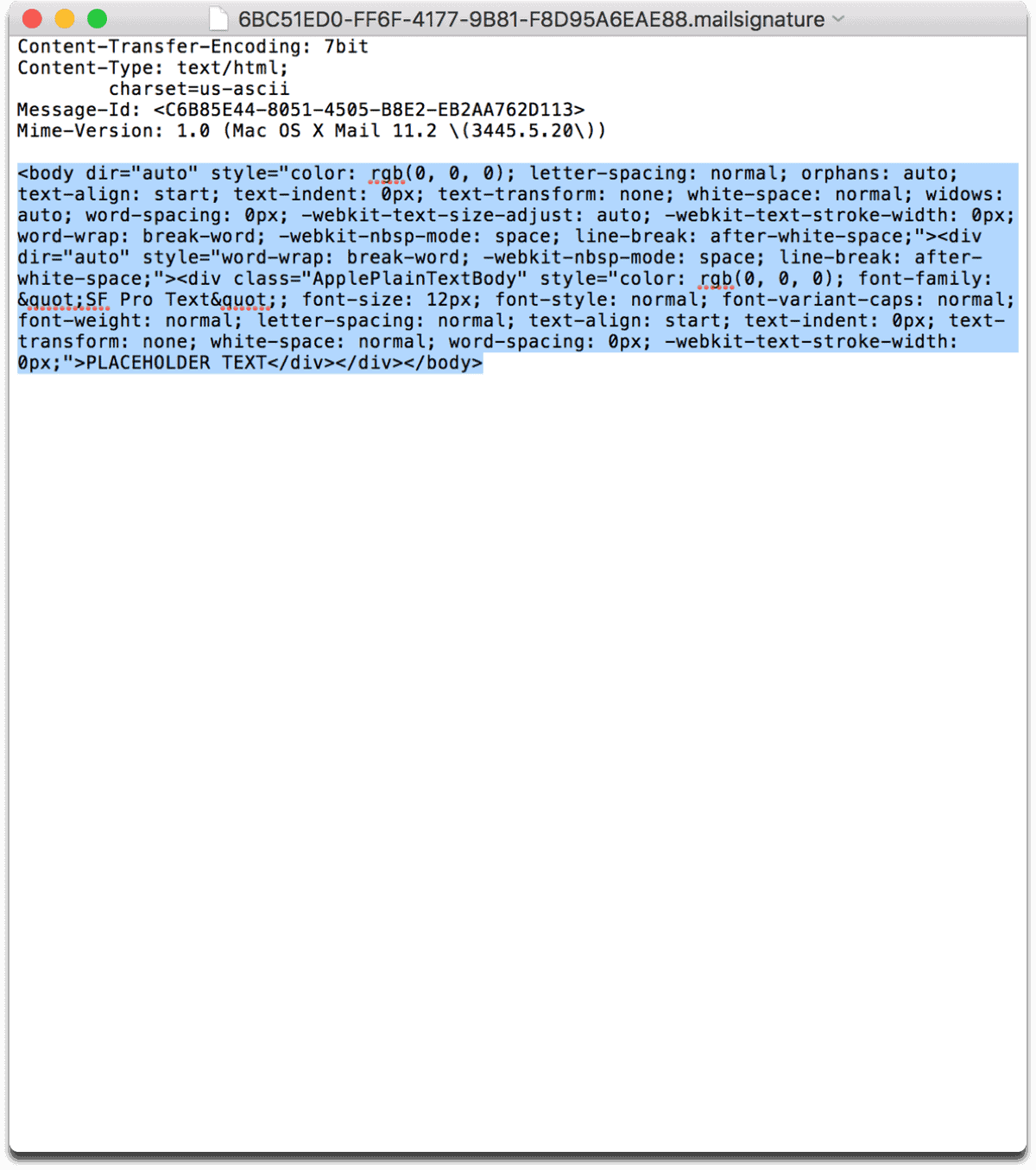
In the mail signature file in TextEdit, highlight the code and delete it. Make sure to keep the header, and ONLY delete the text that begins and ends with <body>, as shown in the below image.
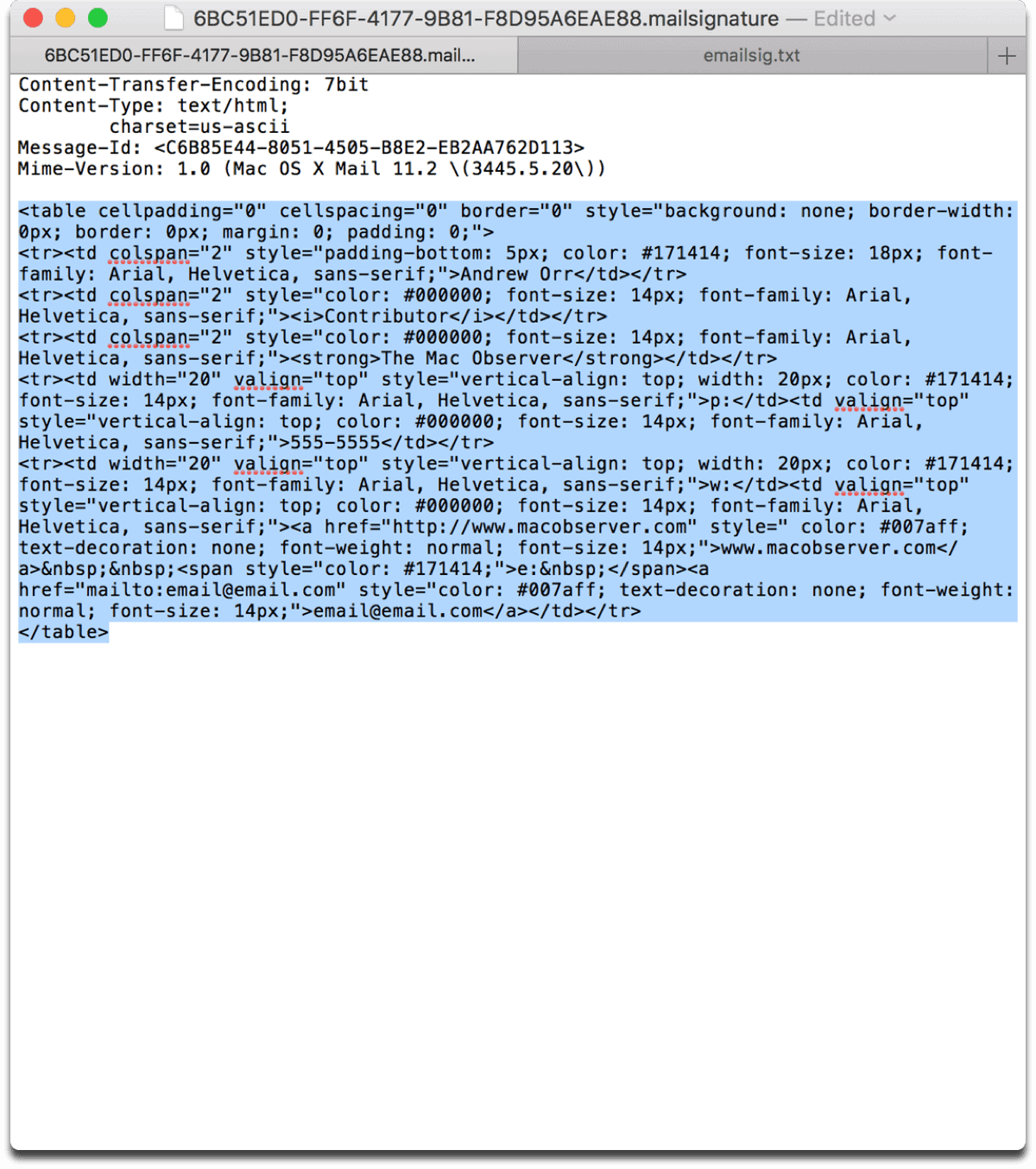
Now, open the email signature file we created earlier. Copy and paste the HTML code in the exact same space that the old code inhabited, as seen below. After that, you can save and close TextEdit.
Back to Mail
Finally, we can go back to Apple Mail. Open up Preferences again and go to the signature you created. You’ll see the new HTML signature in the right pane.
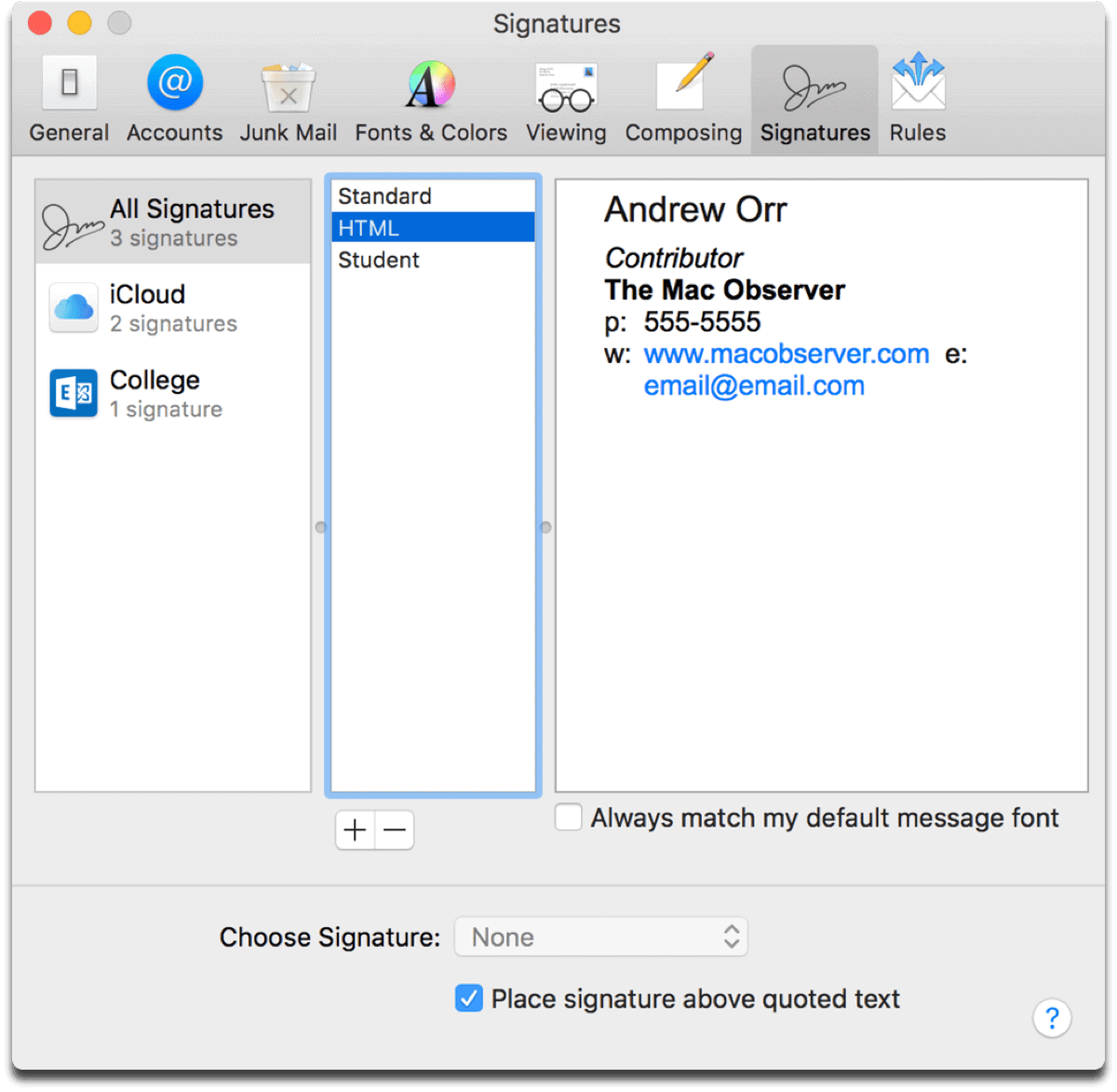
If the signature looks a little funky, like mine does, you can repeat the above steps. And, if you know HTML code, you can customize it to your liking. But that’s outside the scope of this article.
Don’t miss the best of The Mac Observer
Set us as a preferred source and our Apple reporting ranks higher in your Google Search results and Discover feed — one tap, no account changes.




What an absolutely bloody fantastically clear guide to doing this. Thank you so much. Brilliant!
Wow, super job Andrew! Sad that Apple doesnt let you do this easier, but really appreciate you showing us the flaming hoops!
Thanks John, this was a bit more complex than I thought at first!