
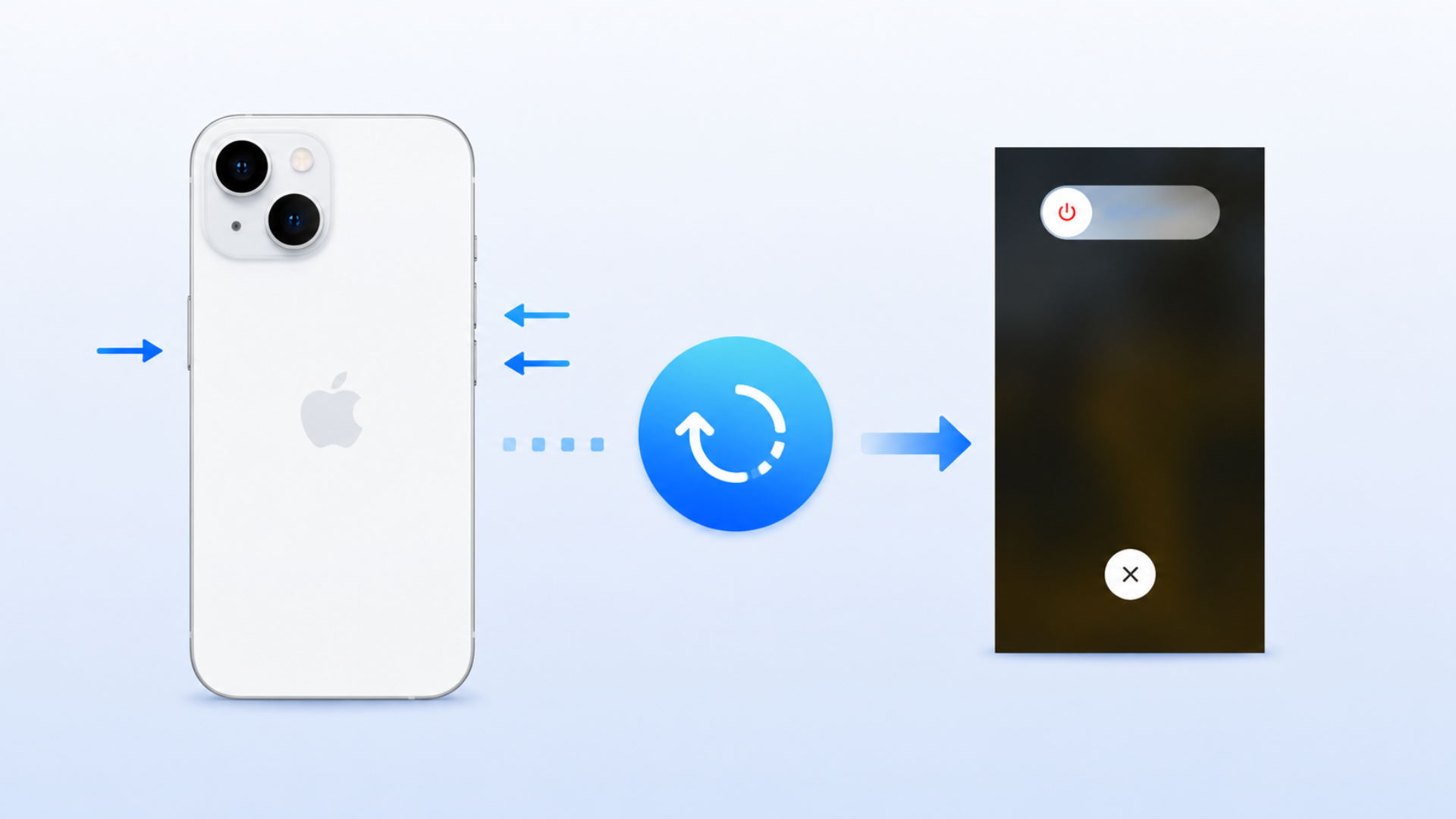
If your iPhone is running slowly, apps keep crashing, or the screen becomes unresponsive, restarting the device is often the quickest fix. Apple offers several ways to restart an iPhone depending on the problem you’re facing. A standard restart works for minor issues, while a force restart can help when the phone is frozen. In more serious cases, a factory reset may be necessary.
This guide explains how to restart an iPhone using all available methods, including soft restart, force restart, and factory reset options.
Table of contents
Soft Restart (Normal Restart)
A soft restart is the safest and most common way to reboot your iPhone. It closes background processes and refreshes the system without deleting any data.
Don’t miss the best of The Mac Observer
Set us as a preferred source and our Apple reporting ranks higher in your Google Search results and Discover feed — one tap, no account changes.
For iPhone X, iPhone 11, iPhone 12, iPhone 13, iPhone 14, iPhone 15, iPhone 16, and newer
- Press and hold either Volume Up or Volume Down together with the Side button.
- Wait until the Power Off slider appears.
- Drag the slider to turn off your iPhone.
- Wait about 30 seconds.
- Press and hold the Side button until the Apple logo appears.
For iPhone 6, iPhone 7, iPhone 8, and iPhone SE (2nd and 3rd Generation)
- Press and hold the Side button.

- When the Power Off slider appears, drag it.
- Wait 30 seconds for the device to shut down completely.
- Press and hold the Side button until the Apple logo appears.
For iPhone SE (1st Generation), iPhone 5, and Earlier
- Press and hold the Top button.
- Drag the Power Off slider.
- Wait around 30 seconds.
- Press and hold the Top button until the Apple logo appears.
Force Restart iPhone (Hard Reset)
If your iPhone is frozen, stuck on a black screen, or not responding to touch, a force restart can help. Unlike a normal restart, this method immediately reboots the device without requiring the Power Off slider.
For iPhone 8 and Later
- Quickly press and release the Volume Up button.
- Quickly press and release the Volume Down button.
- Press and hold the Side button.
- Keep holding until the Apple logo appears.
- Release the button and wait for the iPhone to restart.
For iPhone 7 and iPhone 7 Plus
- Press and hold the Volume Down button and the Side button together.
- Continue holding both buttons.
- Release them when the Apple logo appears.
For iPhone 6s, iPhone SE (1st Generation), and Earlier
- Press and hold the Home button and Power button together.
- Keep holding until the Apple logo appears.
- Release both buttons.
When Should You Use a Force Restart?
Use this method when:
- The screen is frozen.
- Apps stop responding.
- The iPhone gets stuck on the Apple logo.
- Touch controls stop working.
- The phone becomes extremely slow and unresponsive.
A force restart does not erase your data.
Factory Reset iPhone Without a Computer
A factory reset completely erases your iPhone and restores it to factory settings. Use this only if troubleshooting methods have failed or you plan to sell or give away the device.
Before You Start:
- Back up your iPhone using iCloud or a computer.
- Make sure you know your Apple ID password.
- Keep your phone charged.
Steps
- Open Settings.
- Tap General.
- Select Transfer or Reset iPhone.
- Tap Erase All Content and Settings.
- Review the information shown on screen.
- Tap Continue.
- Enter your passcode.
- Enter your Apple ID password if prompted.
- Choose whether to keep or remove your eSIM.
- Tap Erase iPhone.
- Wait for the process to finish.
After completion, the iPhone will restart and display the Hello setup screen.
Factory Reset iPhone Using a Computer
If your iPhone will not boot properly or you cannot access Settings, you can restore it using a Mac or Windows PC.
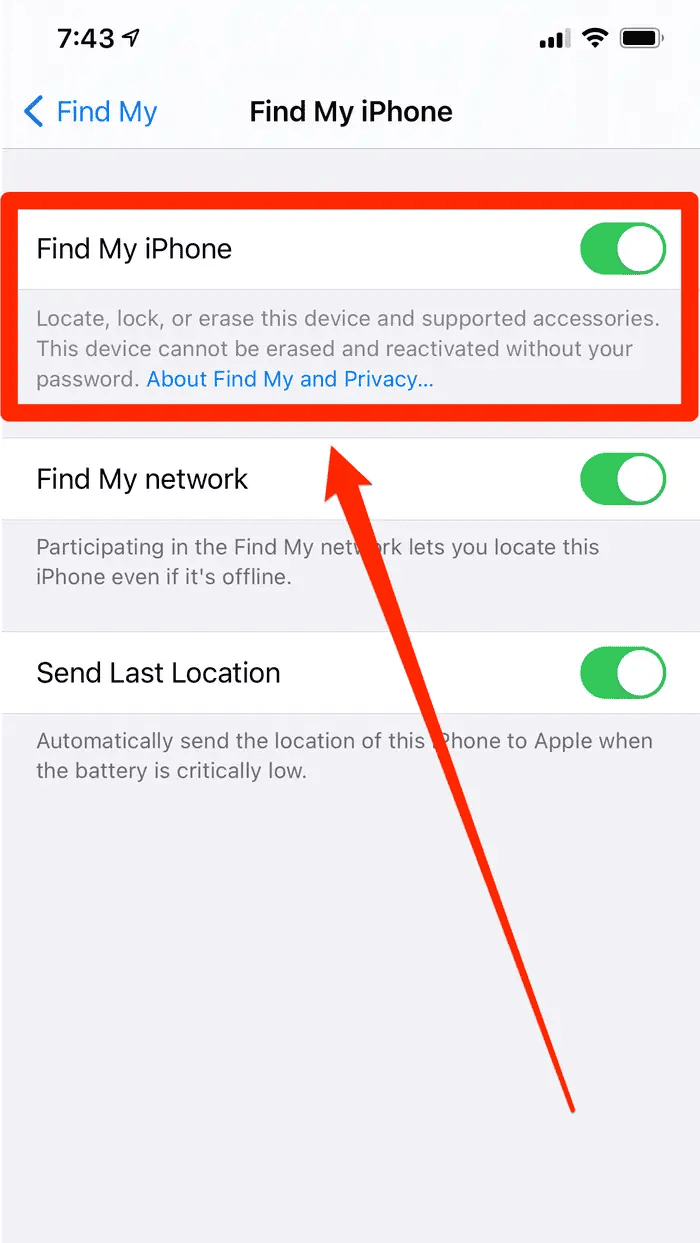
- Turn off Find My iPhone if possible.
- Connect your iPhone to your computer using a USB cable.
- Open Finder on macOS Catalina or later.
- Open Apple Devices or iTunes on Windows or older Macs.
- Select your iPhone.
- Click Restore iPhone.
- Confirm the action.
- Wait while the latest iOS version is installed.
- Set up the iPhone as new or restore from a backup.
FAQs
No. A normal restart or force restart does not delete photos, apps, messages, or settings.
A restart shuts down the iPhone normally and then powers it back on. A force restart immediately reboots the device when it becomes frozen or unresponsive.
Restarting once every week or two can help clear temporary glitches and improve performance.
Yes. A factory reset erases all apps, photos, messages, settings, and personal data unless you restore from a backup afterward.
Try a force restart first. If that doesn’t work, use recovery mode and restore the device through a computer.
Summary
- Use a soft restart for everyday performance issues.
- Use a force restart when your iPhone is frozen or unresponsive.
- Use a factory reset without a computer if software problems persist.
- Use a computer-based restore when the iPhone won’t boot normally.
- Always create a backup before performing a factory reset.
Conclusion
Knowing how to restart iPhone properly can save you from unnecessary troubleshooting and trips to a repair center. Start with a normal restart for minor glitches, move to a force restart if the device is frozen, and only consider a factory reset as a last resort. In most cases, a simple reboot is enough to get your iPhone running smoothly again.




Discussion