
Make two PDFs from the same Keynote presentation. Export a speaker version with presenter notes and create an audience version with those notes excluded. A clear filename helps, but checking the finished audience PDF is what prevents a private cue such as “wait for finance approval” from traveling with the slides.
Export the speaker copy
In Keynote on Mac, select a slide with notes and check that the notes are in the presenter-notes area. Text typed into a text box on the slide itself is part of the slide and will also appear in the audience copy.
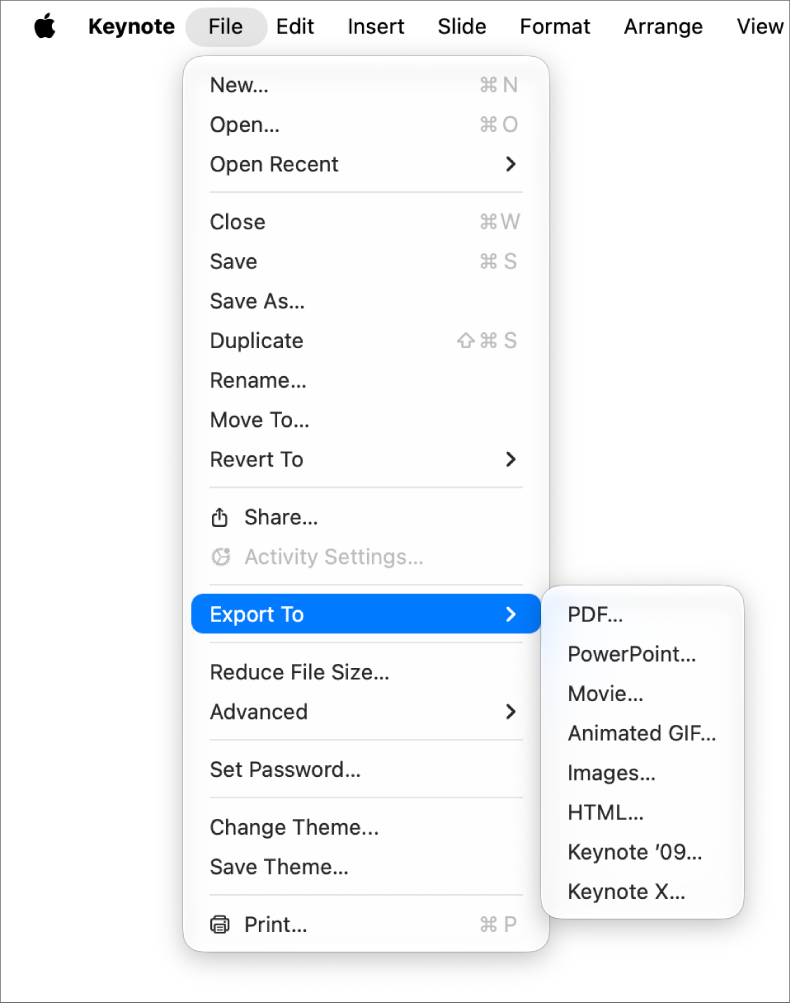
- Choose File → Export To → PDF. Enable the presenter-notes option. Decide whether the speaker needs skipped slides, such as supplementary answers included for a Q&A. Those have a separate setting.
- Review Print each stage of builds. With this option on, an animated chart that reveals four series can produce several PDF pages. Leave it off if the speaker wants one finished slide per page.
- Decide separately whether to include comments. These are editorial conversations and can differ from the script in presenter notes. Export to a filename such as Workshop – speaker.pdf.
Create the version attendees should get
For one slide per page, repeat the PDF export with notes, comments and unwanted skipped slides excluded. For a compact printout, choose File → Print, expand the Keynote options and select Grid or Handout. Choose the number of slides per page and inspect the preview. Use the PDF menu at the bottom of the print dialog to save that layout as a PDF. Name it for attendees.
Open the two files beside each other in Preview. Find a slide with a recognizable speaker-only cue. The cue should appear in the speaker copy and be absent from the audience copy. Check the attendee version at its intended print size as well: a six-slide grid that makes a chart legend unreadable needs fewer slides per page. Send the finished audience PDF if attendees need only the handout.
Keynote PDF export options · Print formats and PDF handouts · How presenter notes work
Don’t miss the best of The Mac Observer
Set us as a preferred source and our Apple reporting ranks higher in your Google Search results and Discover feed — one tap, no account changes.




Discussion