
When a whole row of a CSV appears in one Numbers cell, check the character between two values. A file named .csv can use semicolons or tabs. Numbers can reread it using the right separator, provided you haven’t edited the imported table yet. Keep the source file so you can reopen it if you have.
Reset the column breaks
- Open the text file in Numbers. Click inside the imported table, then open Format → Table → Adjust Import Settings in the sidebar. If you already started correcting cells and the option is gone, reopen the original file and start with that fresh import.
- Select Delimited. Under Separate Values Using, choose the separator that actually appears between fields. Clear an extra separator if it splits part of a value you want to keep. Use the custom field when the separator is something unusual, such as a vertical bar.
- Set Text Qualifier to match the file if values are enclosed in quotation marks. Then choose Update Table and inspect a row with punctuation before doing any cleanup.
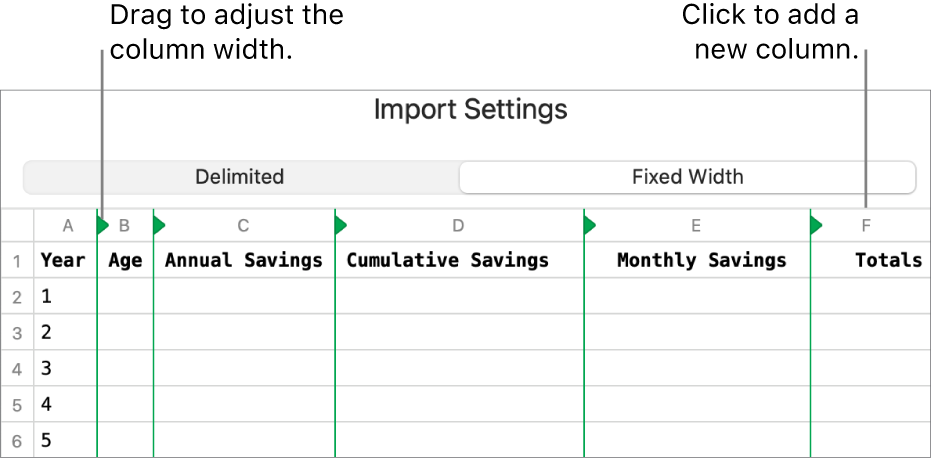
Use a difficult row to check the result
Suppose a record contains Lee;"Paris, France";;18. With a semicolon separator and double quotes as the qualifier, the city belongs in one cell, the next cell is empty, and 18 belongs in the fourth. If the amount moves into column three, check whether Treat consecutive delimiters as one is enabled. Two adjacent separators can be a meaningful blank field.
If the columns line up but an accented name looks wrong, try the Text Encoding option on a fresh import. If there is no separator at all and every field starts at a consistent character position, choose Fixed Width instead and adjust the blue column markers. Finish by comparing a header and several records with the source, especially any containing empty values, quotation marks or addresses.
Apple’s Numbers text-import guide
Don’t miss the best of The Mac Observer
Set us as a preferred source and our Apple reporting ranks higher in your Google Search results and Discover feed — one tap, no account changes.




Discussion