

We have all been there. You are texting a friend, the conversation slows down, and you are looking for a way to keep things interesting without just sending memes back and forth. Enter GamePigeon. It is the ultimate boredom buster tucked right inside your keyboard, and as one of the best iMessage games available, its 8 Ball mode is an absolute classic.
Turning your text thread into a virtual pool hall is surprisingly easy and incredibly addictive. Whether you play casual games to pass the time or you are a pool shark in real life, playing 8 Ball on your iPhone is a great way to connect.
Ready to rack them up? Here is your complete guide to playing 8 Ball on iMessage.
Don’t miss the best of The Mac Observer
Set us as a preferred source and our Apple reporting ranks higher in your Google Search results and Discover feed — one tap, no account changes.
Table of contents
What You’ll Need to Play Eight Ball
Before you challenge your best friend to a match, you need to make sure your digital pool cue is ready to go. You probably have most of these set up already, but let us double check.
- An iPhone or iPad: This feature is exclusive to Apple devices running iOS 10 or later.
- iMessage Enabled: You need to be sending blue bubbles, not green ones. Both you and your opponent must be using iMessage.
- GamePigeon App: This is the specific extension that hosts the 8 Ball game. It does not come pre-installed, so you will need to grab it.
- A Friend: You need someone on the other end to play against!
Here’s How to Play Eight Ball on iMessage
Getting a game started takes just a few seconds. We have broken it down into three simple stages: getting the app, starting the match, and actually playing.
1. Install GamePigeon
If you have never played a game in iMessage before, you need to download the GamePigeon extension first.
- Open the Messages app on your iPhone.
- Tap on a conversation with the friend you want to play.
- Look for the row of app icons above your keyboard. If you do not see it, tap the grey App Store icon next to the text box.
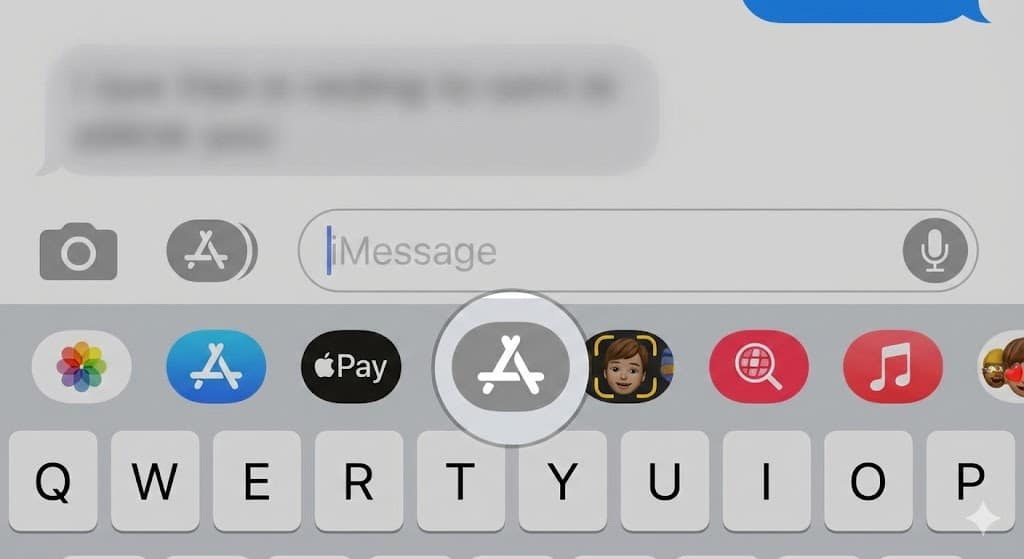
- Tap the blue App Store icon in that row.
- Search for “GamePigeon” (it usually looks like a teal game controller icon).
- Tap Get to install it. It is free!

2. Start a New Game
Now that you have the app, it is time to break.
- Go back to your conversation in Messages.
- Scroll through the app icons above your keyboard until you see the GamePigeon icon.
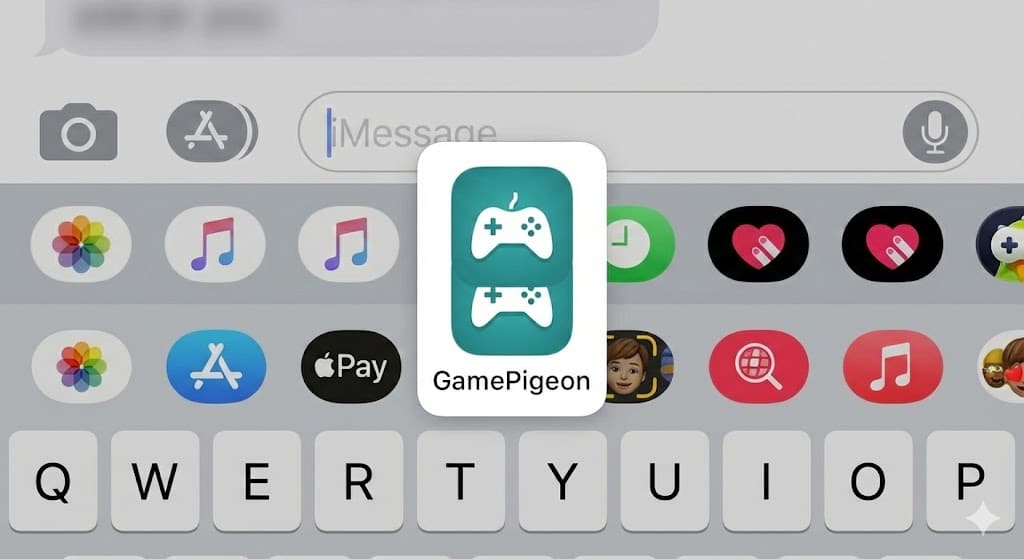
- Tap it to open the game library.
- Select 8 Ball from the list.
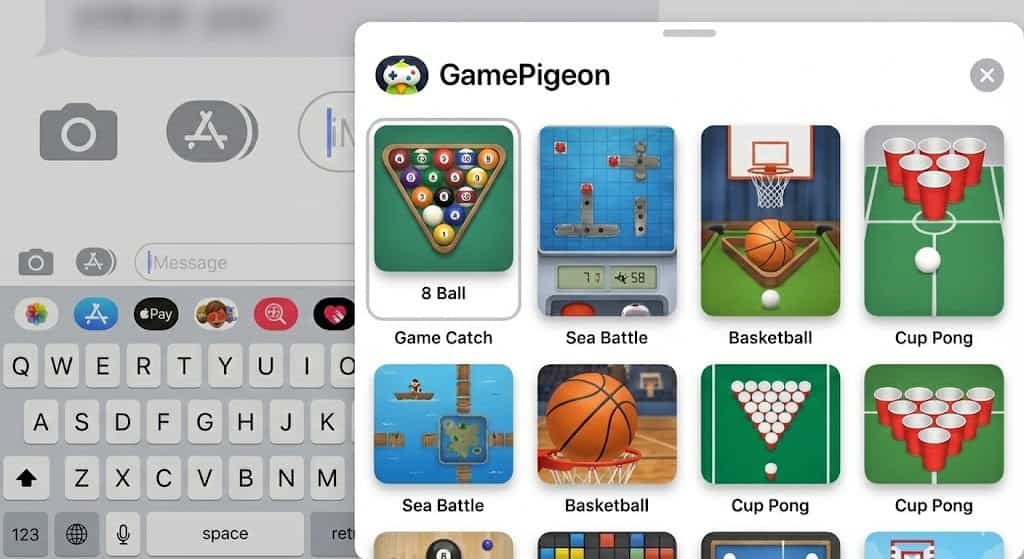
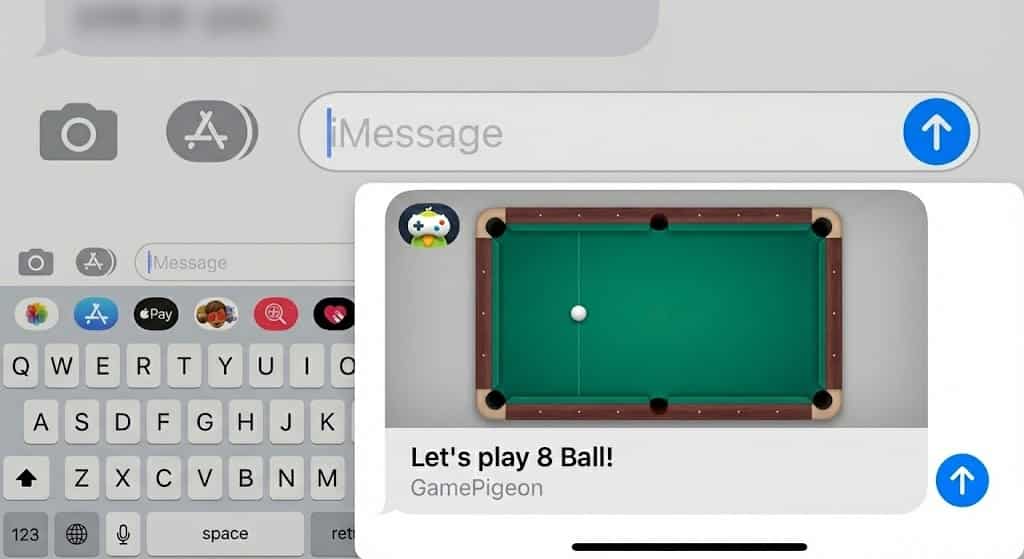
- This will create a game invite in your text box. You can add a taunting message if you like, or just hit the Send arrow.
- Your friend will receive the invite. Once they tap it, the game begins.


3. Playing the Game
The rules are just like real pool. One player is solids (1-7), and the other is stripes (9-15). The goal is to sink all your balls and then sink the black 8 ball to win.
- To Aim: Slide your finger across the screen to rotate the cue stick. The white line shows the path of the cue ball, and the colored line shows where the target ball will go.
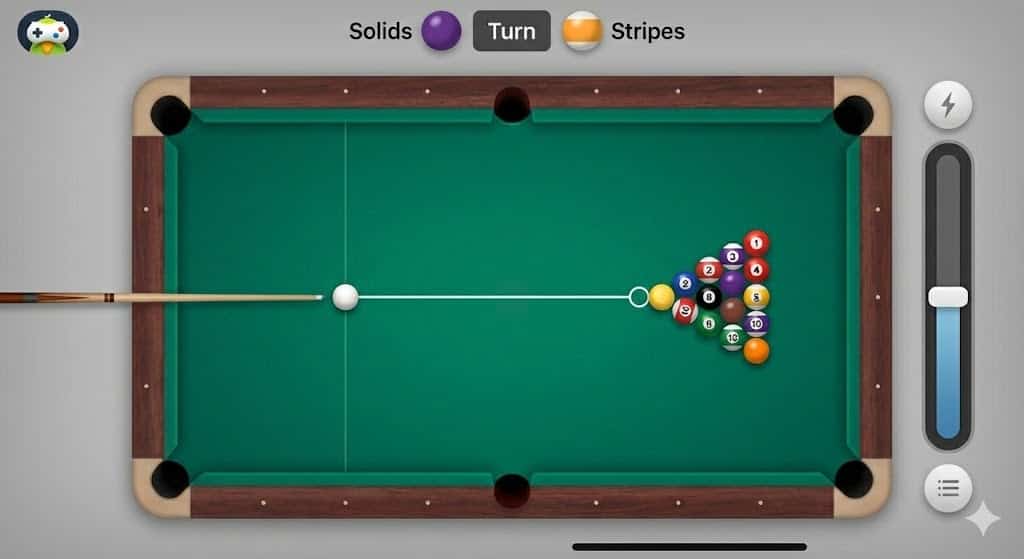
- To Shoot: A power meter will appear on the side (usually a stick image). Pull back on the stick to set your power level. The further you pull back, the harder you hit.
- Release: Let go of the screen to take your shot.
- Taking Turns: After you shoot, the game sends your move to your friend. You have to wait for them to play their turn and send it back to you.

Additional Tips
Winning at iMessage pool takes a bit more finesse than just smashing the balls. While the game isn’t as complex as some of the most immersive simulation games for iPhone, the physics engine is surprisingly robust.
- Use the Fine Tuner: After you line up your shot roughly, look for the small wheel or slider at the bottom of the screen. This allows you to adjust your aim with pixel-perfect precision.
- Don’t Scratch: If you sink the white cue ball (a “scratch”), your opponent gets to place the ball anywhere they want. Be careful with your power levels.
- Watch the Spin: You can tap the white ball icon on the screen to add “English” or spin to your shot. Top spin makes the ball follow through, while backspin makes it stop or roll back after impact.
Final Thoughts
Playing 8 Ball on iMessage is one of those simple pleasures that makes owning an iPhone fun. It might not have the massive budget of the best iPhone games of 2025, but it is low pressure, turn based (so you can play at your own pace), and a fantastic way to keep in touch with friends.
So next time the group chat goes quiet, do not just let it fade away. Send an 8 Ball invite and see who the real pool shark is.
FAQs
No, unfortunately. GamePigeon and iMessage games only work between Apple devices. If you text an Android user, they will just receive a link they cannot play.
Just like in real pool, if you sink the black 8 ball before you have cleared all your other balls, you automatically lose the game.
Yes, the app is free to download and play. There are some optional in-app purchases for cosmetic items like different pool cues or table skins, but the core game costs no.


Discussion