
Contacts on the Mac can place postal addresses directly onto a sheet of adhesive labels. The two settings that matter are the people you select and the layout that matches your paper. A correct address can still print across a label seam if you pick the wrong stock.
Match the print job to your label sheet
- Open Contacts and select the recipients or a contact list. Check that the cards actually contain postal addresses. A person with only an email address or phone number will drop out of the label run.
- Choose File > Print. In the print dialog, expand Contacts if its options are collapsed. Set Style to Mailing Labels.
- Click Layout and choose the page type and stock that match the label packaging. Have the product number nearby if the layout offers several similar choices. If your stock is not listed, Define Custom lets you enter a matching layout.
- In Label, choose what to include. Add the company name for business mail or the country for international recipients, if those fields are present on the cards. Check the preview for long names and multi-line addresses.
Run plain paper through first
Print one test on ordinary paper using the same paper size and settings. Hold it behind an unused label sheet against the light. Compare the top-left and bottom-right positions. If the first label is close but the last row drifts, revisit the paper size and layout before adjusting the source addresses.
Once the alignment is right, load the label sheet in the orientation specified by your printer and print the job again. If a recipient was absent from both the preview and test page, check their postal address and the original selection. If the printed name order looks wrong on every label, check the Show First Name setting in Contacts’ General settings.
For just one return-address label, select your own contact card instead of the full mailing list. Use Mailing Labels again. The neighboring Envelopes style is intended for feeding envelopes through the printer and produces a different layout.
Apple’s mailing-label print settings
If you have a printer that takes envelopes directly, Contacts can also print the address on the envelope.
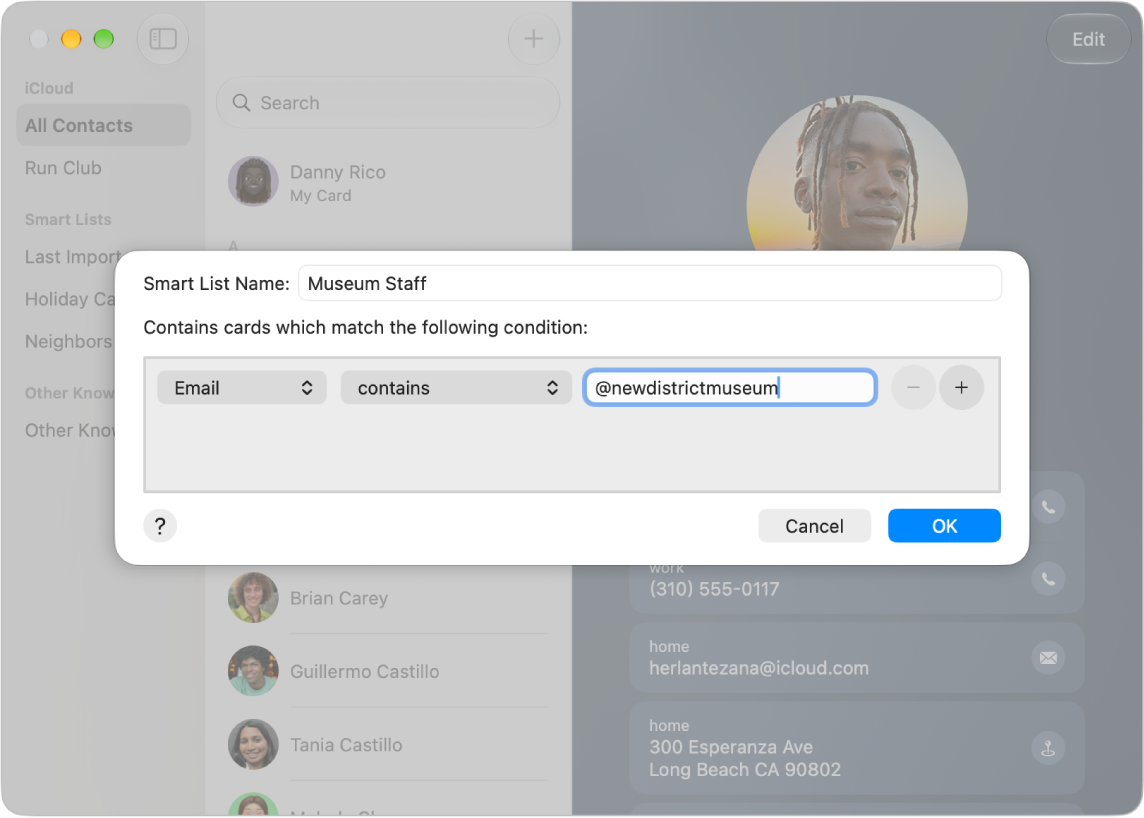
Featured image: The Contacts app and its Smart List dialog. Credit: Apple.
Don’t miss the best of The Mac Observer
Set us as a preferred source and our Apple reporting ranks higher in your Google Search results and Discover feed — one tap, no account changes.




Discussion