
Make a copy of the PDF in Finder and open that copy in Preview. Choose Tools > Redact and select the words you want to remove. When you’ve checked all the marked passages, save and close the copy. Preview makes the redactions permanent when the document closes.
Start with a separate release copy
Suppose you’re sending a repair estimate and want to share the itemized work while keeping your address private. In Finder, select the estimate, press Command-D, and give the duplicate a name such as Estimate for sharing.pdf. Work on that file. When a change becomes permanent, the original is still available if you selected the wrong line.
- Open the duplicate in Preview. Choose Tools > Redact, or open the Markup toolbar and select the redaction tool.
- Drag across the text to remove. Check the start and end of each selection. Names and addresses sometimes appear again in a footer, payment stub or second-page header.
- Use Command-F to find other occurrences of a distinctive surname, street name or reference number. Inspect the pages visually too, especially if the PDF contains screenshots or scans.
- Save the duplicate and close the document. Open the saved copy again and check the marked locations.
Check what the recipient can still read
Search the reopened file for the text you removed. Also inspect any table of contents: Apple says an entry linking to redacted text can remain. If the heading itself reveals the information, resolve that separately before sending the file. A scan may display text that a search cannot find, so an empty search result alone cannot establish that the document is clear.
An ordinary filled rectangle or a cropped page can look just as opaque on your screen. Use the actual redaction tool for text you need removed. Send the checked duplicate, and keep the original out of the attachment list. Apple’s Preview guide describes redactions, editable markup and the table-of-contents exception.
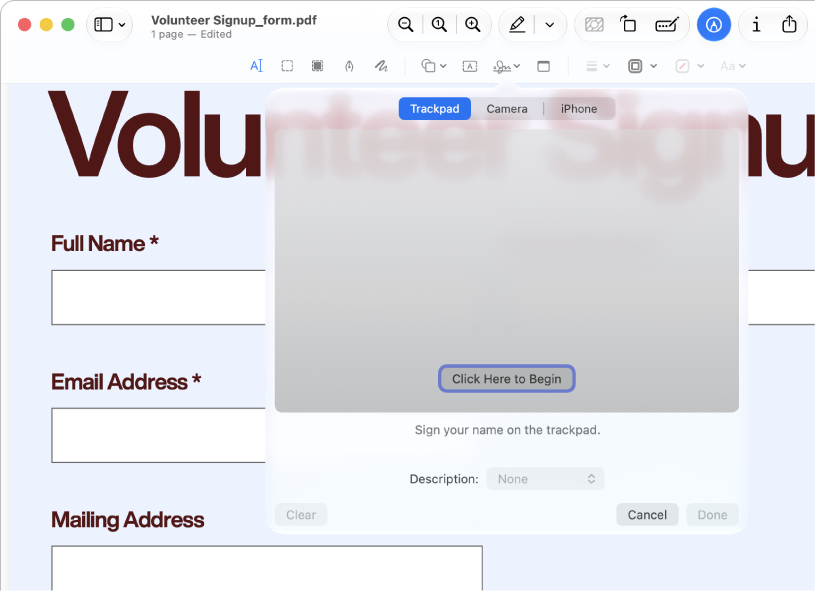
Featured image: Preview displaying PDF markup and signature controls. Credit: Apple.
Don’t miss the best of The Mac Observer
Set us as a preferred source and our Apple reporting ranks higher in your Google Search results and Discover feed — one tap, no account changes.




Discussion