
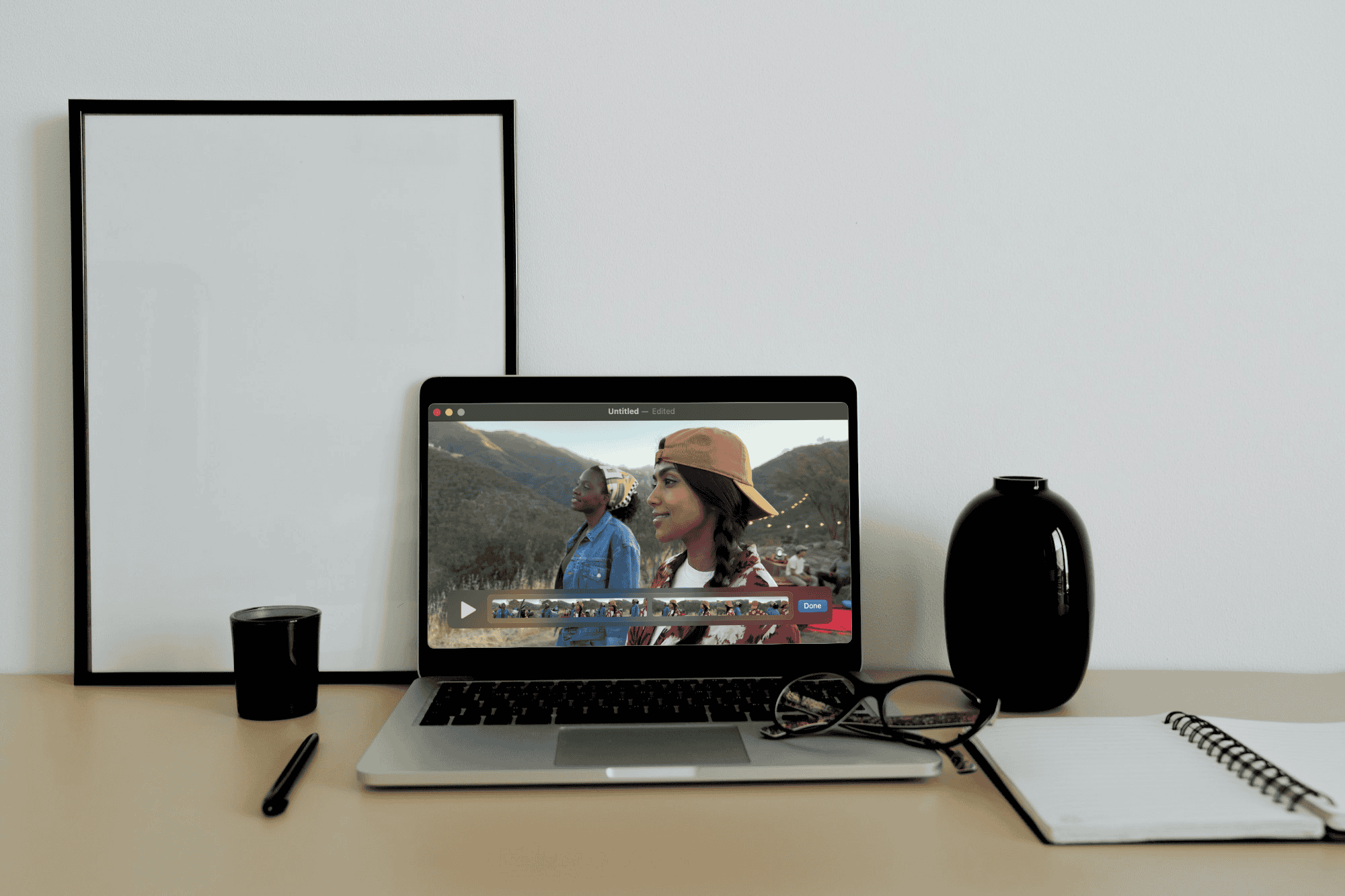
If you want to send a video without the conversation in the background, make a copy and use Edit → Remove Audio in QuickTime Player on the Mac. Turning the player volume down can make a clip sound silent on your computer while leaving its soundtrack in the file you send.
Make a silent copy
- In Finder, select the video and press Command-D to duplicate it. Give the duplicate a recognizable name, such as Kitchen walkthrough – silent. Keep the original if you might need the soundtrack later.
- Open the duplicate in QuickTime Player. If another app normally opens that file type, Control-click the file and choose Open With → QuickTime Player.
- Choose Edit → Remove Audio. The picture stays in the movie. The adjacent Remove Video command produces the opposite result, so check the menu label before selecting it.
- Save the edited movie. If QuickTime asks for a new filename or location, choose one that clearly identifies the silent version.
Verify the actual file
Close the movie and reopen the saved copy from Finder. Turn up the player volume and play a section where you know someone spoke. For a second check, open Window → Show Movie Inspector. Compare the format details of the original and the copy. The original should show its audio format, while the silent copy should retain the video and have no accompanying audio track.
If Remove Audio is unavailable, inspect the source before trying to export it again. A movie that already contains only video has no sound track to remove. A clip with a silent audio track is a different case: the inspector can still show an audio format even when your headphones produce no sound.
This removes sound for the entire movie. If you want to keep the interview and mute only the few seconds before it starts, use an editor with a timeline for that selective change. When sharing, attach the saved silent copy from Finder rather than returning to the original recording. Apple’s instructions for removing tracks and QuickTime’s Movie Inspector.
If you need to keep the soundtrack as a separate deliverable as well, export an audio-only copy in QuickTime from the original recording.
Featured image: QuickTime Player on a Mac. Credit: TMO archive.
Don’t miss the best of The Mac Observer
Set us as a preferred source and our Apple reporting ranks higher in your Google Search results and Discover feed — one tap, no account changes.




Discussion