

If your Apple Watch keeps asking for a passcode and you do not want it anymore, you are in the right place. This guide explains how to turn off and remove the passcode on your Apple Watch, what to do if the option is greyed out, and what happens after you remove it!
Table of contents
How to Remove the Passcode from Your Apple Watch?
1. Remove passcode directly on the watch
- Press the Digital Crown to go to the apps screen.
- Tap Settings, then choose Passcode.
- Tap Turn Passcode Off and confirm by entering your current passcode.
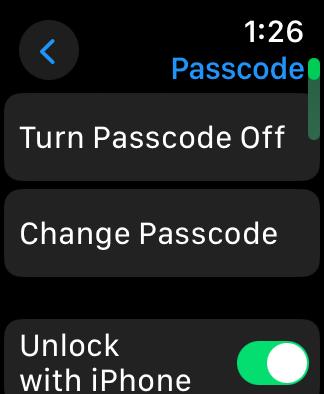

Keep in mind that this removes Apple Pay, Wallet cards, and the ability to unlock your Mac with the watch, but there’s no data loss.
2. Remove passcode using your iPhone
- Open the Watch app on your iPhone.
- Tap the My Watch tab, then go to Passcode.
- Select Turn Passcode Off and confirm using the watch’s passcode.
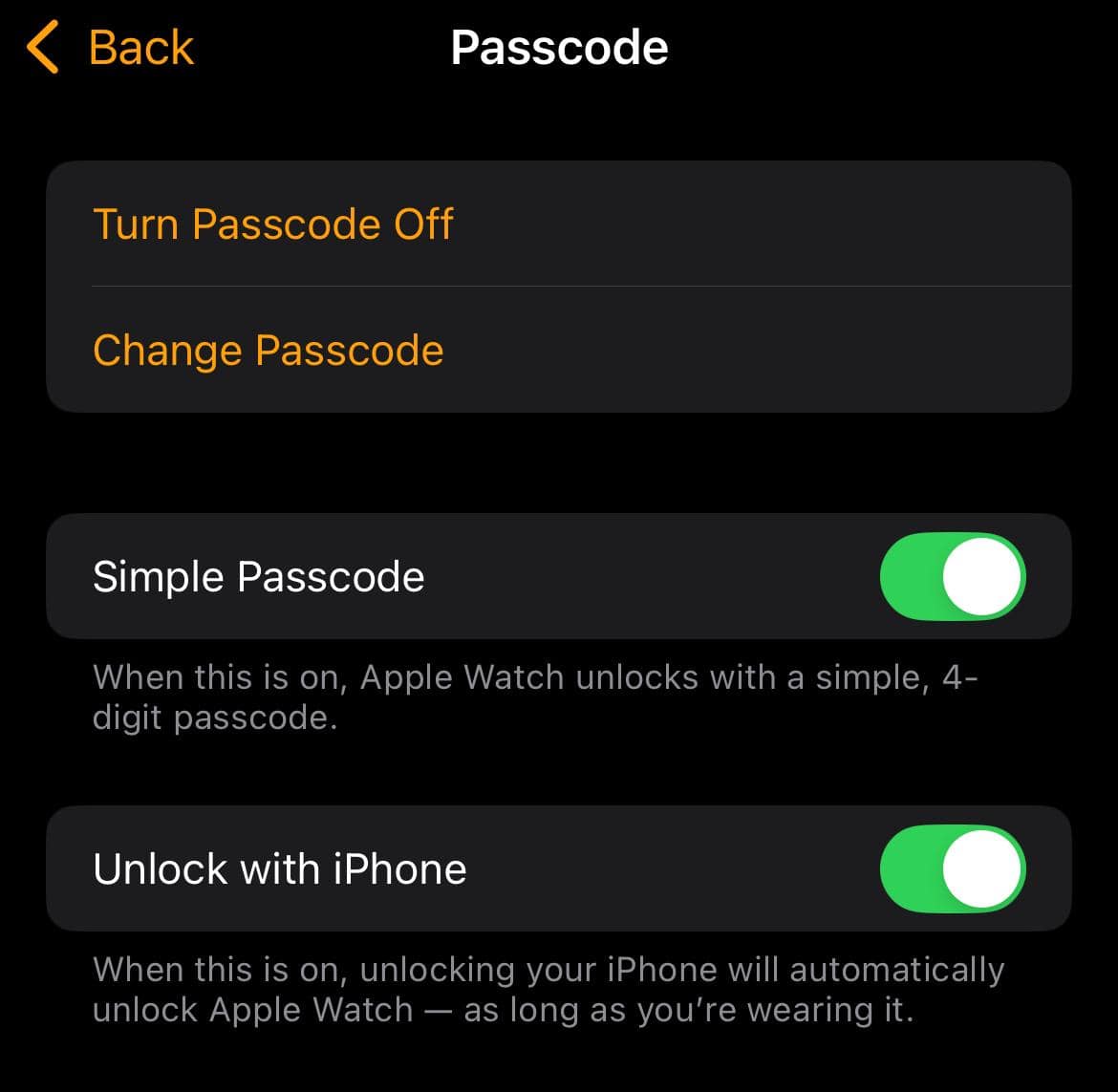

Even when removing the passcode for Apple Watch with your iPhone, there’s no data loss.
Don’t miss the best of The Mac Observer
Set us as a preferred source and our Apple reporting ranks higher in your Google Search results and Discover feed — one tap, no account changes.
What to do if Turn Passcode Off is greyed out
- If the passcode setup is greyed out on Apple Watch, turn off Wrist Detection in the Passcode settings of your watch or in the Watch app.
- Check for device management profiles or restrictions on your iPhone that might block this option.
- Unpair your Apple Watch from the iPhone and pair it again.
- Restart both the watch and iPhone to refresh the settings.
What to do if you forgot your Apple Watch passcode
- On your iPhone:
- Open the Watch app, go to General > Reset, then tap Erase Apple Watch Content and Settings. This resets your watch so you can set it up again without a passcode
- On the watch itself:
- Keep it on the charger, hold the side button until the power screen appears, then press and hold the Digital Crown. Tap Erase all content and settings, then confirm to reset.

- Keep it on the charger, hold the side button until the power screen appears, then press and hold the Digital Crown. Tap Erase all content and settings, then confirm to reset.

This will wipe all data on the Apple Watch.
Tips
- Always keep your watch on the charger if you are erasing it. Otherwise, you can’t reset it.
- Back up your watch through the iPhone before removing the passcode so you can restore apps and data later.
- Remember that turning off the passcode disables Apple Pay and other security features.
- If wrist tattoos or a loose fit cause constant passcode prompts, try adjusting how snugly you wear your watch.
Frequently Asked Questions
You lose Apple Pay, the ability to unlock your Mac, and some security features tied to wrist detection.
It can happen if your watch is managed by work or school, or if wrist detection is interfering. Turning off wrist detection, unpairing and repairing, or removing profiles usually solves it.
Yes, but you must erase your watch using the iPhone or directly on the watch. Afterward, you can set it up again and skip the passcode.
Yes, it removes all apps, data, and settings. However, your iPhone usually backs up the watch, so you can restore it during setup.
Summary
- Remove the passcode from the watch or from the iPhone Watch app
- If the option is disabled, turn off wrist detection, remove restrictions, or unpair and pair again
- If you forgot your passcode, reset the watch completely using your iPhone or the watch itself
- Back up your data before resetting
- Remember, you will lose Apple Pay and some security features after removing the passcode
Conclusion
Removing the passcode from your Apple Watch makes it faster to access, especially if wrist detection causes issues or you simply do not need the extra security. Follow the steps above, make sure you understand the trade-offs, and always back up your Apple Watch before erasing it!
This way, you keep control while using your watch the way that suits you best!


Discussion