
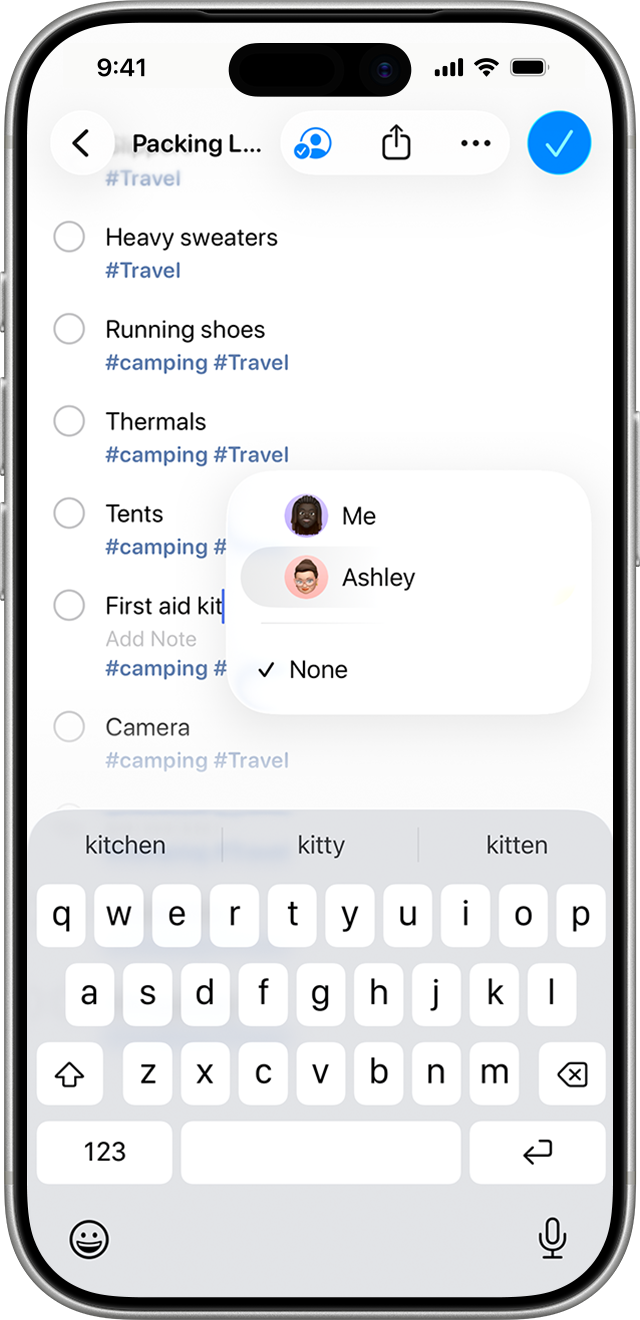
Keep your completed trip intact and turn its list into a template. Reminders can make a fresh list from that template for every trip. The important switch is Include Completed Reminders. Leave it off and the items you checked during the last trip may be the very items missing from the next one.
Save a reusable version
- In Reminders, open the list that already has the items you want. Look for one familiar completed entry, such as “pack charger,” so you can check that it survives.
- Open More in the list and tap Save as Template. Give the template a reusable name, such as Overnight work trip.
- Turn on Include Completed Reminders if you want those entries in the template. Confirm the save.
- Return to your lists. Open More > Templates, select the template and give the new list a trip-specific name. Tap Create.
Open the new trip and check for the charger. Mark one item complete in this working list, then revisit the old list or use the template to make another test list. You can use separate lists for two upcoming trips without having to remember which checkmark belongs to which suitcase.
Make a change permanent, or just for this trip
Adding an umbrella to this week’s list changes that list alone. To put a charger adapter on every future trip, return to Templates, open the control beside the template and choose Edit Template. Existing trip lists keep what they already contained. Add the adapter by hand to any trip you have already created.
You can share the template link with someone who wants their own packing list. Apple lets you choose whether to include dates, tags and locations. Images are removed. Anyone who already downloaded it has a copy, so changing your template later requires them to download the updated version. For people who need to tick things off the very same list together, share the working list instead.
Apple’s Reminders template guide
Featured image: A packing list in Reminders. Credit: Apple.
Don’t miss the best of The Mac Observer
Set us as a preferred source and our Apple reporting ranks higher in your Google Search results and Discover feed — one tap, no account changes.




Discussion