

The “Safari can’t connect to iCloud Private Relay” error can appear in Safari or iCloud settings when your iPhone or iPad is unable to route traffic through Apple’s privacy servers. This usually happens because of network restrictions, unsupported carriers, active VPNs, or temporary issues with Apple’s servers. The good news is that most of these issues can be fixed by checking your network, toggling Private Relay off and on, disabling conflicting VPNs, or updating your device.
Let’s break it down clearly and fix it step by step.
Table of contents
iCloud Private Relay is part of iCloud+. It hides your IP address and encrypts your Safari traffic by routing it through two separate internet relays. It’s designed to improve privacy, not speed.
Don’t miss the best of The Mac Observer
Set us as a preferred source and our Apple reporting ranks higher in your Google Search results and Discover feed — one tap, no account changes.
When it fails to connect, it usually comes down to one of four things:
- Your network is blocking it
- Your carrier doesn’t support it
- A VPN or firewall is interfering
- Apple’s service is temporarily unavailable
Now let’s go through the fixes.
Check If Private Relay Is Turned On
Sometimes the error appears because the feature was disabled.
- Open Settings.
- Tap your name at the top.
- Go to iCloud.
- Tap Private Relay.
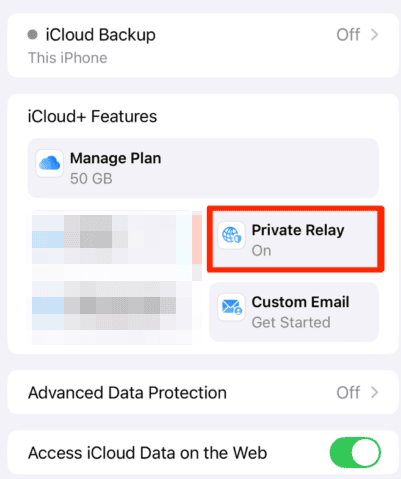
- Make sure it’s switched on.

If it’s already on, toggle it off, wait 10 seconds, then turn it back on.
Make Sure Your Country and Carrier Support It
Private Relay is not available in every country, and some mobile carriers restrict it.
If you’re on mobile data, try switching to Wi-Fi.
If you’re on Wi-Fi, try mobile data.
If it works on one but not the other, your network provider is likely blocking it.
Turn Off VPNs or Security Apps
Private Relay does not always play nicely with third-party VPNs, DNS filters, or firewall apps.
If you’re using:
- A VPN
- Ad blockers with DNS filtering
- Network security apps
Temporarily disable them and reload Safari.
Running two privacy routing systems at once can cause connection conflicts.
Check Apple’s System Status
Sometimes the issue isn’t on your end.
Go to Apple’s System Status page and check whether iCloud Private Relay is listed as having an outage. If there’s a yellow or red indicator, you’ll need to wait until Apple resolves it.

Reset Network Settings
If nothing else works, reset your network settings.
- Open Settings.
- Go to General.
- Tap Transfer or Reset iPhone.
- Select Reset.
- Choose Reset Network Settings.
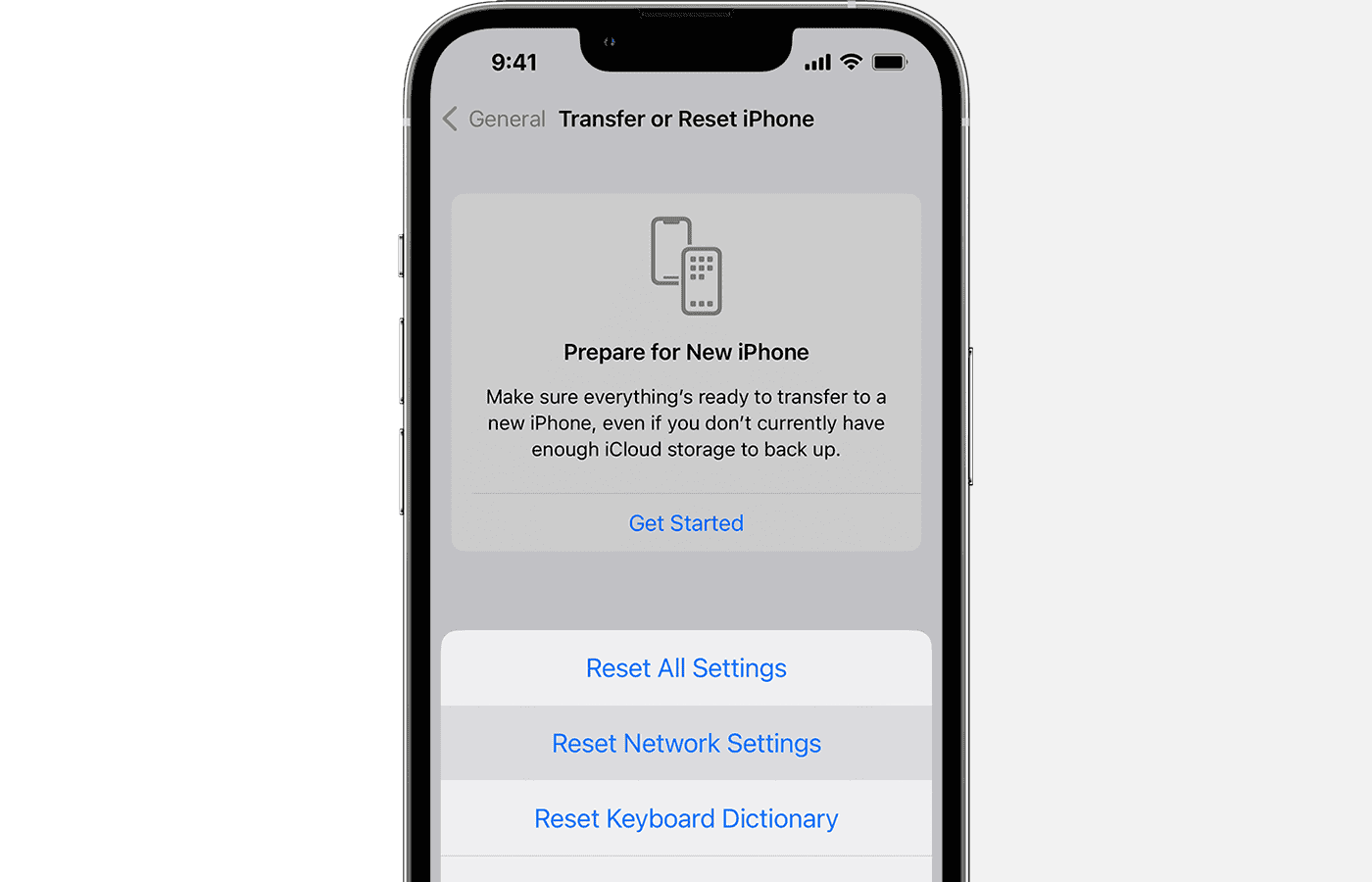

This will erase saved Wi-Fi passwords, so make sure you know them before proceeding.
Update iOS
Occasionally, Private Relay connection errors appear after an iOS update and get fixed in a minor patch.
- Go to Settings > General > Software Update
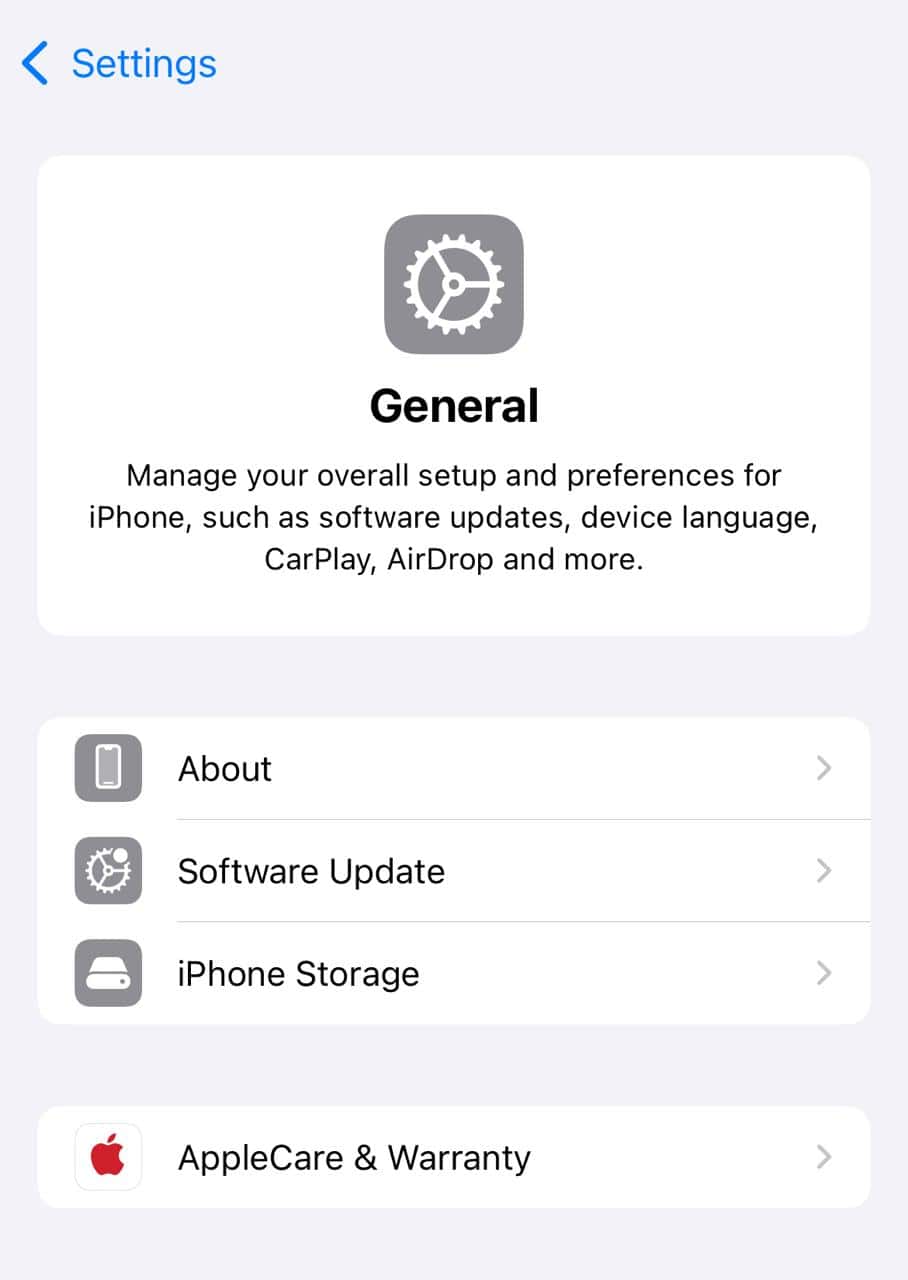
- Install any available update and restart your device.

When to Leave It Off
If your carrier blocks Private Relay and you rely on mobile data most of the time, constantly toggling it on and off may not be worth it. In that case, using a dedicated VPN might make more sense for your needs.


Discussion