

As we see more and more updates for the iPhone 17, some users have reported an issue with the new Clean Up feature in the Photos app. Reportedly, the Safety Filter is incorrectly applied when using Clean Up to remove an object from a picture.
The phone’s camera incorrectly recognizes a person’s face in the background and inappropriately triggers the safety filter. This is most likely a bug that will be resolved in a future update, but in the meantime, you need a quick fix.
If you’re wondering how to turn off the Safety Filter in Photos, we’ve got a quick and easy workaround that will help you fix this issue so you can edit your photos with no problems.
Don’t miss the best of The Mac Observer
Set us as a preferred source and our Apple reporting ranks higher in your Google Search results and Discover feed — one tap, no account changes.
Table of contents
Workaround to Turn Off the iPhone 17 Safety Filter
While this method isn’t as convenient as a simple toggle, it’s a reliable way to bypass the incorrectly applied Safety Filter and complete your edits.
The reason why this bug persists is that Photos uses scene context to judge edits. By cropping and zooming in, you basically remove the visual cues that trigger the Safety Filter. The Clean Up tool then treats the selection as a standard retouch instead of invoking a safety action.
This technique works by removing the surrounding context from the Clean Up tool’s immediate view, which prevents the iPhone from flagging the image.
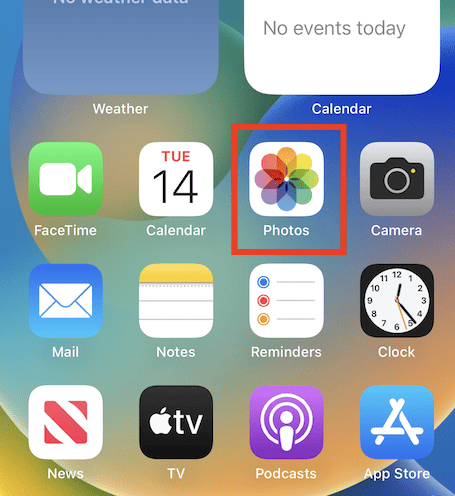
- Select the photo you want to edit in your Photos app.
- Tap Edit in the top-right corner to enter edit mode.
- Choose the Crop tab at the bottom of the screen.
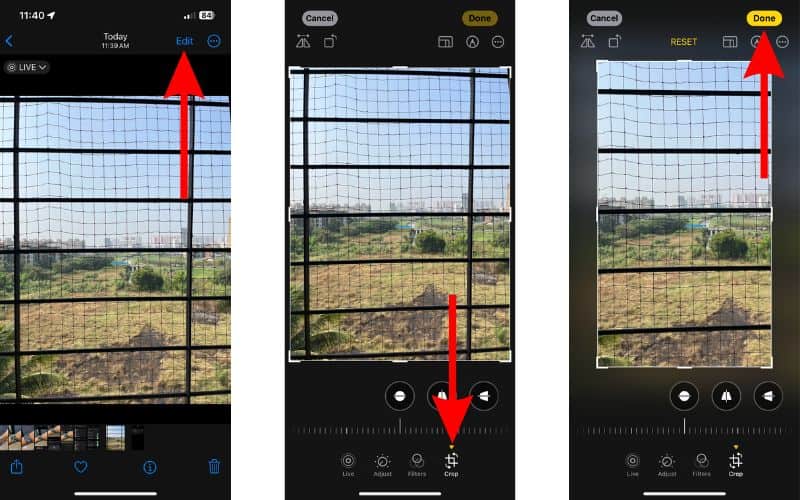
- Zoom in to the specific area you want to touch up using the pinch-to-zoom gesture.
- Choose the Clean Up tab (the bandage icon).
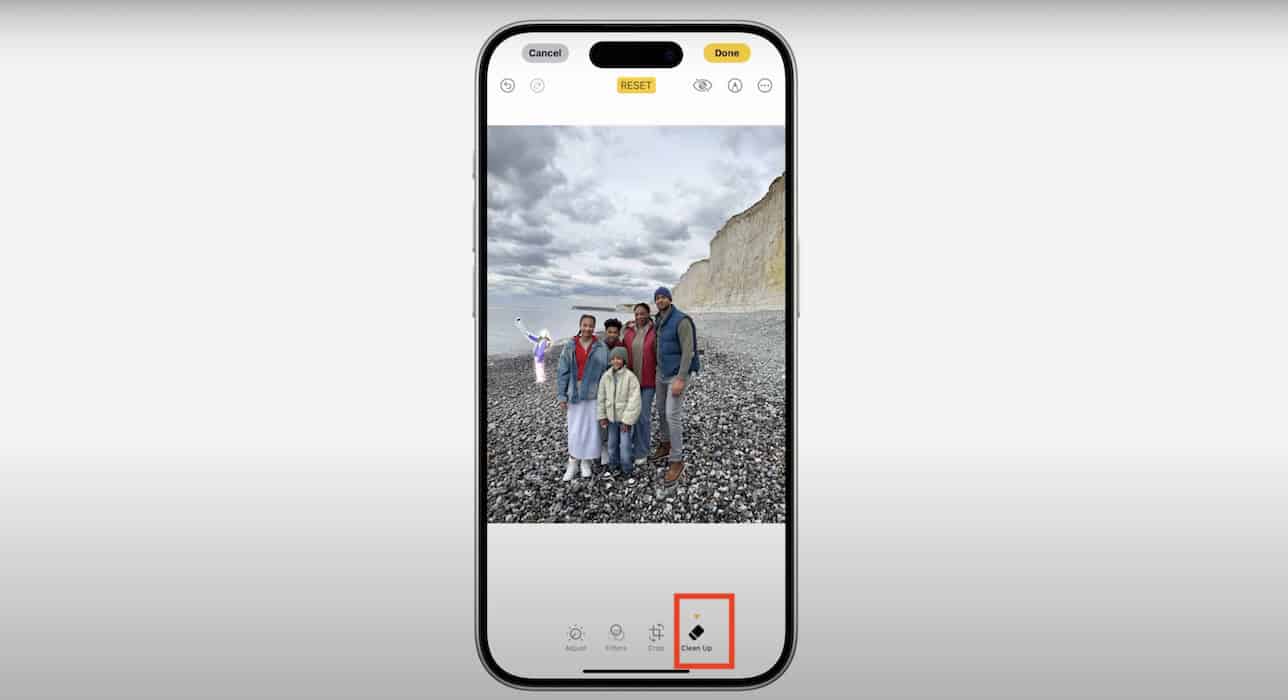
- Use the tool to remove the unwanted detail. Since the context (the face or other flagged object) has been zoomed out of view, the Safety Filter shouldn’t activate.
- Repeat steps 4 through 6 for all areas you need to touch up.
- Once all touch-ups are complete, choose the Crop tab again. You can also use Crop presets without manually tweaking the settings every time you edit.
- Zoom out to your desired full image size and save your final photo.


Extra tips: Back up your original before heavy edits. Use Settings > Photos > iCloud Photos to ensure your originals are safe. If you want extra cleaning care for your camera before reshooting, see our guide on how to clean your iPhone camera lens for best image clarity.
We hope that this temporary workaround will be of good use and it help just enough for you to re-edit and touch up on unwanted details in your photos. It practically did a fantastic job fixing blemishes in photo portraits. Hopefully, we’ll see a return of this once brilliant feature by Apple. Until then, we’ll wait for updates.
FAQ
No, this is a workaround to help you bypass the bug in the current software version. A permanent fix will come from Apple in a future iOS update.
No, using the Crop and Zoom method purely as a way to isolate the Clean Up action will not negatively affect your final photo quality.
The Safety Filter issue is most likely a software bug in the current version of the iPhone 17’s Photos app. The underlying AI incorrectly identifies faces in the background of your photo. This causes the filter to turn on even when you’re just trying to remove a minor detail.



Workaround doesn’t work. Tried to remove a pile of laundry in a photo that in no way resembles a face, it’s just pixelated when I follow these steps. Same with taking pictures of myself in mirror with phone in front of my face, want to remove the phone and it just pixelated the area. Try to remove a paintin on wall behind an object, just pixelated. No matter what I do, it won’t remove the item, it just pixelates it. iPhone has gone backwards on its technology by using AI instead of tried and tested tools.
this will be the last damn iphone i own if it’s not gotten rid of soon
Agreed! It’s junk and doesn’t even work like you’d assume it should. “Safety”? Put that in Parental settings and let the adults have a toggle. Half the time it refuses to edit out the fat guy walking on the beach behind the photo of my wife because she’s in a bathing suit. Seriously Apple?? Good lord!
They ought to just remove the damn safety filter it’s stupid just make a fuckking tab for pixelating if they want there shit pixelated they can do it to the convenience of who ever is editing photos
How disturbing that Apple is trying to implement a safety filter for editing photos, I hope you are going to fix its so it provides a warning that the software may have issues proving you the quality you expect. But doesn’t the reset button, when focused only on the last activity do that for the user. Please Apple do not become an image cop telling me what I can and cannot edit. Fix this ASAP!