

You open a message thread to find a photo someone sent. Sometimes you need more than scrolling. With iOS 26 on your iPhone, Apple reorganised how images and media show up inside the Messages app. You can now view all photos linked to a conversation in one place, without searching through long back-and-forth threads.
Here’s what changed in iOS 26. The Messages app now groups shared content like photos, links, documents, and locations under separate tabs when you tap a contact name at the top of a chat. This makes it easier to find every photo exchanged between you and that contact.
You can also browse your entire shared photo collection from the Photos app using the “Shared with You” feature. That gives you another way to see images people sent through Messages without opening the Messages app itself.
Don’t miss the best of The Mac Observer
Set us as a preferred source and our Apple reporting ranks higher in your Google Search results and Discover feed — one tap, no account changes.
Table of contents
1. View Photos from a Message Thread
You can find every photo and video in a specific conversation without manual scrolling.
Open Conversation and Use Photos Tab
- Open the Messages app and pick a chat with the contact or group.

- Tap the name or profile at the top of the screen.
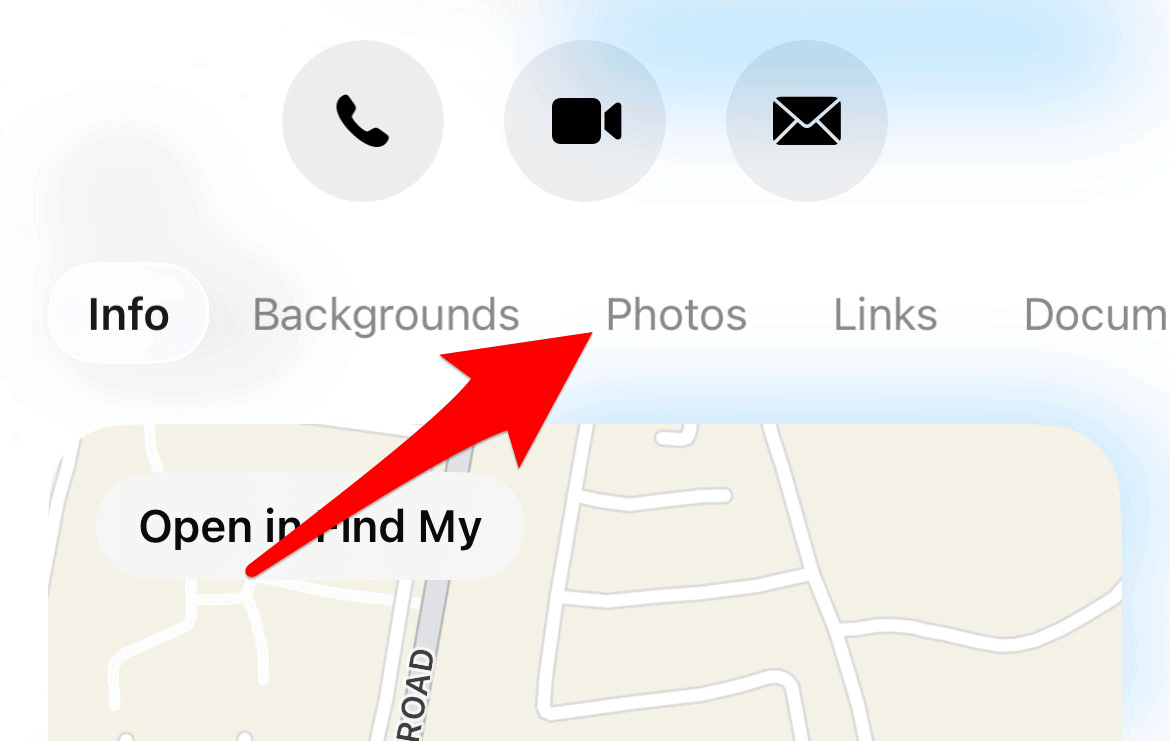
- In the chat details view, tap Photos.
- Scroll through the grid of all shared pictures and videos.


You can also tap the three lines icon at the bottom and select All to see everything in one view.
2. See Photos Across All Messages
iOS 26 lets you view shared photos from all your chats in the Photos app.
- Open the Photos app.
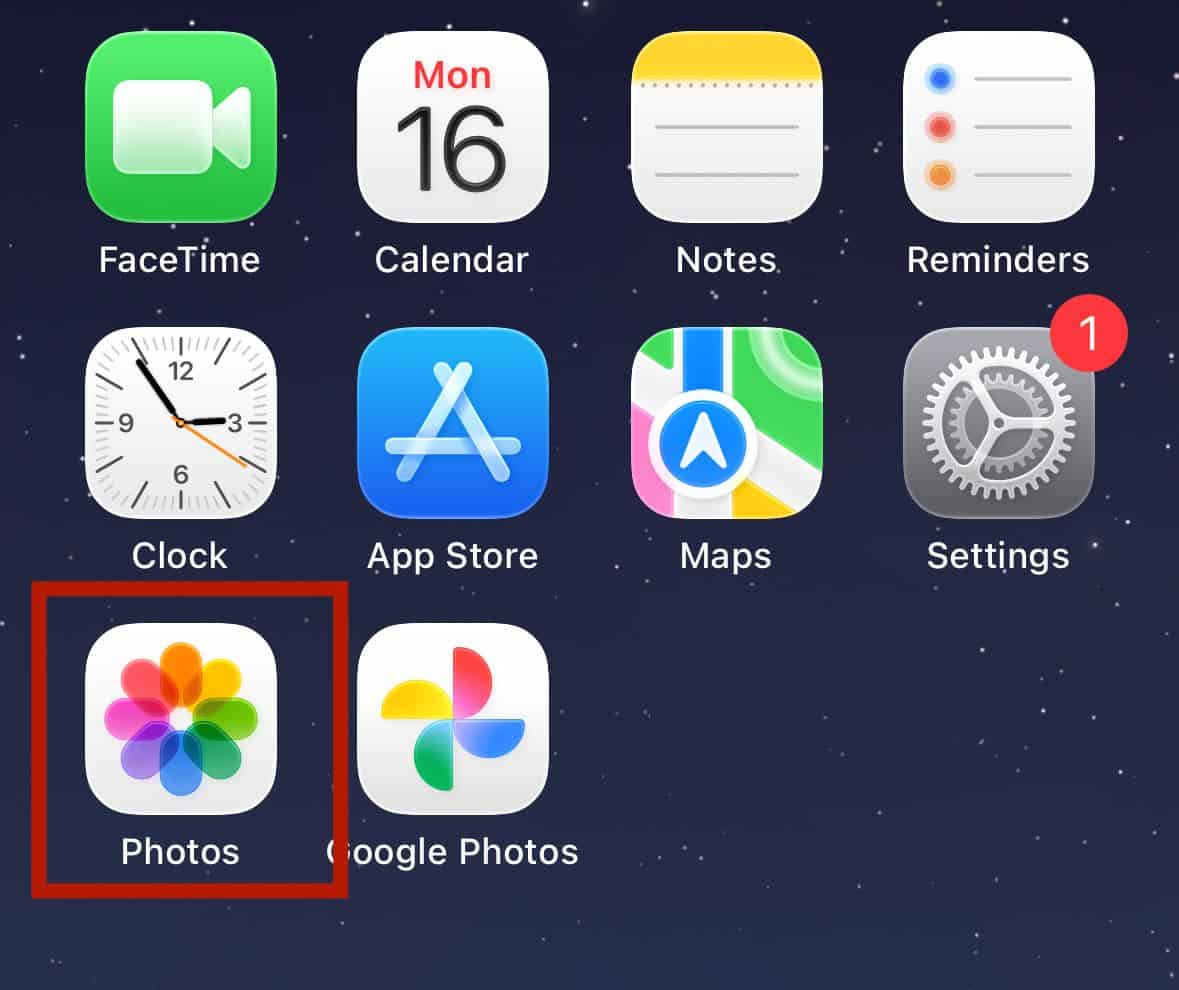
- Tap your profile icon at the top.
- Look for Shared with You to see images sent through Messages.

This view collects many photos that people shared with you in Messages. Some images may not appear if they were deleted in the chat or if indexing is still in progress.
3. iOS 26 Search Features for Photos
You can search for photos in Messages using text or image content.
Keywords and Filters
- Open Messages.
- Pull the list of conversations down to reveal the search field.
- Type a keyword like a name, place, or object in a photo.
- Filter results to only show photos.
iOS 26 also uses Apple Intelligence to help you find specific media inside messages by recognising image content.
Troubleshooting Photo Viewing
Sometimes photos don’t show up where you expect. You can fix most issues with a few checks.
Fix Missing Photos
- Go to Settings > Search > Messages.
- Turn Show App in Search and Show Content in Search off.
- Wait a few seconds, then turn them back on.
- Keep your iPhone connected to Wi Fi and plugged in so indexing can complete.
Check iCloud Sync
- Go to Settings > [Your Name] > iCloud > Messages.
- Tap Sync Now if it’s available.
- If problems persist, disable Messages sync, restart, then enable it again.
If you still don’t see old photos, your device may need more time to process attachments after an update. Give it 48 to 72 hours and keep it on Wi Fi if possible.
Tips
- Save photos you want to keep in the Photos app so they don’t vanish if you delete the conversation.
- Use the Photos tab inside each chat to delete old images and clean up storage.
- Search with combinations like a person’s name plus a keyword to narrow results faster.
- If you frequently exchange photos with some contacts, enable Show in Shared with You for them.
FAQs
Can you see all photos sent by a person in one place?
Yes. Tap the contact name in Messages and go to the Photos tab to see every picture exchanged with that person.
Where are shared photos stored?
Photos stay in Messages and may also appear in the Photos app under Shared with You if the feature is enabled.
What if photos still don’t show up?
Make sure search settings are on and give your phone time to index attachments after updating.
Summary
- Open a message thread and tap the contact name.
- Tap Photos to see every image and video from that chat.
- Check Shared with You in the Photos app for a unified view.
- Use search with filters or text to find images fast.
- Fix missing media by resetting search settings and syncing iCloud.
Conclusion
iOS 26 reorganises how you see photos sent and received in Messages. You no longer have to scroll back through months of texts to find one image. You can open a thread and view the Photos tab, use the Photos app Shared with You feature, or search with keywords or image content. If photos don’t show up, simple settings changes or waiting for indexing usually solves the problem. With these steps, you can quickly find and manage your shared photos in Messages on your iPhone or iPad.


Discussion