

The iOS 26 rollout brought a common glitch. Many Apple users face frustrating sync issues. The iMessage read/unread status fails to sync across linked devices. Messages you view on your iPhone still show a badge on your iPad or Mac. SMS (green bubbles) technically cannot sync read status. This problem primarily affects the blue-bubble iMessage service. Therefore, you need specific steps to restore seamless communication.
Table of contents
Resolving Message Badge Count Discrepancies on Apple Ecosystems
1. Toggle Messages in iCloud Synchronization
Your Apple devices use iCloud to keep the Messages database consistent. If the read status is stuck, force the system to reconnect. This clears the error. If you experience this synchronization issue, reset the iCloud connection first. This step is like troubleshooting other data problems. For example, you must troubleshoot email synchronization to fix Mail app badge counts.
- Open Settings on your iPhone or iPad.
- Tap your Apple ID at the top.
- Then, select iCloud.
- Find Messages and toggle the setting off.
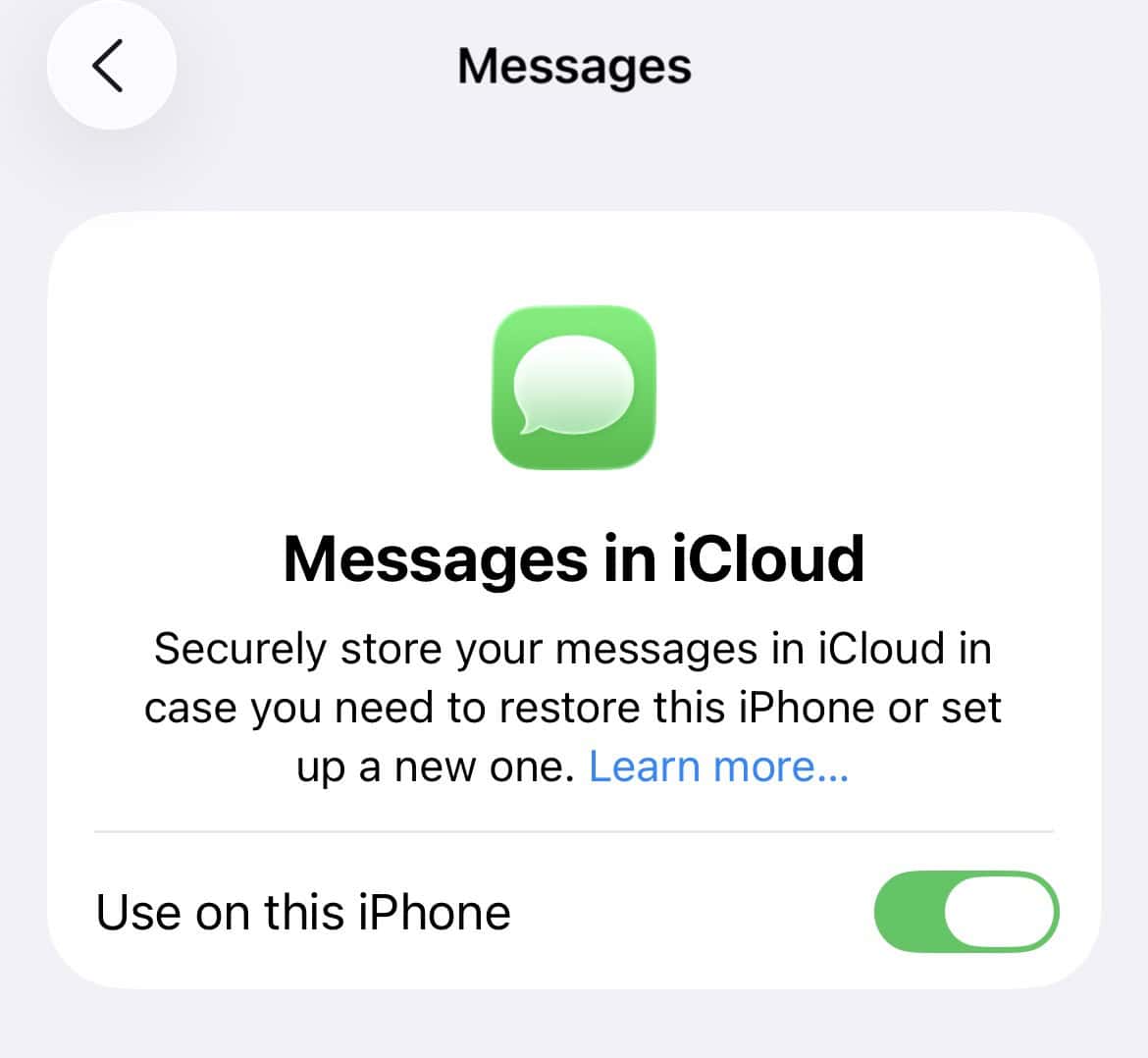
- Wait about 30 seconds.
- Next, toggle Messages back on.
- Check for the Sync Now option. Tap it to manually upload the device status database.

2. Perform a Full Sign Out and Sign In of iMessage
Toggling iMessage off and on often is not enough. A full reset requires a stronger step. Sign out of your Apple ID specifically for iMessage. This forces a clean registration. It resolves underlying authentication conflicts that cause sync failures. Many users report this fix works very well.
Don’t miss the best of The Mac Observer
Set us as a preferred source and our Apple reporting ranks higher in your Google Search results and Discover feed — one tap, no account changes.
- Go to Settings > Apps > Messages.
- Tap Send & Receive.

- Tap the blue Apple ID shown at the top.
- Choose Sign Out.
- Wait for one minute.
- Then, tap Use your Apple ID for iMessage to sign back in.
- Repeat this process on all your linked devices. Use your Mac and iPad, for example. This ensures a complete authentication reset.

3. Restart All Devices and Force-Read Threads
A temporary system glitch can block the read receipt flag. A simple restart clears cached data and minor bugs. After the restart, actively interact with the messages. This action ensures the read status registers definitively. It then sends to the cloud for synchronization.
- Restart your iPhone, iPad, and Mac all at the same time. This ensures all devices reboot closely together.
- On your iPhone, open the Messages app.

- Scroll through every conversation with an unread badge.
- Tap into the last message received to register it as read.
- Alternatively, ask Siri to “read my unread messages.” This cycles through them audibly.

4. Mark All Threads as Read Using the Selection Tool
A single, buried ghost message often causes a persistent phantom badge count. The system refuses to register it as viewed. Manually selecting and marking all conversations as read provides a definitive command. This command overrides the error. It is an effective way to fix the wrong iMessage unread message count.
- Open the Messages app on your iPhone.
- Tap the Edit button in the top left corner. You can also use the ellipsis icon.
- Select Select Messages.
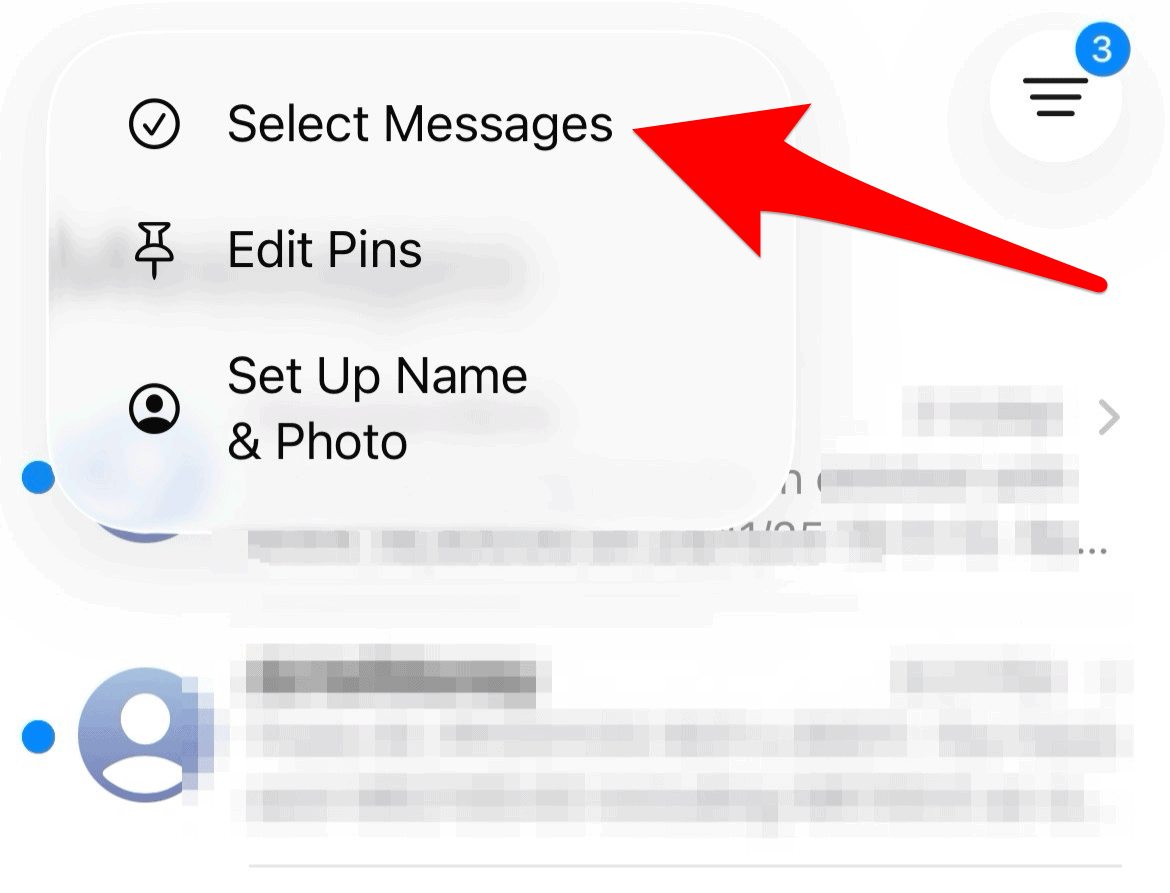
- Tap Read All in the bottom left corner.
- This action removes all unread badges on the iPhone. Consequently, it syncs this “read” state to your other devices. This resolves the status discrepancy.

5. Verify Date, Time, and Region Settings
iCloud services heavily depend on accurate system time. They need accurate time to manage authentication and sync tokens. Mismatched date and time settings cause issues. If the region is wrong, it interferes with iMessage. Therefore, check these settings carefully.
- Go to Settings > General > Date & Time on all your devices.
- Ensure the Set Automatically toggle is enabled.
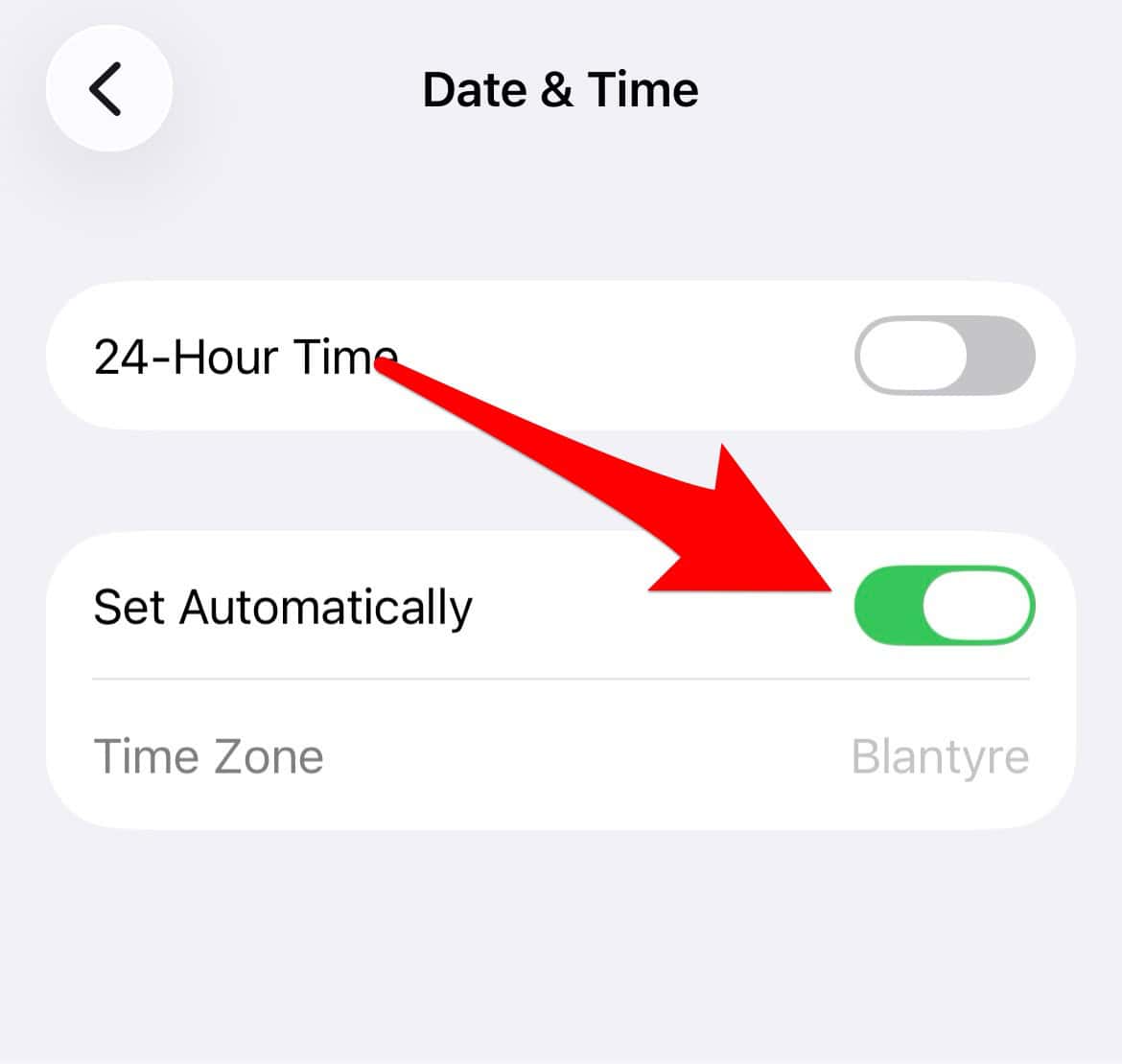
- If you recently traveled, verify your Region setting. Find it under Settings > General > Language & Region.
- Reboot the devices after any change. This enforces the updated settings.

FAQ
SMS messages use the cellular network. They do not use Apple’s encryption or iCloud. Only iMessage (blue bubble) transmits read receipts and sync status.
Yes, it might be. Some users reported the iOS 26 sync issue. They noted the problem started after using the Quick Start feature. They transferred data to a new iPhone. This suggests the sync database did not transfer cleanly.
Achieving Consistent Messaging Across All Apple Screens
The iOS 26 update caused frustration with mismatched read statuses. This synchronization hurdle is very common. Nevertheless, you can fix it. Isolate the issue systematically. Toggle iCloud settings and reset your iMessage authentication. Perform manual fixes like the “Mark All as Read” command. You can easily resolve ghost notifications. This ensures your Apple ecosystem works seamlessly.
Before these steps, simply open the message thread. You should always try to fix the wrong iMessage unread message count that way. Once your read statuses are consistent, manage your conversations better. You might also want to learn how to filter your text messages within iOS.


Discussion