

The Beats Solo 4 headphones are known for their clear sound, comfortable fit, and reliable wireless performance. However, some users may find it unclear how to properly power them off, especially if they’re using Beats headphones for the first time. Turning them off correctly helps conserve battery life and maintain the headphones’ overall performance. Here we’ll explain the different ways to turn off the Beats Solo 4.
Table of contents
Follow These Steps to Turn off the Beats Solo 4
1. Find the Power Button
The power button on the Beats Solo 4 is positioned on the right earcup. It’s slightly raised, making it easy to find by touch, even when wearing the headphones. There’s a small LED indicator light on the left earcup that shows the current power or pairing status.
- A solid white light means the headphones are powered on.
- A flashing white light means they are in pairing mode.
- No light means the headphones are off or the battery is depleted.
Familiarizing oneself with the button and light indicators makes powering the headphones on or off straightforward. In case your Beats are not connecting, here’s how to fix that issue.
Don’t miss the best of The Mac Observer
Set us as a preferred source and our Apple reporting ranks higher in your Google Search results and Discover feed — one tap, no account changes.
2. Turn Off the Beats Solo 4 Manually
The Beats Solo 4 can be powered off manually in just a few seconds.
- Press and hold the power button on the right earcup.
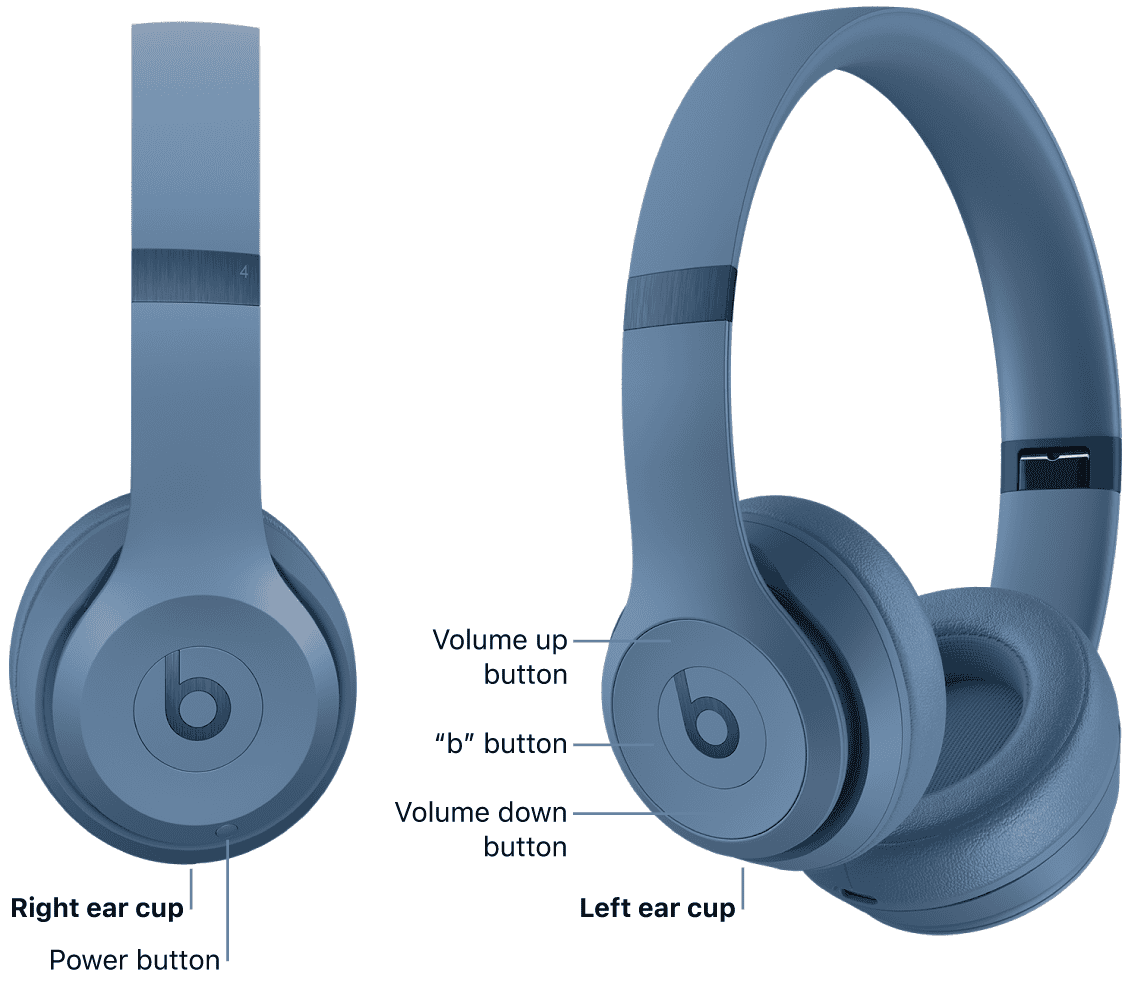
- Continue holding it for about 1 to 2 seconds.
- The LED light will turn off.
- Release the button once the light goes out.

Once the LED indicator is off, the headphones are successfully powered down. If the light is already off before pressing the button, the Beats Solo 4 are likely already turned off.
3. Turn Off the Beats Solo 4 Automatically
The Beats Solo 4 doesn’t have a true automatic power-off feature. However, to conserve battery life, your Beats Solo 4 can enter a low-power state and power down when they are neither actively connected via Bluetooth nor plugged in with the USB-C cable.
4. Disconnect the Beats Solo 4 from Different Devices
In some cases, the Solo 4 may remain on because they are still connected to a phone or computer. Disconnecting them helps ensure they enter standby mode or power off automatically.
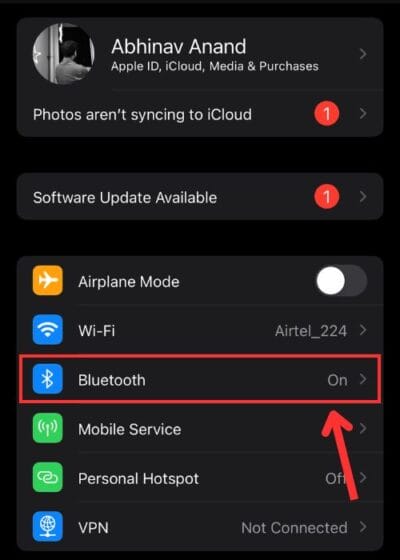
- On iPhone or iPad: Go to Settings > Bluetooth and tap Disconnect next to Beats Solo 4.
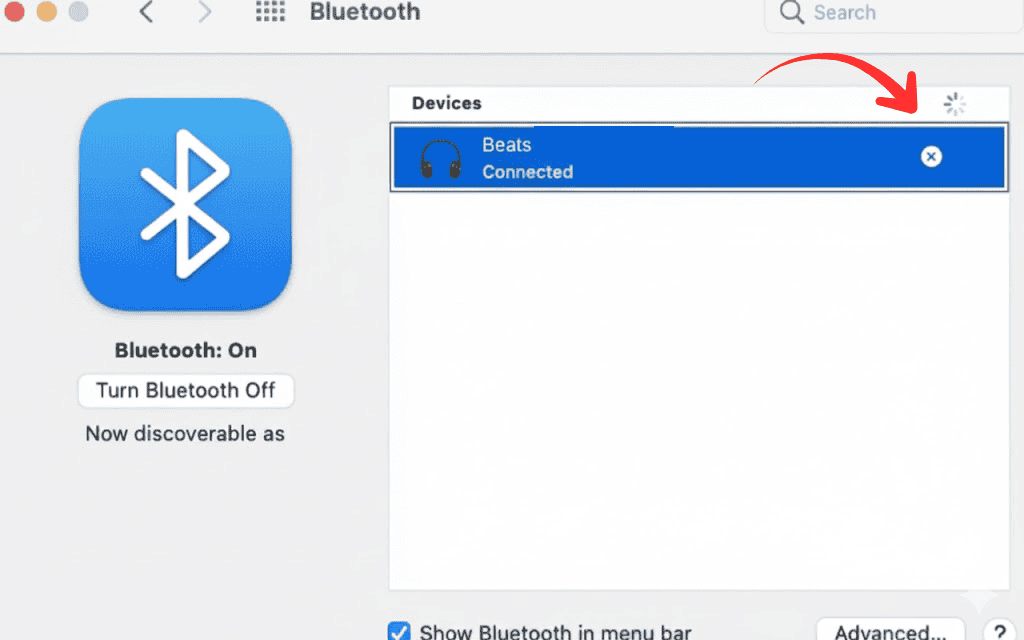
- On Mac: Click the Bluetooth icon in the menu bar and select Disconnect.
- On Android: Open Bluetooth settings, then tap Disconnect under paired devices.


Once disconnected, the headphones will automatically power off after a short period of inactivity.
Users who need help reconnecting their AirPods can refer to this step-by-step pairing guide.
Tips
- Power off the Solo 4 when not in use to extend battery life.
- Store the headphones in their carrying case to prevent accidental button presses.
- Avoid letting the battery fully drain before charging.
- Check for firmware updates through the Beats app to ensure optimal performance.
Final Words
Turning off the Solo 4 is a simple but important step to maintain their performance and preserve battery life. Whether users prefer to power them down manually or rely on the automatic shutoff feature, both methods work effectively. Disconnecting them from devices when not in use and keeping firmware updated ensures the headphones remain ready for use at any time.
FAQs
The headphones are off when the LED indicator light on the right earcup is no longer illuminated.
Yes, the Solo 4 automatically powers off after a period of inactivity or when disconnected from all devices.
Hold the power button slightly longer, or reset the headphones by pressing and holding both the volume down and power buttons until the LED light flashes.



Discussion