

The Double Click to Install feature is a security step on modern iPhone and iPad models. It confirms purchases and free downloads from the App Store. This physical action defends against unauthorized transactions. However, some users find the repetitive side button press inconvenient or difficult. Fortunately, iOS and iPadOS offer solutions. You can modify or bypass this double-click requirement using simple settings.
Table of contents
Simplifying App Installation Authentication
The double-click action links directly to Face ID authentication. You can instruct your device to rely on alternative verification methods. Changing a few key settings eliminates the need to press the side button twice. Consequently, you avoid the double-click requirement entirely.
1. Disable Face ID for App Store Purchases
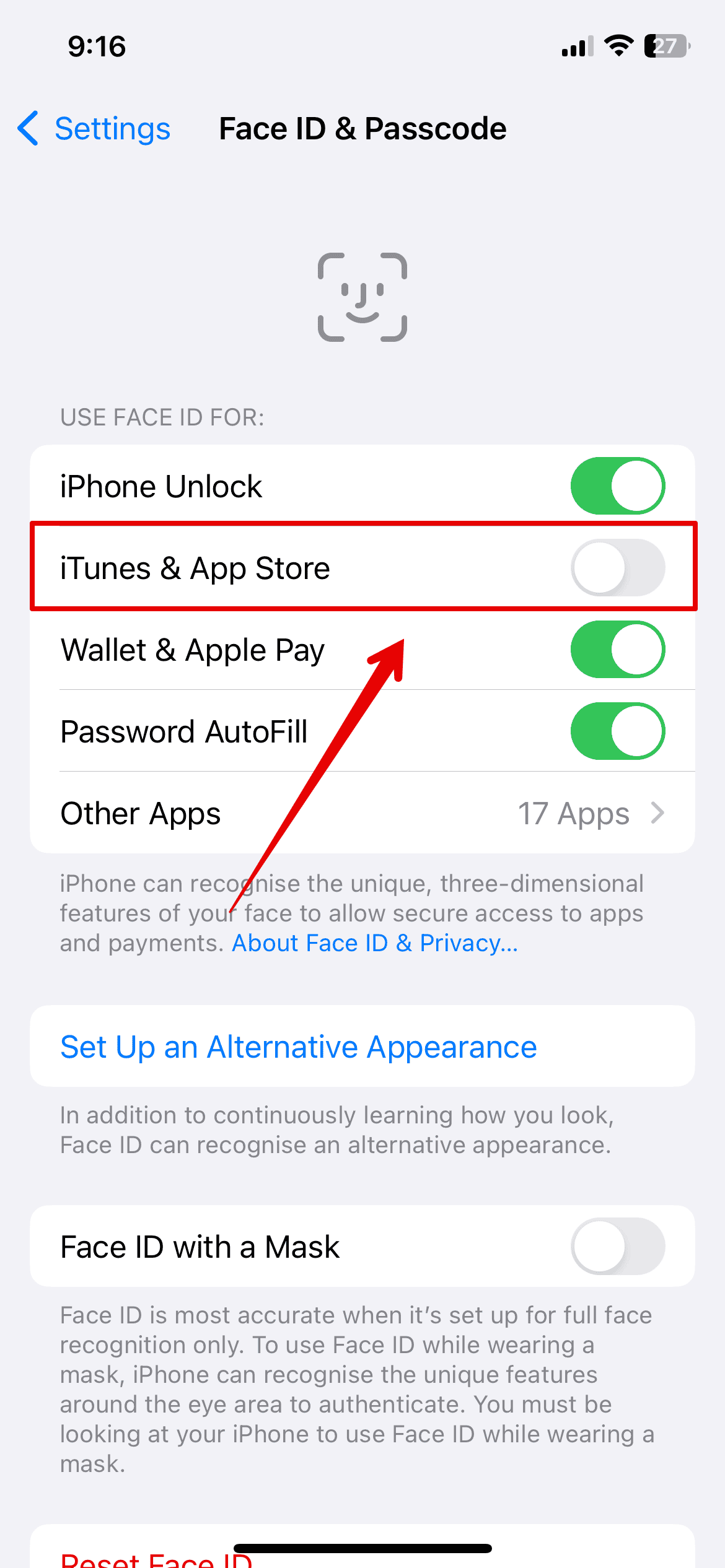
This is the most straightforward way to stop the double-click confirmation. Simply disable Face ID authentication for the App Store and iTunes. When Face ID is disabled, your device will request your passcode for purchase authorization. Instead, it avoids requiring the side button press.
Don’t miss the best of The Mac Observer
Set us as a preferred source and our Apple reporting ranks higher in your Google Search results and Discover feed — one tap, no account changes.
- Open the Settings app on your iPhone or iPad.
- Tap on Face ID & Passcode.

- Enter your device’s passcode when prompted.
- Toggle the switch next to iTunes & App Store to the off position. This is under “Use Face ID For.”

2. Adjust the Side Button Click Speed
Alternatively, you might struggle only with the required click speed. If so, iOS offers an Accessibility setting. This feature slows down the required click interval. This makes the timing easier for users. They may struggle with quick, repetitive presses. This is similar to how you adjust settings when you install apps on your Apple Watch.
- Go to the Settings app.
- Tap on Accessibility.
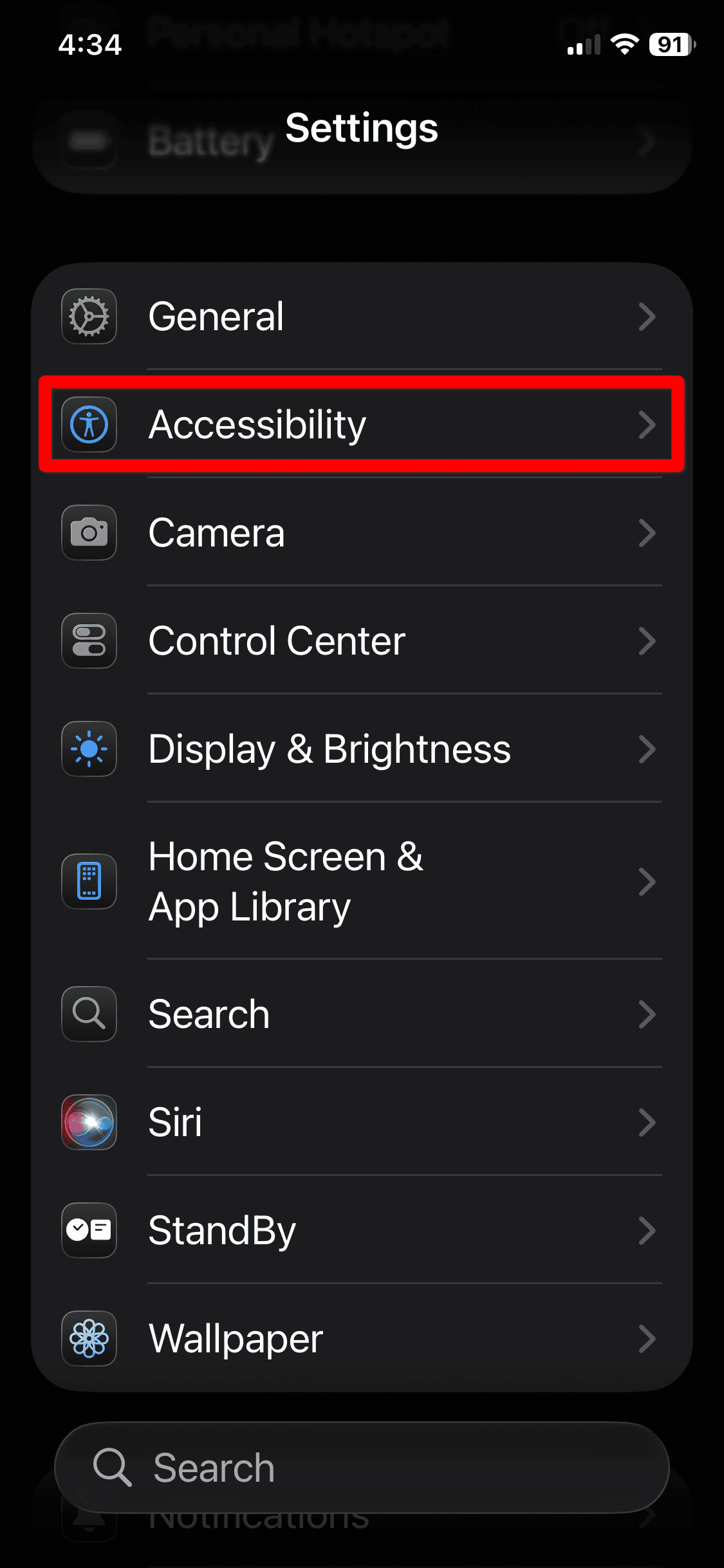
- Scroll down and select Side Button. (Select Home Button on relevant iPads.)
- Select a slower option under “Click Speed.” Choose Slow or Slowest instead of Default.

3. Rely on Passcode Authentication
You can choose to enter your passcode instead of using Face ID for purchases. This action completely bypasses the double-click requirement. This is useful if your Face ID verification is unreliable. You may also prefer the tactile confirmation of typing a code. To enable this reliable alternative, disable Face ID for the App Store. Moreover, you can learn how to install third party app stores on your iPad.

4. Ensure Your Passcode is Set Up Correctly
For these methods to bypass the double-click, your device must have a valid passcode set. Otherwise, iOS cannot fall back to an alternative authentication. The device often defaults to the side button press for security. This applies to all downloads. This includes when you download an iPhone app unavailable in your country or region.
- In Settings, navigate to Face ID & Passcode (or Touch ID & Passcode).
- If the option says “Turn Passcode On,” select it. Then create a secure code.
- Ensure the toggle for iTunes & App Store remains off. This guarantees you rely solely on the passcode for purchases.

5. Check Content and Privacy Restrictions
Sometimes, a configuration error or parental restriction affects the purchase settings. This happens often on shared or managed devices. Such an issue could complicate the installation process. Check these settings to ensure the expected authentication method works.
- Go to Settings and tap on Screen Time.
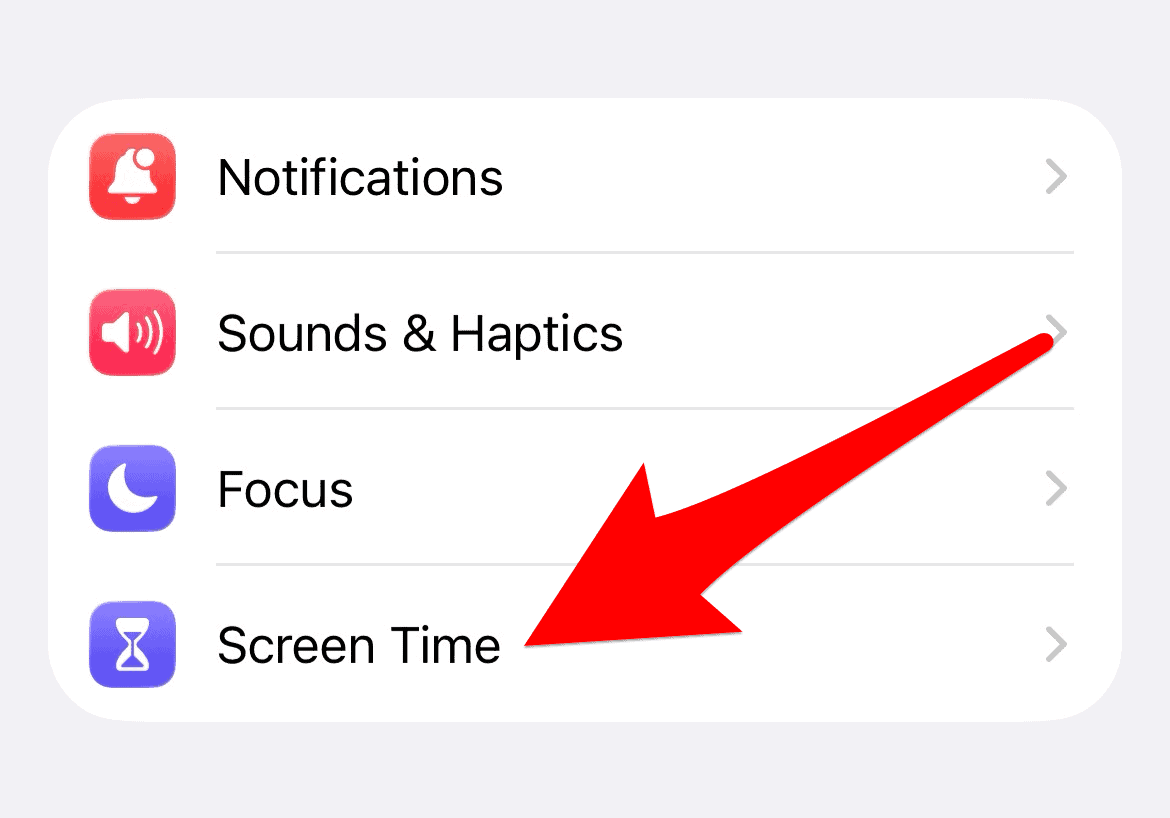
- Select Content & Privacy Restrictions.
- Tap on iTunes & App Store Purchases.
- Ensure Installing Apps is set to Allow. You should also check the In-app Purchases setting.

FAQ
Apple implemented the double-click as a key security measure. It links to Face ID authentication. It provides a deliberate action to confirm a purchase. This prevents accidental transactions. It ensures the user authorizes the action intentionally.
It slightly reduces the convenience of biometric security. Your device requires your passcode instead of Face ID. A passcode is a standard and secure authentication method. However, it requires manual entry for every purchase.
Yes, these fixes work for both devices. The Face ID & Passcode and Accessibility settings are largely the same. They apply to iPhones and relevant iPad Pro models.
Streamlining Your iPhone and iPad App Downloads
You can manage how you authenticate App Store purchases. Use either Face ID or a simple passcode. This choice allows you to customize the user experience. The double-click is a robust security feature. However, knowing how to modify it ensures your device operates well. It meets your preferences and accessibility needs. You can always explore other ways to get apps on your device. For instance, consider installing apps outside the App Store.


Discussion