

Modern iPhones let you hide apps to keep them private or reduce clutter. If you run iOS 26 and don’t see an app on your Home Screen, you can restore visibility using built-in tools and settings. This guide covers every reliable way to unhide apps on iPhone with iOS 26 so you can find and use them again.
When you hide an app on iPhone, the operating system moves it out of sight and into a special Hidden folder inside the App Library. You must authenticate with Face ID, Touch ID, or a passcode to access that folder. Once you unhide the app, it returns to the App Library and can be placed back on your Home Screen.
Swipe left past all Home Screen pages until you reach the App Library. At the bottom of the App Library, you’ll find the Hidden folder. Tap it and sign in with Face ID, Touch ID, or your passcode. Then you can locate hidden apps and move them back.
Don’t miss the best of The Mac Observer
Set us as a preferred source and our Apple reporting ranks higher in your Google Search results and Discover feed — one tap, no account changes.
Table of contents
App Library Unhide Method
This method works when your apps are hidden in the built-in Hidden folder.
It opens the Hidden folder, shows locked apps, and removes the hide setting so your app appears in the App Library again.
- Go to your iPhone Home Screen.
- Swipe left repeatedly until you reach the App Library.
- Scroll down to find the Hidden folder at the bottom.
- Tap Hidden and use Face ID, Touch ID, or your passcode to authenticate.
- Find the app you want to unhide.
- Touch and hold the app icon.
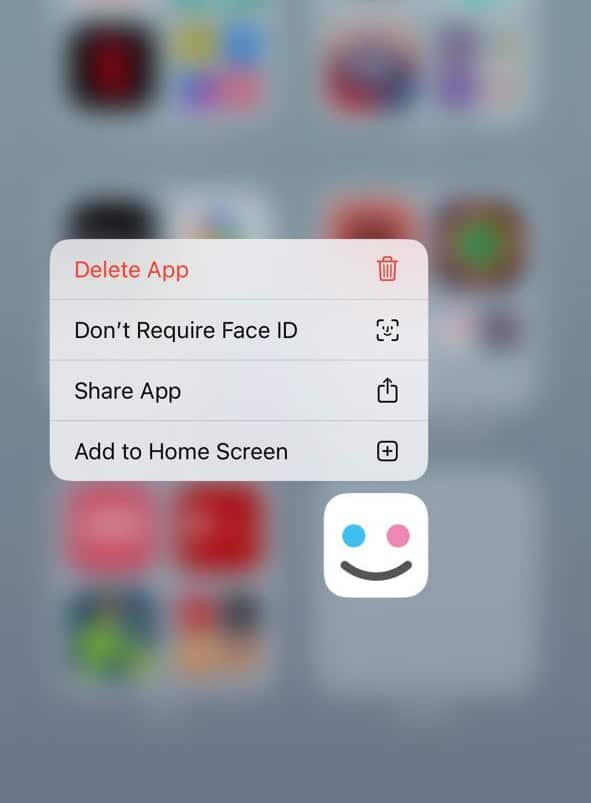
- Tap Don’t Require Face ID (or Touch ID or Passcode).
- Authenticate again.
- Your app now appears at the top of the App Library.

Add to Home Screen Method
After unhiding an app through the App Library, you can place it on the Home Screen.
This restores the app icon to your Home Screen so you don’t need to open it only from the App Library.
- Open the App Library and locate the unhidden app.
- Touch and hold the app icon.
- Tap Add to Home Screen from the pop-up menu.
- The app appears on your Home Screen in the next free spot.
Check Hidden Home Screen Pages
If an app isn’t in the Hidden folder, it might be on a hidden Home Screen page. It ensures that entire pages of apps aren’t hidden from your view.
- Touch and hold an empty area on the Home Screen.
- Tap Edit Pages or the dots near the bottom.
- Look at all the Home Screen pages you have.
- Tap any unchecked circles to unhide those pages.
- Tap Done to confirm.
- Your apps on those pages are now visible again.
Screen Time Restrictions Method
Certain restrictions can hide apps from view if allowed categories or age limits are set.
It checks whether content privacy settings are preventing apps from appearing.
- Open Settings.
- Go to Screen Time.
- Tap Content & Privacy Restrictions.
- Choose Allowed Apps & Features.
- Turn on any apps that are off.
- Return and go into Store, Web, Siri & Game Center Content.
- Tap Apps and set age limit to 17+.
- Go back to Home Screen and recheck your app list.
Hidden Purchases in App Store Method
An app may appear missing if you hid its purchase instead of hiding it on the device.
It reveals and restores app downloads that you previously hid in the App Store.
- Open the App Store app.
- Tap your profile picture in the top-right corner.
- Tap your name or account.
- Choose Hidden Purchases.
- Find the app you want to unhide.
- Tap Unhide next to the app.
- Download the app again if it isn’t already on your iPhone.
FAQs
Will unhiding an app make it show in search?
Yes. Once the app is no longer hidden, it will show up in Spotlight Search and Siri results.
Do hidden apps still get updates?
Yes. Hidden apps receive updates through the App Store even while hidden.
Can I unhide multiple apps at once?
No. You must unhide apps one by one.
Why can’t I find the Hidden folder?
If your Hidden folder doesn’t appear, you may need to restart your iPhone. Also check Screen Time restrictions or app settings.
Does unhiding remove Face ID protection?
Yes. The Don’t Require Face ID action removes the lock so the app opens normally.
Summary
- Go to the App Library and open the Hidden folder.
- Remove hide settings on the app using Don’t Require Face ID.
- Add the app back to the Home Screen if needed.
- Check hidden Home Screen pages.
- Adjust Screen Time restrictions and hidden purchases if the app still doesn’t appear.
Conclusion
Unhiding apps on iPhone with iOS 26 requires a few clear steps but is straightforward once you know where to look. Begin with the App Library’s Hidden folder and authenticate to reveal and restore apps. If that doesn’t work, check Home Screen pages, content restrictions, or hidden purchases in the App Store. After following these methods you’ll be able to find and use your apps exactly where you want them.


Discussion