
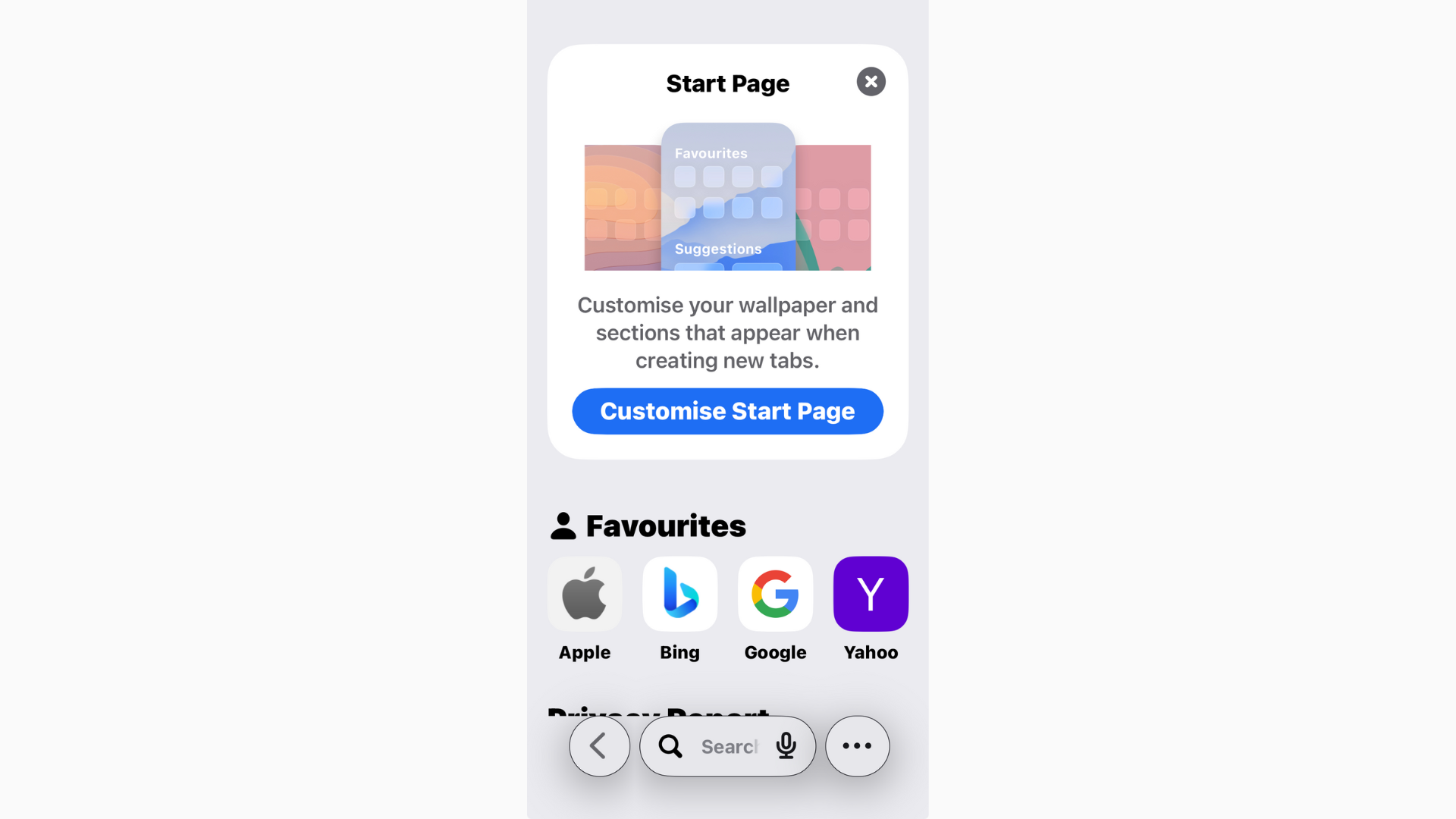
Safari in iOS 26 has picked up a fresh look and some new features, but one thing hasn’t changed: you can still view your browsing history when you need to revisit a site. The only catch is that Apple hides the option a little deeper than some people expect. Here’s how to find and manage Safari history on your iPhone or iPad running iOS 26.
Table of contents
View your history in Safari
- Open Safari on your iPhone or iPad.
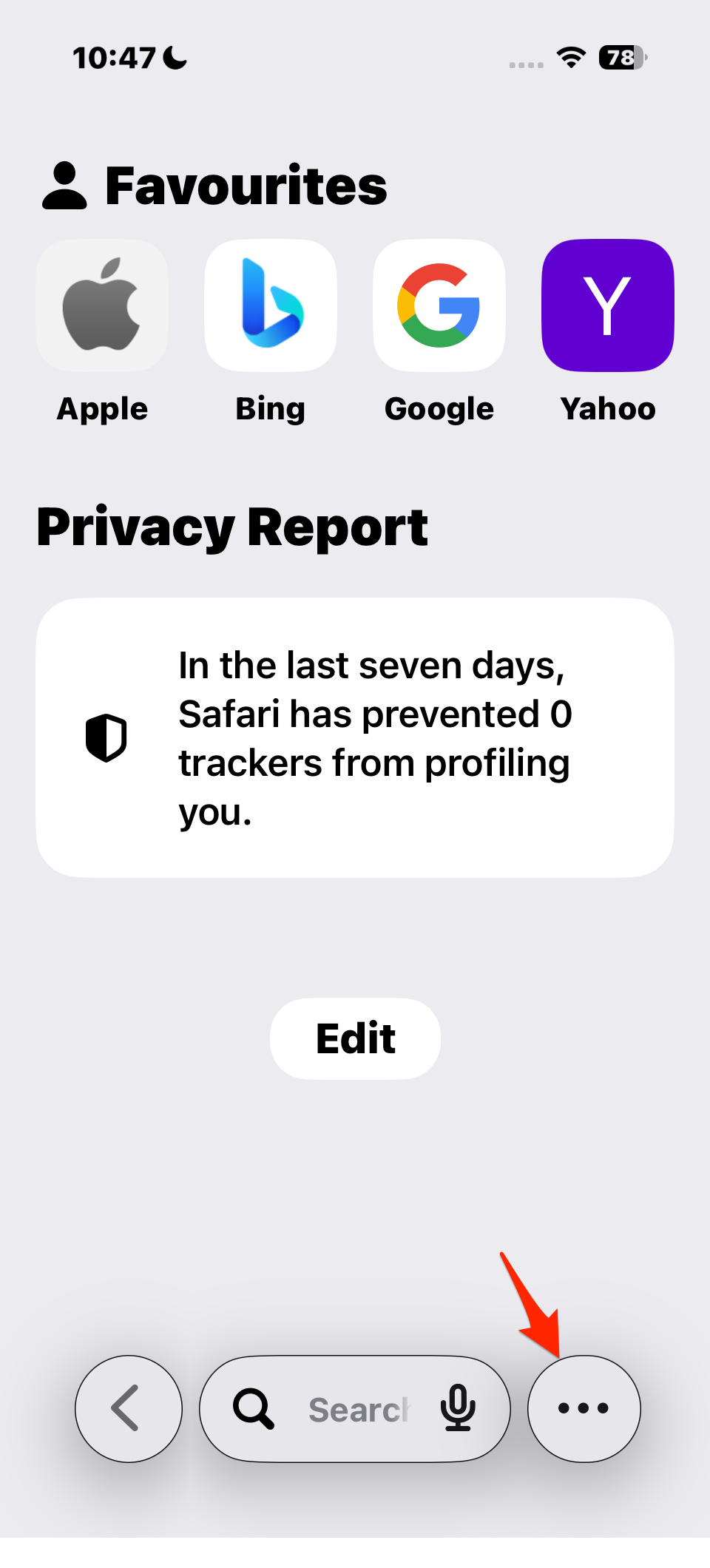
- Tap the menu (three-dot) icon then the book icon in the bottom toolbar (on iPhone) or top toolbar (on iPad).
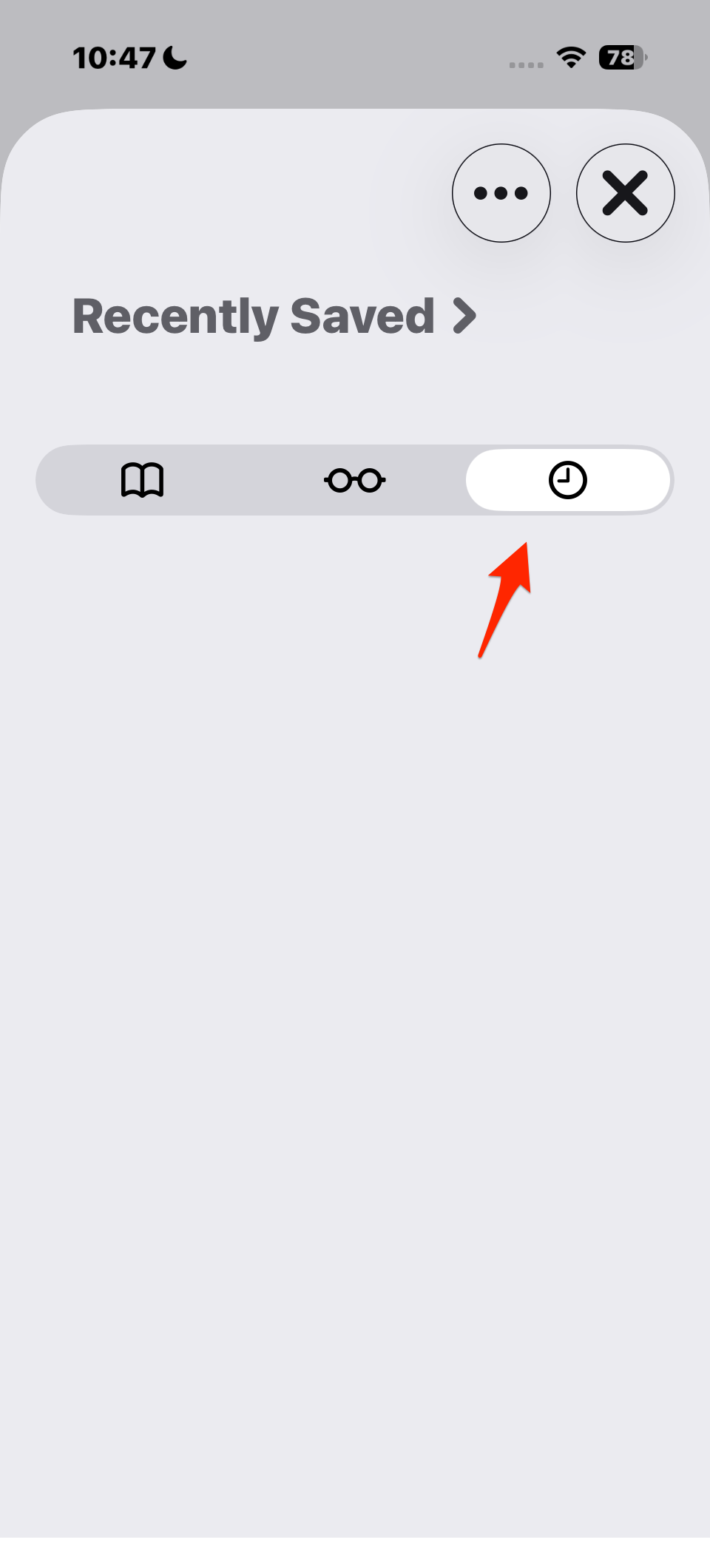
- Tap the clock tab — this is your full browsing history.
- Scroll through the list, or use the Search History bar at the top to find a specific site.
Tap any entry to reopen the page instantly.
Clear specific or all history
From the same history view, you can clear items:
Don’t miss the best of The Mac Observer
Set us as a preferred source and our Apple reporting ranks higher in your Google Search results and Discover feed — one tap, no account changes.
- Swipe left on an entry → tap Delete.
- Or tap Clear at the bottom → choose Last hour, Today, Today and Yesterday, or All time.
Keep in mind: clearing history here also clears it on any device signed in to the same iCloud account, unless you’ve disabled Safari syncing in Settings → Apple ID → iCloud.
Tips for using Safari history in iOS 26
- Use Tabs and History together: If you’re juggling multiple projects, check out Safari’s tab groups alongside your history.
- Private browsing won’t save history: Remember that private tabs don’t appear in your history at all.
- Spotlight search: iOS 26 Spotlight now shows recent Safari results too, so you may not even need to dive into history.
Related iOS 26 guides
- All reported iOS 26 bugs and issues with fixes
- Why is iOS 26 so laggy? Causes and fixes
- Make iOS 26 less animated
- 10 iOS 26 hidden features you may not know about
The takeaway
In iOS 26, Safari’s history is still easy to find — just tap the menu icon → book icon → clock tab and scroll or search. From there you can reopen sites, delete single items, or clear everything. If you use iCloud, your history follows you across devices, making it even more useful.


Is the history by specific tab/window? I looked up something I was reading last night and it’s not in history. I was not in a private tab.
Safari’s history isn’t saved per tab or window. It’s shared across all normal browsing sessions under your profile. If something you viewed isn’t showing up, it might have been opened in a private window by accident, cleared from history, or loaded in Reader View or a web app that doesn’t record visits. You can also check iCloud sync if you use multiple devices, sometimes history takes a bit to update across them.