
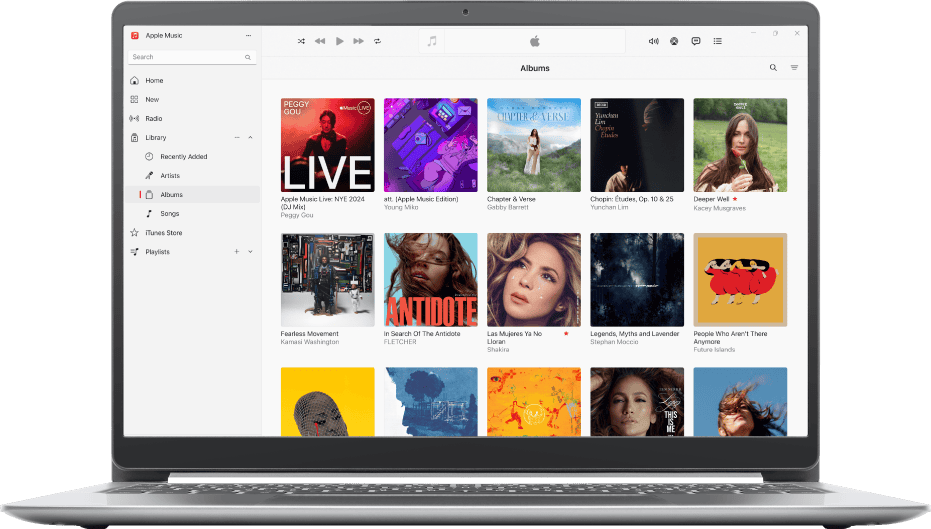
If your Windows PC has a small system drive and a larger drive for music, you can tell the Apple Music desktop app where to put new local imports. Changing the folder affects the next songs you add. An album that’s already in your library keeps its existing file location, even if it appears beside the new songs in Apple Music.
Choose a folder for the next import
- Connect the drive you intend to use. In Apple Music for Windows, open the Sidebar Actions menu at the top of the sidebar, select Settings and open Files.
- Expand the media-folder location control and select Change. Choose a folder on the destination drive. For example, you might choose D:\Music Imports if Windows assigns that drive the letter D.
- For Apple Music to make a copy there when you drag in a local track, turn on Copy files to Media folder when adding to library. If the option is off, the app can list a song while leaving the only actual file in its original folder.
- Drag one local audio file you own into the Apple Music window. Start with a file you haven’t already imported so you can identify the new library entry easily.
Check the new track and an old one
Open the new song’s More menu, select Properties → File and read the location at the bottom. It should point to your chosen drive. If you enabled automatic folder organization, the file may be inside an artist or album subfolder. Show in Explorer opens the actual file in Windows.
Check a local song you imported yesterday the same way. Seeing the old location is expected. If the original file you just dragged in was in Downloads, that source file can still be there too. The app’s copy setting determines what it adds to its media folder. The setting doesn’t remove the original.
If your goal was to free up space already occupied on the system drive, stop before deleting anything. This procedure has only changed future imports. Use the file locations to distinguish new copies from older files Apple Music still needs. To restore the default destination for future imports, return to Settings → Files and choose Reset in the folder control.
Apple documents how to change and verify file locations on Windows and how its media-folder settings affect imported files.
Featured image: Apple Music on Windows. Credit: TMO archive.
Don’t miss the best of The Mac Observer
Set us as a preferred source and our Apple reporting ranks higher in your Google Search results and Discover feed — one tap, no account changes.




Discussion