
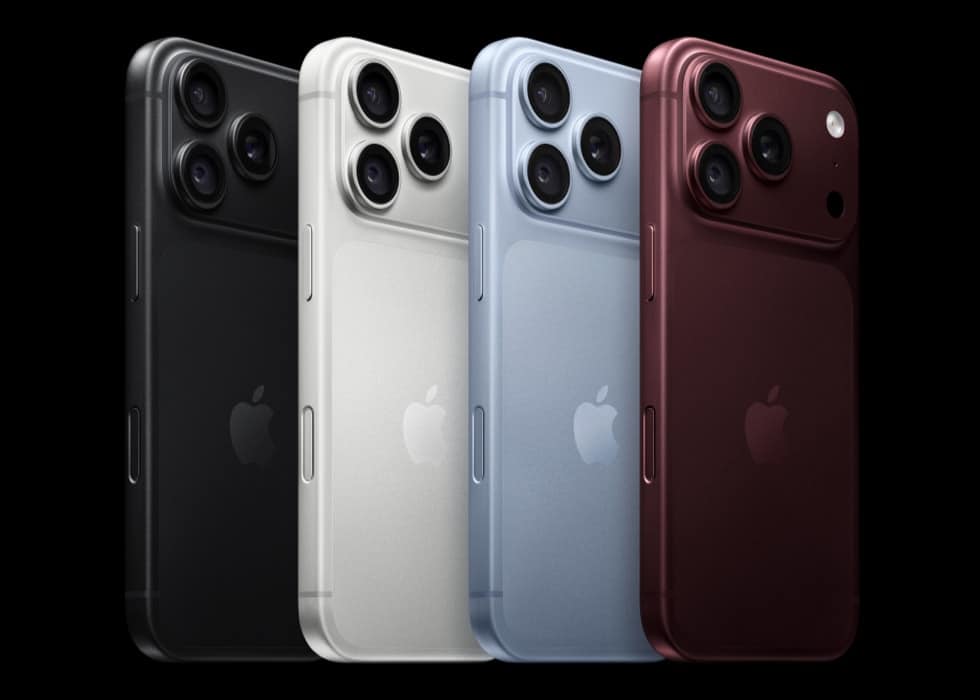
With Dual SIM on iOS 27, the setting that picks which number a Messages conversation uses is called Conversation Line, and it sits in that conversation’s details. Open the conversation, tap the contact or group icon at the top, tap Conversation Line, then tap a line or alias.
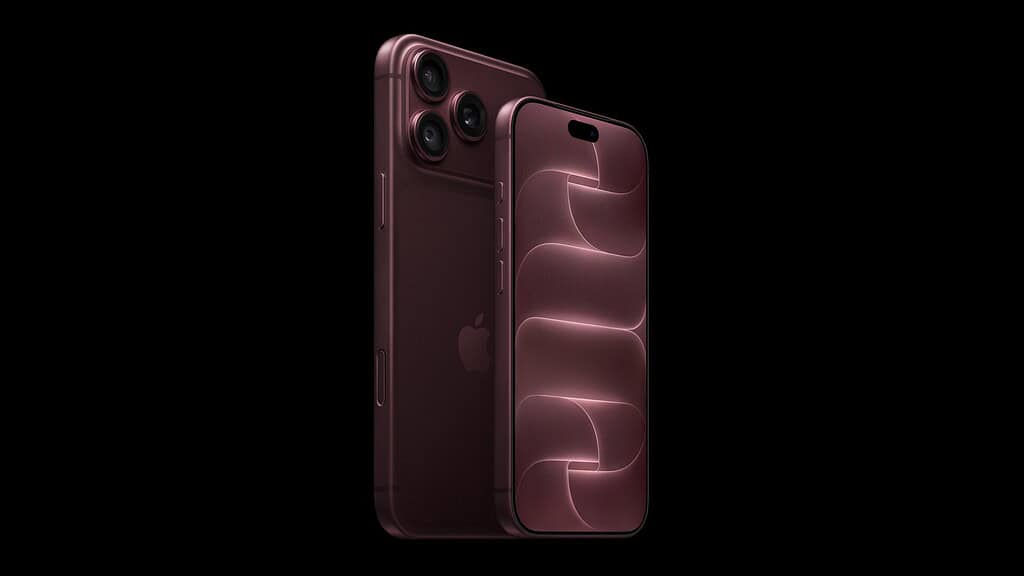
Apple’s iOS 26 guide gave a different route: tap your number while composing a message to switch to your other outgoing line. That instruction is gone from the iOS 27 guide, replaced by the per-conversation setting.
How to set the line for a conversation
- Go to the Messages app on your iPhone.
- Open the conversation you want to change.
- Tap the contact or group icon at the top of the conversation.
- Tap Conversation Line.
- Tap the line or alias you want that conversation to use.
Apple describes this as switching “which line is used for a conversation,” so you set it thread by thread. That makes it easy to keep a client on your work number and family on your personal one.
Don’t miss the best of The Mac Observer
Set us as a preferred source and our Apple reporting ranks higher in your Google Search results and Discover feed — one tap, no account changes.
Apple’s Dual SIM page says SMS threads can’t switch
One Apple page doesn’t match the other. The iOS 27 version of Apple’s Use Dual SIM page, which reads the same as its iOS 26 version, still says that if you start an SMS/MMS conversation on one line, you can’t switch it to your other line, and that you need to delete the conversation and start a new one on the other line. The Messages guide doesn’t limit Conversation Line to any message type. If Conversation Line doesn’t move an SMS or MMS thread to the number you want, deleting it and starting again from the other line is the route Apple documents.
The same page warns that you may pay extra to send SMS/MMS attachments on the line that isn’t selected for cellular data.
Name your lines so the menu is clear
Conversation Line is easier to use when your lines have obvious names. Apple’s Cellular Plan Label appears in Phone, Messages and Contacts.
- Go to the Settings app on your iPhone.
- Tap Cellular, then tap a line below SIMs.
- Change Cellular Plan Label to something obvious, such as Work or Personal.
The Cellular screen also holds the two other Dual SIM defaults: tap Cellular Data to choose the line for data, and Default Voice Line to choose the line for calls. Calls you place from another device, such as a Mac, by relaying them through your iPhone use the default voice line.
Which iPhones support Dual SIM
Apple lists two setups:
- One physical SIM and one eSIM: iPhone SE (2nd generation), iPhone XR, iPhone XS, iPhone 11, iPhone 12, iPhone 13, and iPhone 14, and later.
- Two eSIMs: iPhone SE (3rd generation), iPhone 13, and later.
Between them, those lists cover every iPhone that runs iOS 27. Apple notes that physical SIMs aren’t supported on all models, that eSIM isn’t available in every country or region, and that your iPhone must be unlocked to use two different carriers. If you plan to move two lines to an iPhone 18 Pro, check which setup your model and carriers support first.



