In iOS 27, the Photos app can turn a single frame of a video into a photo. Play the video, pause on the moment you want, tap the More button, then tap Save Video Frame as Photo.

Apple gives the feature one line on its iOS 27 “What’s new” page: “You can save any frame from a video as a photo.” The still is saved to your photo library as a new photo.
Save a frame as a photo
- Open the Photos app.
- Open a video, then play it.
- Pause the video on the frame you want to save.
- Tap the More button, then tap Save Video Frame as Photo.
Landing on the exact frame is the fiddly part, especially with fast action. Apple’s guide to viewing videos says you can pause a playing video or drag the gray bar to move forward or back. Pause near the moment, nudge the bar until the frame you want is on screen, and then tap More.
Don’t miss the best of The Mac Observer
Set us as a preferred source and our Apple reporting ranks higher in your Google Search results and Discover feed — one tap, no account changes.
Apple lists no model requirement, so the option should work on any iPhone that runs iOS 27, from iPhone 11 and iPhone SE (2nd generation) to the new iPhone 18 Pro.
Where the new photo shows up
If you can’t find the still after saving it, check how your library is sorted. Apple says its position depends on that setting:
- Sorted by Added: “the photo is saved at the bottom of the library.”
- Sorted by Captured: “the photo appears next to the original video.”
This matters most with older clips. Save a frame from a birthday video shot three years ago, and in a library sorted by Added it sits at the bottom with your newest items. Sorted by Captured, it sits back on that birthday, beside the video.
Check or change your library sort
- In the Photos app, tap the Sort and Filter button.
- At the top of the list, tap Added or Captured.
Apple describes Added as putting the items you “added most recently” at the bottom of the library, while Captured sorts photos and videos “by the date they were taken, instead of the date they were added to the library.” If you save frames often and want each one where you’ll see it straight away, Added is the simpler choice.
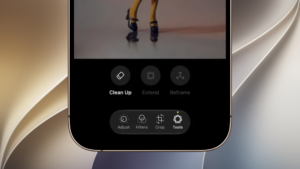
If a saved frame needs work, the same iOS 27 Photos update adds Apple Intelligence editing tools that reframe a photo after it’s taken, extend its borders and remove distracting objects. Those need iPhone 15 Pro, iPhone 15 Pro Max or iPhone 16 and later.