
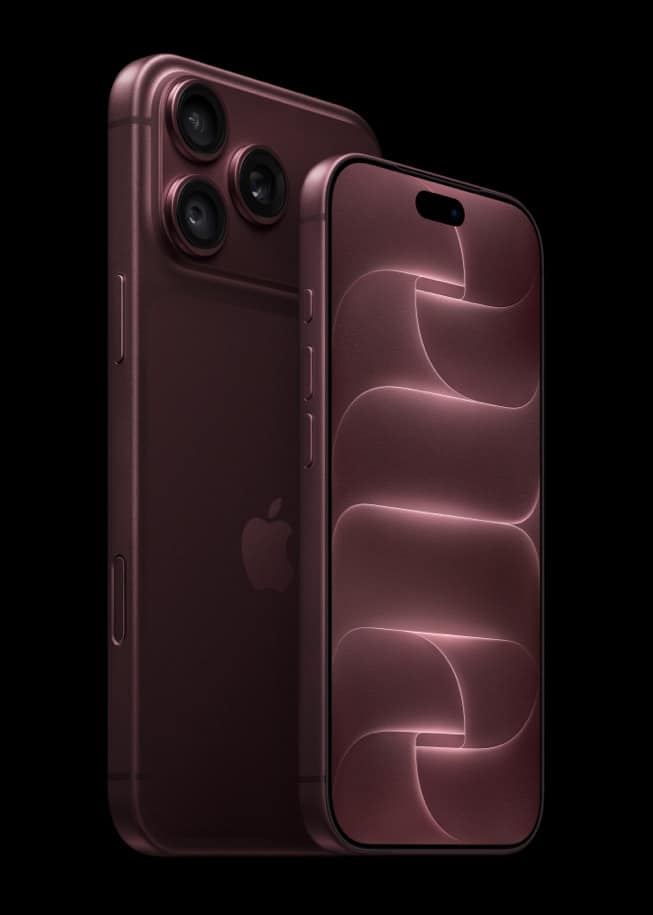
On iPhone 18 Pro and iPhone 18 Pro Max, switching on Apple ProRes isn’t the end of the job. After you turn on Apple ProRes in Settings > Camera > Formats, Apple’s iPhone User Guide says to tap Configure Pro Video Storage and set aside space on the phone for pro video recordings.

You only have to do this the first time you turn on ProRes, so it makes sense to handle it while you set up the phone rather than when a shot is waiting. The same reservation also unlocks the choice between Log and Log 2.
How to reserve Pro Video Storage
- Open the Settings app.
- Tap Camera, then tap Formats.
- Turn on Apple ProRes.
- Tap Configure Pro Video Storage.
- Set the amount of storage to reserve.
- Tap Update Pro Video Storage, then tap the Close button (the X).
Apple’s guide doesn’t recommend an amount, so size the reservation to how much you shoot and how much free space you can spare. Expect it to fill quickly. Apple warns that “ProRes videos result in larger file sizes,” the price of what it calls “higher color fidelity and less compression.”
Don’t miss the best of The Mac Observer
Set us as a preferred source and our Apple reporting ranks higher in your Google Search results and Discover feed — one tap, no account changes.
Change or remove the reservation later
The amount isn’t fixed. On iPhone 18 Pro models, Apple says you can “change the amount of storage reserved for pro video recordings, or remove the reserved storage to reclaim space.”
- Open the Settings app.
- Tap Camera, then tap Formats.
- Tap Configure Pro Video Storage and set the new amount.
- Tap Update Pro Video Storage, then tap the Close button.
To stop recording in ProRes, Apple says to repeat the steps you used to turn it on, which means switching off Apple ProRes on the Formats screen. Apple’s guide treats reclaiming the reserved space as its own task, so if you want the storage back, adjust or remove it under Configure Pro Video Storage as well.
Choose Log or Log 2
iPhone 17 Pro and iPhone 18 Pro models let you pick the Log format used for ProRes video. On iPhone 18 Pro and iPhone 18 Pro Max, Apple says to turn on Apple ProRes and configure Pro Video Storage before you get to this setting.
- Open the Settings app.
- Tap Camera, then tap Formats.
- Tap ProRes Log Video Encoding, then tap Log or Log 2.
Recording in ProRes
With the setting on, open Camera, select Video mode, tap the resolution and frame rate values in the corner of the screen, then tap a ProRes option. Start and stop recording with the Record button, either volume button or the Camera Control.
ProRes works on every camera, including the front camera, but not in Cinematic, Time-lapse or Slo-Mo mode. Apple lists ProRes recording up to 4K at 30 fps, and says iPhone 18 Pro models can record 4K at 120 fps when connected to a compatible external storage device.
For the rest of the camera system, including the variable aperture, see our iPhone 18 Pro camera explainer. If you’re still choosing a size, our iPhone 18 Pro vs iPhone 18 Pro Max guide compares the two, and the full spec rundown is in our iPhone 18 Pro launch coverage.



