

The “unable to purchase” error that says an app is not compatible with this iPad appears when the App Store blocks a download based on hardware, software, or account limitations. In most cases, you can fix the issue by checking system version, device support, or App Store settings.
Table of Contents
Ways To Fix the “Unable To Purchase” Error and Find if Your iPad Is Compatible or Not
Check Your iPadOS Version
Many apps require a minimum iPadOS version. If your device runs an older release, the App Store blocks the download. You may need to check for OS updates, and make sure you have one of the iPads compatible with the latest iPadOS, or, at least, the minimum required version for that app.
Time needed: 30 minutes
- Open Settings.
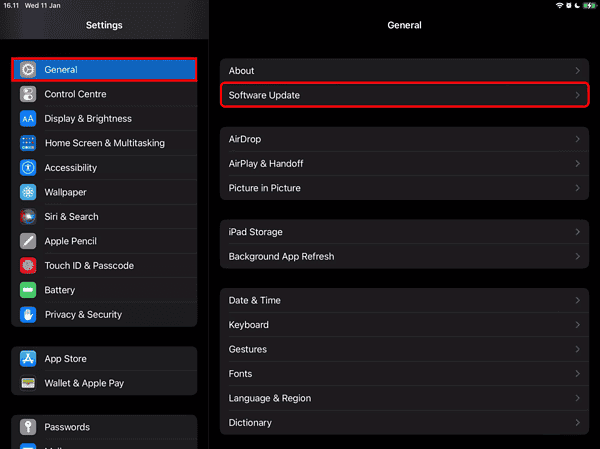
- Tap General > Software Update.
- Install the latest available iPadOS update.
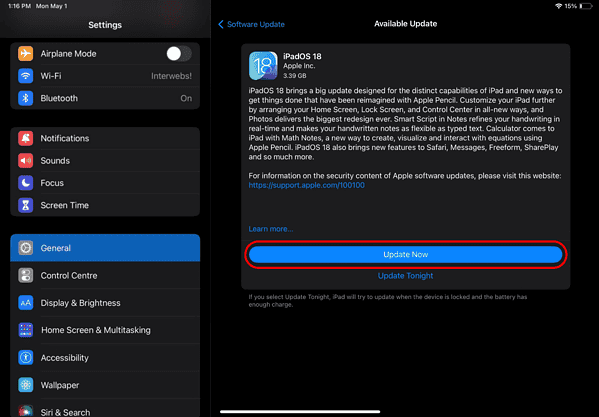


If your iPad no longer receives updates, newer apps may remain unavailable.
Don’t miss the best of The Mac Observer
Set us as a preferred source and our Apple reporting ranks higher in your Google Search results and Discover feed — one tap, no account changes.
Confirm the App Supports Your iPad Model
Some apps drop support for older iPad hardware even if the software version looks compatible.
- Open the app page in the App Store.
- Scroll to the Information section.
- Check the compatibility details for supported devices.
If your model is missing, the app cannot install on that iPad.
Download the Last Compatible App Version
If you downloaded the app before, Apple may allow installing an older version that still supports your iPad.
- Open the App Store.

- Tap your profile icon, then open Purchased.
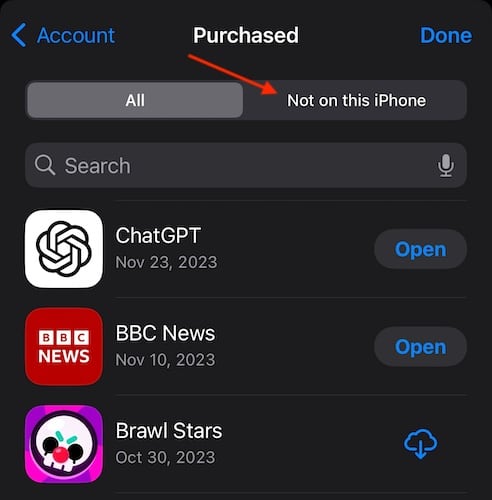
- Go to Not on this iPad, find the app, and tap Download.


When available, the App Store prompts you to download a compatible version.
Check Screen Time and Purchase Restrictions
Screen Time restrictions can block app downloads and trigger misleading purchase errors. This way, even if an app is compatible with your iPad, you may not be able to install it, and see the “Unable to Purchase” error.
- Open Settings.
- Tap Screen Time.
- Open Content & Privacy Restrictions.
- Confirm app installs are allowed.
This applies even if restrictions were enabled long ago.
Sign Out and Back Into Your Apple ID
Account sync issues can cause the App Store to misread device compatibility.
- Open Settings.
- Tap your Apple ID name.
- Select Sign Out, then sign in again.
Restart the iPad after signing back in.
Check Regional App Store Availability
Some apps restrict availability by country or region.
- Open Settings.
- Tap your Apple ID > Media & Purchases.
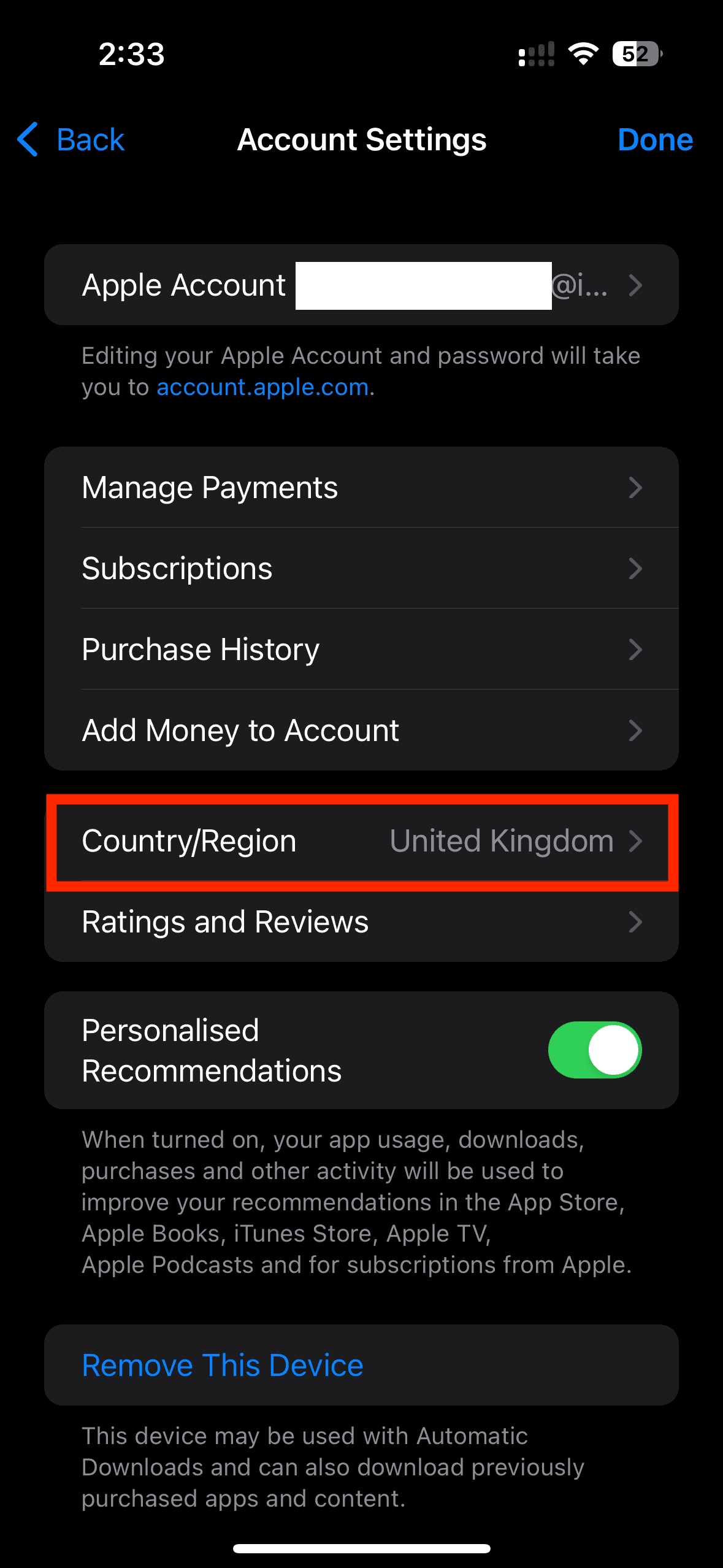
- Confirm your region matches the app listing.

A mismatch can prevent downloads even on supported devices.
“Unable to Purchase” Error: Tips To Find if your iPad Is Compatible or Not
- Older iPads often lose support before newer iPadOS features.
- App compatibility depends on both hardware and system version.
- Previously purchased apps offer more flexibility.
- Restart the iPad after major setting changes.
FAQ
The App Store page may load, but compatibility checks happen during purchase.
No. Apple blocks installation when hardware or software requirements are unmet.
Resetting rarely helps unless the issue comes from account or restriction settings.
iPad Not Compatible or Unable To Purchase Apps: Summary
- Update iPadOS to the latest supported version.
- Confirm the app supports your exact iPad model.
- Try downloading a previously purchased version.
- Review Screen Time and Apple ID settings.
The “unable to purchase” error on iPad usually reflects real device limits, and your device is likely not compatible with the app you’re trying to download. If it is compatible, checking software, hardware, and account settings resolves most cases without further troubleshooting.


Discussion