

Hidden in the release notes of iOS 10.3 was a listing about a “New Settings unified view for your Apple ID account information, settings and devices.” That’s actually a pretty big deal, because it consolidates a number of iCloud settings while also bringing some new functionality to your iOS device. I’ll walk you through these changes.
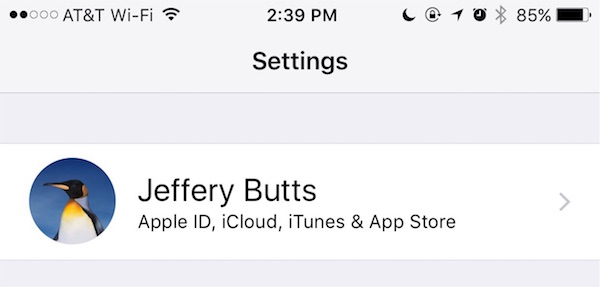
Where Do I Find This New Option?
The new iCloud configuration option sits right at the top when you open the Settings app, so you may have already noticed it. That’s handy, since iCloud is likely the category of configurations that you’ll be making the most changes to.
Don’t miss the best of The Mac Observer
Set us as a preferred source and our Apple reporting ranks higher in your Google Search results and Discover feed — one tap, no account changes.
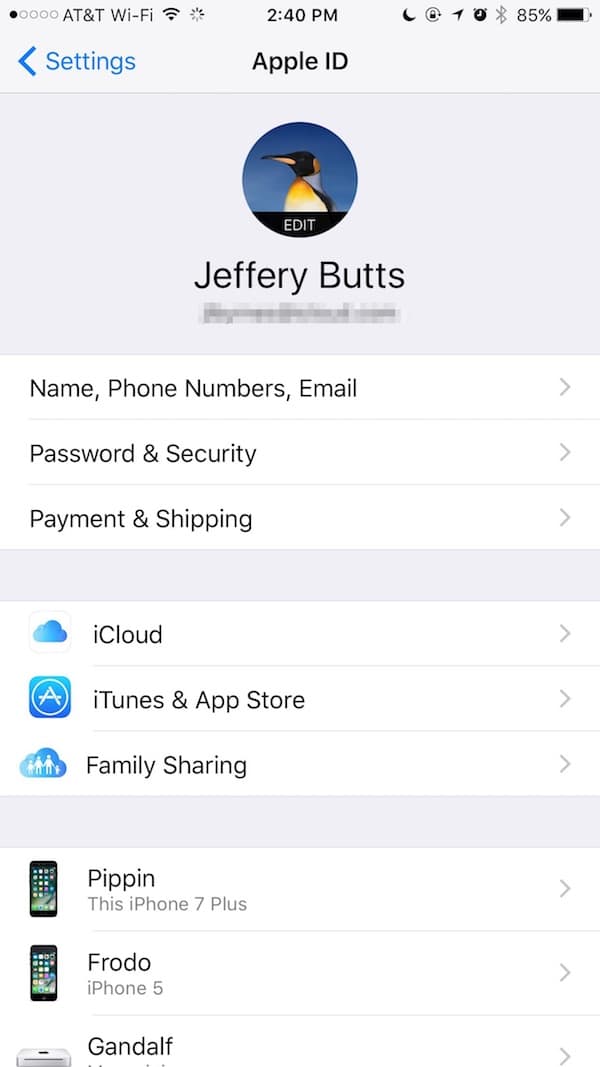
What Can This iOS 10.3 Unified iCloud Settings Menu Do?
You can do everything within this unified settings menu that you could have done with the myriad options before, and then some. Your iCloud settings, along with your iTunes & App Store and Family Sharing configurations are all located in this one place.
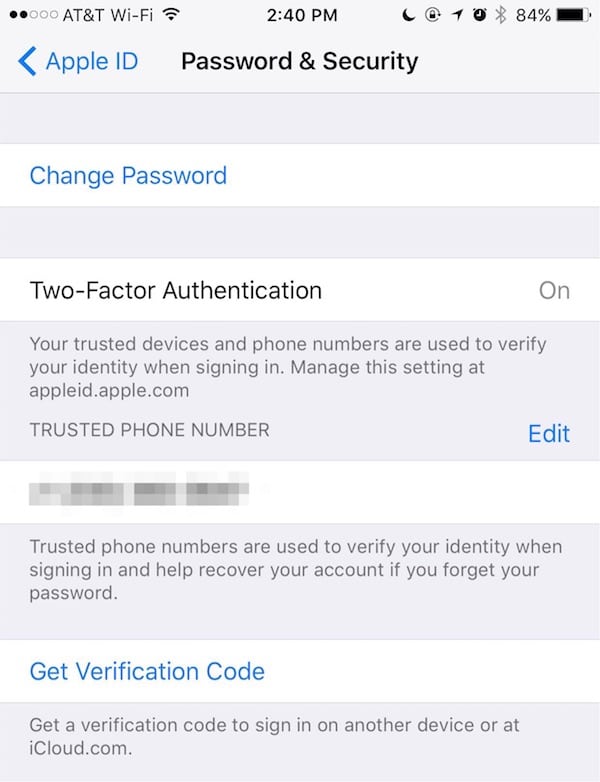
In addition, it’s now even easier to get to the Password & Security menu. Just tap on your iCloud Apple ID from the main screen of the Settings app, then tap Password & Security. There, you can change your password, set up Two-Factor Authentication, edit your trusted phone number, or get a verification code for signing into another device or iCloud.com.
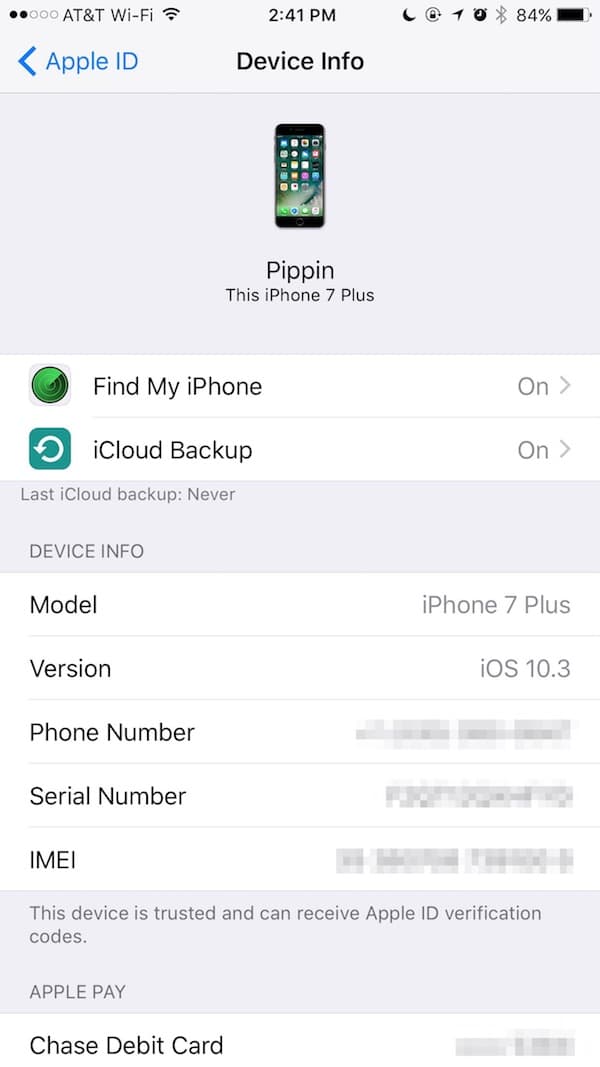
Here’s something new. You can also manage the devices attached to your iCloud account. For iPhone and iPad devices, you’re able to configure Find My iPhone and iCloud Backup. You can also view the model number, iOS version, phone number, serial number, and IMEI.
If you have a Mac, your iPhone can now give you important information about that device, too. You can check the model, macOS version number, and even find the serial number.
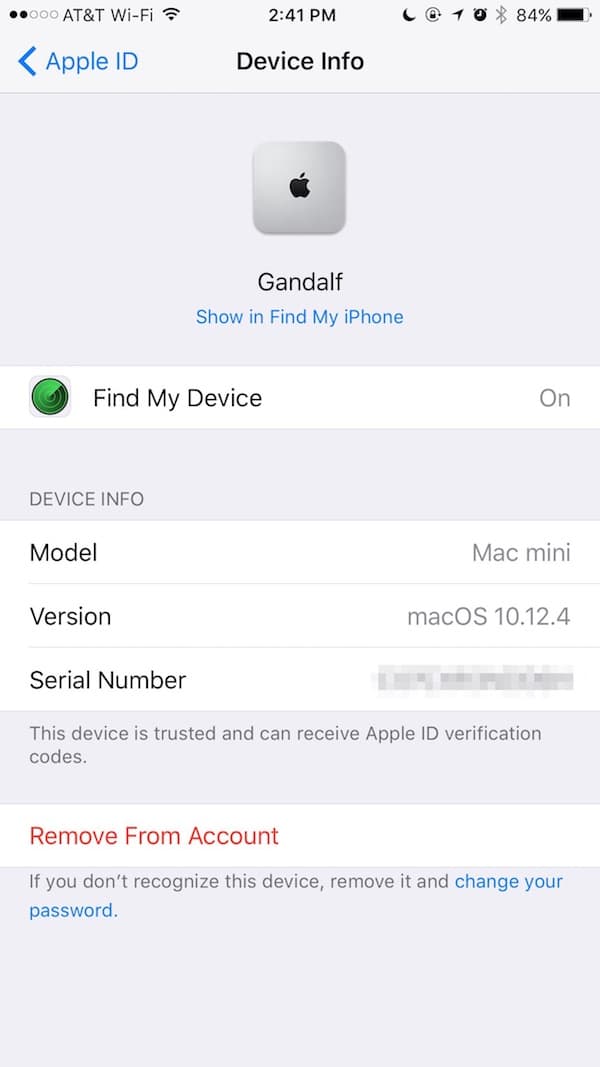
No matter what type of device you’re viewing, you can also remove it from your account. Effectively, that will lock a stolen device out of iCloud. Not as good as remote wiping the device, but it could still be useful.


Would have been much easier if Apple hadn’t buried the iCloud setup within the Apple ID
Nice. Thanks.
This is much easier!