
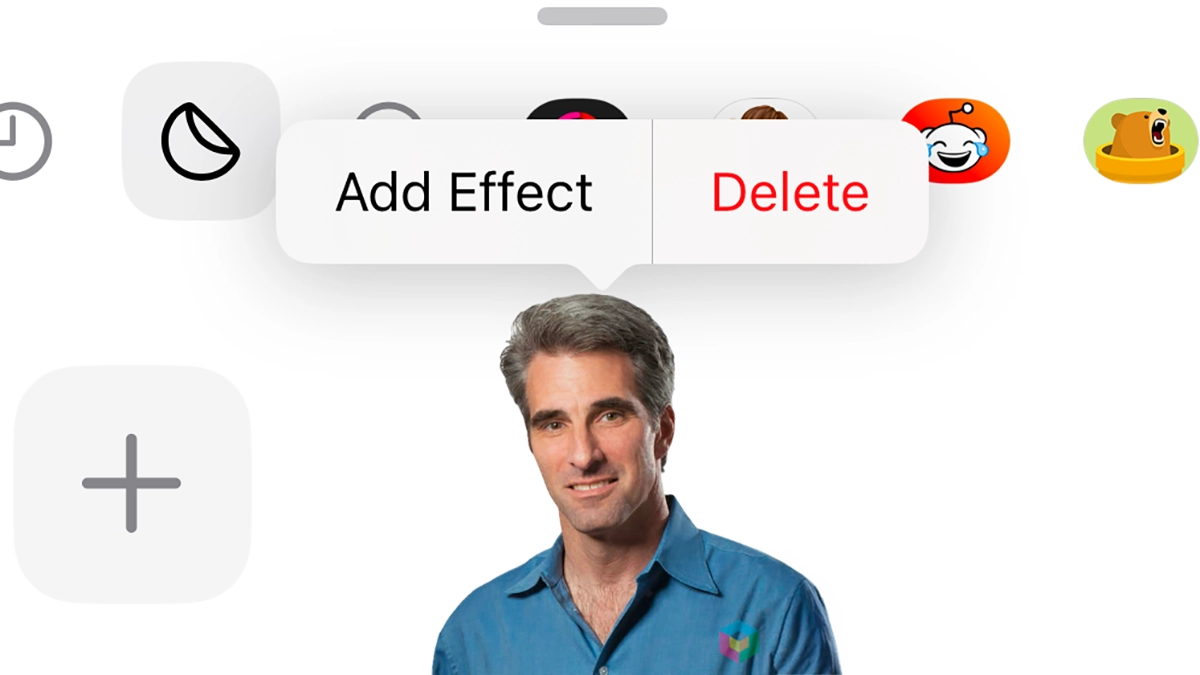
If you are wondering how to delete stickers on iPhone, you are not alone. Stickers can be fun, but over time, your keyboard can get cluttered with ones you no longer use. Since Apple does not make it very obvious, many users struggle to find the option to remove them.
Here is a simple guide to clear out unwanted stickers from your iPhone!
Table of contents
How to delete custom stickers in messages?
Most of you are probably wondering how to delete custom stickers. I won’t get into why you’d want to delete them. Maybe you have too many, and things feel cluttered.
Don’t miss the best of The Mac Observer
Set us as a preferred source and our Apple reporting ranks higher in your Google Search results and Discover feed — one tap, no account changes.
If you want to delete custom stickers, the easiest way is through the Messages app. Here’s how:
- Go to Messages.
- Open any conversation and tap the + icon next to the text box.
- Tap Stickers.
- Tap the custom stickers icon.
- Now, tap and hold the sticker you want to delete.
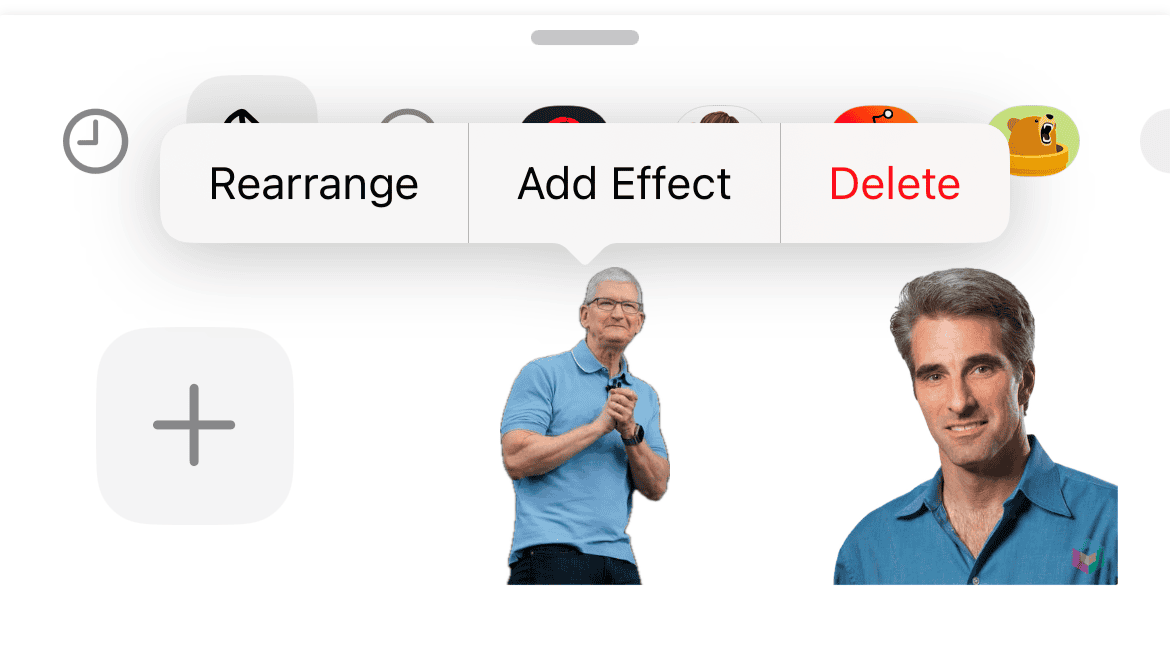
- Lift your finger without moving the sticker.
- Tap Delete to remove the sticker,

How to delete custom stickers in other apps?
You can also delete stickers in apps other than Messages, but only if the app supports stickers. For example, you can delete them from WhatsApp or Notes, but not from YouTube or Google Search.
Here’s how to delete stickers in other apps:
- Open any app that supports stickers (e.g., Notes, WhatsApp, Instagram).
- Switch to the iPhone’s stock keyboard and tap the emoji button.
- Tap the stickers icon.
- Now, tap and hold the sticker you want to delete.
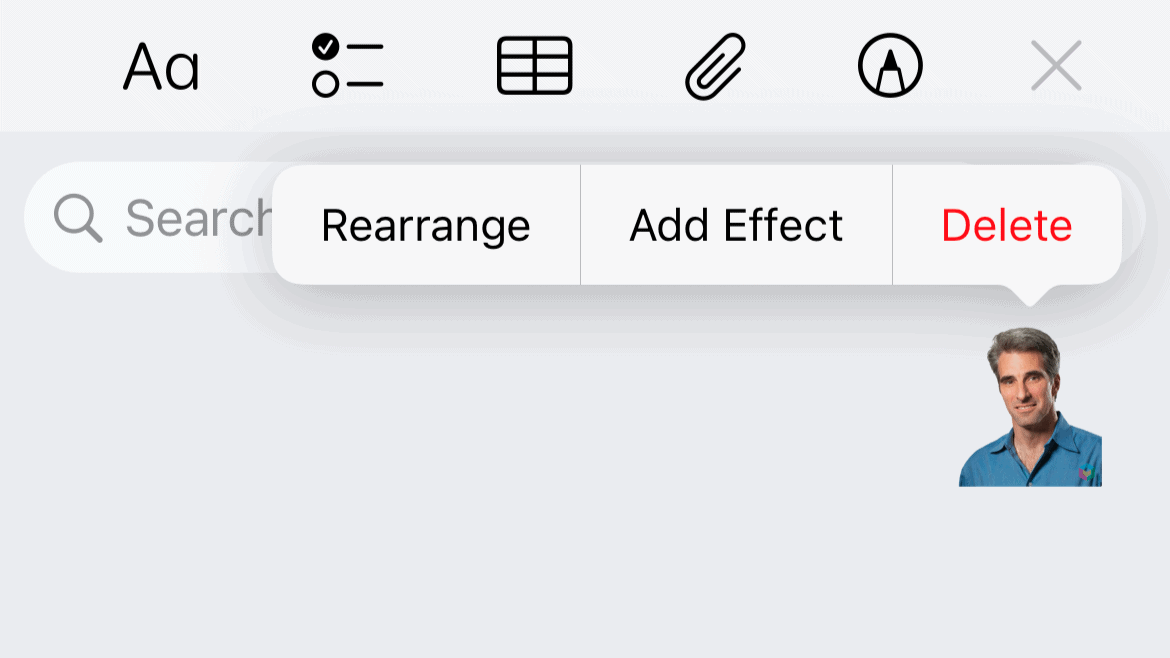
- Once again, don’t move the sticker around and just lift your finger.
- Tap Delete.

How to delete third-party stickers on iPhone?
Deleting third-party sticker packs is as easy as deleting their apps. So, if you want to delete a sticker pack, locate its app on the Home Screen or in the App Library, tap and hold the icon, and choose Remove App.
However, if you want to keep the app but remove its stickers, you can disable them to declutter your keyboard. Here’s how:
- Go to Messages.
- Open any conversation and tap the + icon next to the text box.
- Tap Stickers.
- Tap Edit.
- Tap Edit in the upper left corner.
- Turn off the toggle for any app whose sticker packs you want to remove from the keyboard.

That’s about it. Now, you know several ways to delete stickers on your iPhone. Good luck!
Tips
- If you use certain stickers occasionally, consider disabling them instead of deleting. You can always re-enable them later.
- Some sticker packs come bundled with apps you may have forgotten about. Look through your App Library to clean up hidden sources of stickers.
- Sometimes, sticker-related settings are easier to manage after updating to the latest iOS version.
- If you’re experimenting with deleting custom stickers, backing up your iPhone first ensures you can restore them if needed.
- If deleted stickers still show up, a quick restart can refresh your keyboard cache.
Frequently Asked Questions
No, once you delete a custom sticker, it’s gone for good. You’ll need to create it again if you want it back.
Only if you remove the app completely. If you just disable its stickers in Messages, the app will still stay on your iPhone.
Not all apps support sticker management. Deletion works only in apps that integrate with the iPhone keyboard’s sticker feature, such as Messages, Notes, or WhatsApp.
Yes, custom stickers and sticker packs do use storage, though usually not much. Deleting unused ones can help if you’re low on space.
Summary
- Delete custom stickers directly from the Messages app.
- Remove stickers in other apps like WhatsApp or Notes, if supported.
- Delete third-party sticker packs by uninstalling their apps.
- Keep the app, but disable its stickers in Messages settings.
- A quick cleanup helps keep your iPhone keyboard organized and clutter-free.
Conclusion
Stickers can be a fun way to personalize your chats, but too many of them quickly become clutter.
Thankfully, Apple gives you multiple ways to manage them. You can delete, disable, or simply hide the ones you no longer use. Whether it’s custom-made stickers or third-party packs, a little cleanup keeps your keyboard neat and makes finding your favorites much easier.


Discussion