

Want to use Apple’s Pages on Windows? Even though Apple does not provide a dedicated Windows app, there are still many effective ways to work with Pages documents on a PC.
Whether you want to edit, share, or just view them, there are plenty of methods to make it work.
How to use Pages on a Windows PC?
 NOTE
NOTE
1. Use Pages via iCloud (easiest method)
Apple makes it simple to access Pages on Windows through iCloud.
Don’t miss the best of The Mac Observer
Set us as a preferred source and our Apple reporting ranks higher in your Google Search results and Discover feed — one tap, no account changes.
- Open your browser on Windows.
- Go to the iCloud website and sign in with your Apple ID.
- Once signed in, select Pages from the app menu.
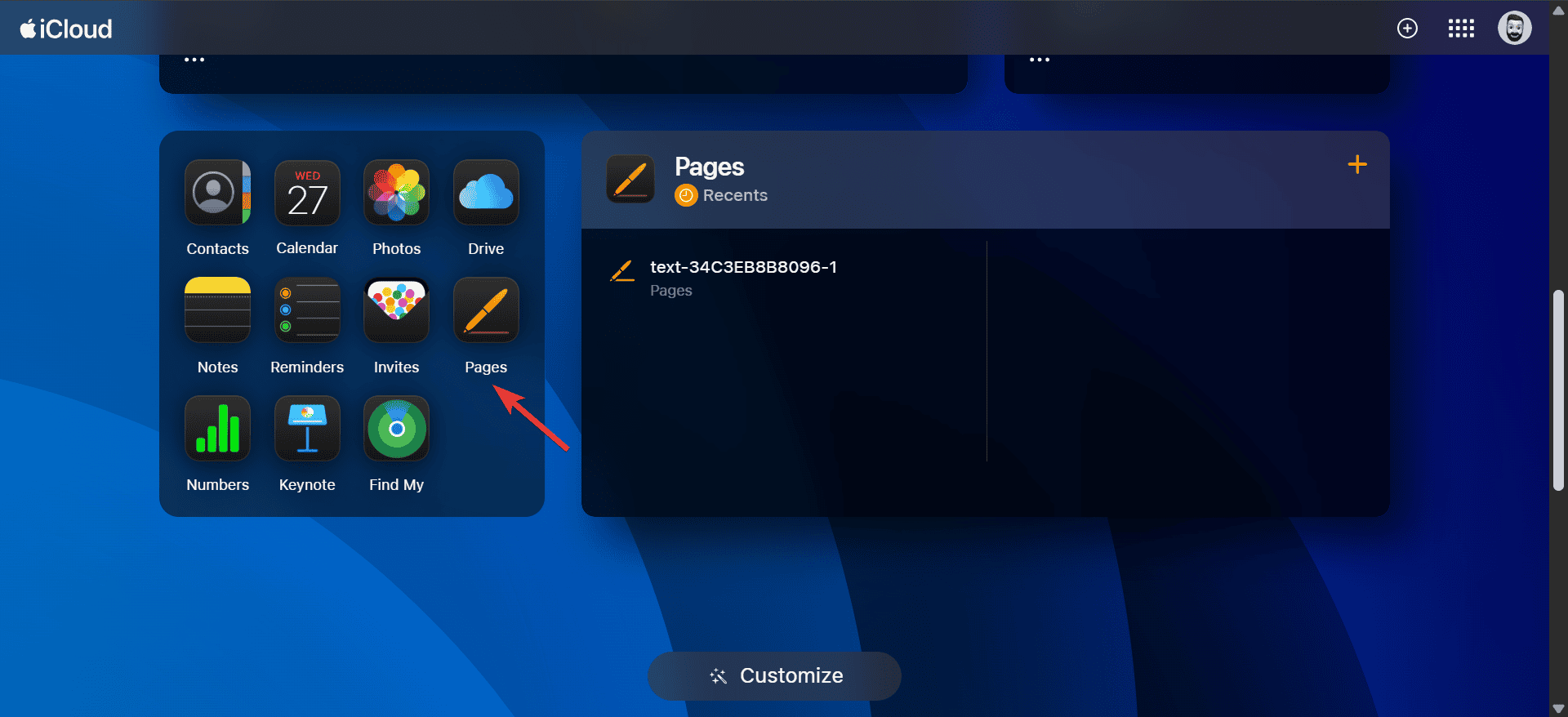
- You can now create, edit, and save documents directly in your browser.

Key points to remember:
- Make sure your internet connection is stable because iCloud can lag on slower networks.
- Pages on iCloud works best in Chrome, Edge, or Firefox.
- You can also upload existing Word files to iCloud Pages and edit them there.
You can similarly use Apple’s Keynote on Windows.
2. Convert Pages files to Word or PDF
If someone sends you a Pages file and you only need to view or make small edits, conversion is an easy solution.
- Ask the sender to export the Pages document as a Word file (.docx) or PDF.
- If that is not possible, upload the Pages file to iCloud Pages yourself and download it in Word or PDF format.
- Open the converted file on Windows using Microsoft Word or any PDF reader.

Key points to remember:
- Users often prefer PDF export for preserving layout and fonts.
- For documents requiring further editing, choose Word export instead.
3. Access Pages via a remote Mac connection
If you own a Mac or have access to one, you can remotely connect from Windows.
- Enable remote access on your Mac through tools like TeamViewer or AnyDesk
- From your Windows PC, connect to your Mac.
- Open Pages on the Mac remotely and work as if you were using it locally.
Key points to remember:
- This method gives the most authentic Pages experience but requires owning or borrowing a Mac.
- Performance depends heavily on internet speed.
With a remote connection, you can also access Apple’s Freeform on Windows.
4. Use a virtual machine or Hackintosh setup
Some advanced users install macOS on a virtual machine in Windows to run Pages directly.
- Set up a virtual machine using tools like Parallels Desktop 17 or VirtualBox.
- Install macOS on the virtual machine.
- Once macOS is running, download Pages from the App Store.
Key points to remember:
- This method requires technical knowledge and a powerful Windows PC.
- It is not officially supported by Apple, so expect occasional glitches.
This way, you can also use Xcode on Windows.
5. Open Pages files with online file converters
There are online tools that let you quickly convert .pages files without iCloud.
- Upload the .pages file to a trusted online converter like CloudConvert or Zamzar.
- Select the format you want, usually Word or PDF.
- Download and open the converted file on your Windows PC.
Key points to remember:
- Always use trusted converters to avoid privacy risks.
- This method works best for quick one-time access rather than regular editing.
Online file converters also allow you to access Numbers files on Windows.
6. Share documents through collaboration
If a friend or colleague uses Pages, they can invite you to collaborate through iCloud.
- Ask them to open the document in iCloud Pages.
- They can click Collaborate and share the link with you.
- Open the link in your Windows browser and work together in real time.

Key points to remember:
- Collaboration is smooth for basic text edits but may lag with media-heavy files.
- Make sure you both use updated browsers.
Tips
- Save frequently when using iCloud Pages, especially if your connection drops.
- Use export options to ensure compatibility with non-Apple users.
- Keep backups in Word or PDF format for cross-platform safety.
- For heavy or professional work, consider pairing Pages with Microsoft Office on Windows for maximum flexibility.
Frequently Asked Questions
No, Pages does not have a Windows version. The closest alternative is accessing it through iCloud.
Yes, Pages on iCloud is completely free if you have an Apple ID.
Yes, you can use online file converters or ask the sender to export the file as Word or PDF.
Chrome, Edge, and Firefox are recommended. Safari is not available on Windows anymore.
Summary
- Use Pages through iCloud in a browser.
- Convert Pages files to Word or PDF.
- Connect remotely to a Mac to access Pages.
- Install macOS on a virtual machine for full access.
- Use online file converters for quick access.
- Collaborate on Pages documents via iCloud sharing.
Conclusion
While Apple’s Pages is not directly available on Windows, there are several practical workarounds. For most people, iCloud is the easiest and most reliable way to access Pages on a PC. If you need the full app experience, options like remote connection or a virtual machine can help.
With these methods, you can create, edit, and share Pages documents on Windows without any hassle!


Discussion