

Knowing how to switch off an iPhone is useful whether you want to troubleshoot, save battery during storage, or completely power down for privacy. Apple provides multiple methods so you can turn off any iPhone, whether it uses Face ID, a Home button, or has unresponsive hardware. You can shut down through button combinations, the Settings app, Siri, or accessibility features.
Table of contents
Methods to Switch off any iPhone
Apple supports several ways to switch off or turn off an iPhone, ensuring that you can power down regardless of the model or condition. These include hardware button shortcuts, Settings, Siri, and accessibility tools. For frozen devices, a force restart brings the phone back to life.
1. Buttons: Face ID models
For iPhone X and newer models:
- Press and hold the Side button and Volume button until the sliders appear.

- Drag the Power Off slider to the right.
- To power on, hold the Side button until the Apple logo shows.

2. Buttons: Home button models
For iPhone SE and earlier models with a Home button:
- Press and hold the Top or Side button (depending on model).
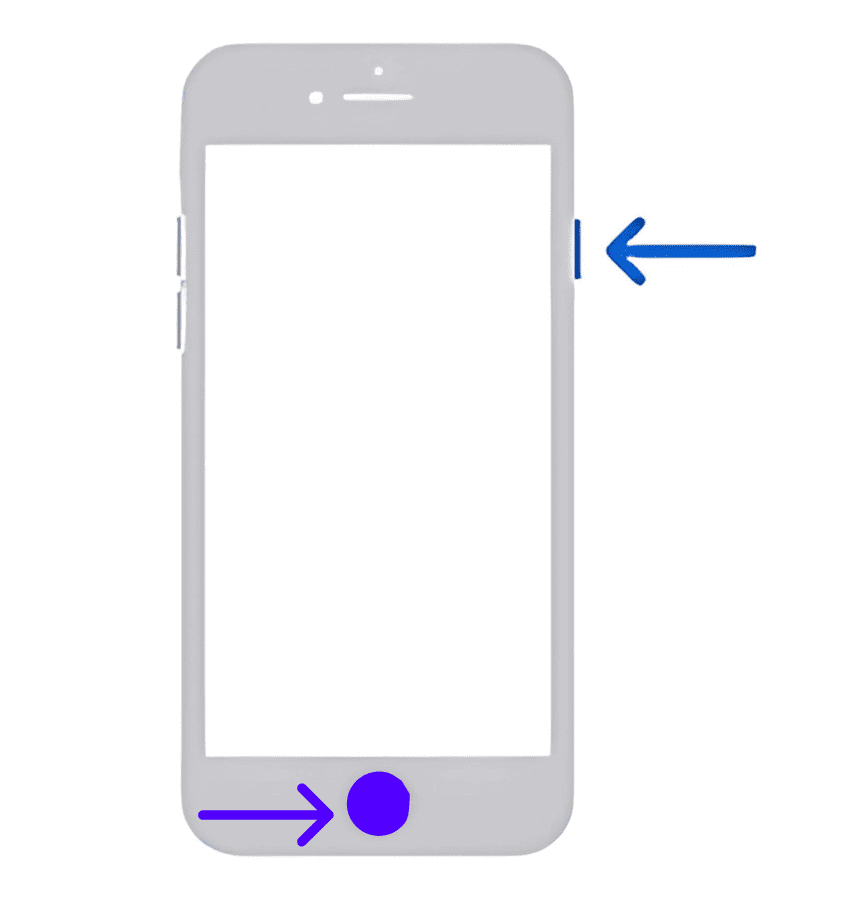
- When the Power Off slider appears, drag it to the right.
- To turn the phone back on, press and hold the Top/Side button until the Apple logo appears.

3. Settings method
This works on all models:
- Go to Settings > General.
- Tap Shut Down.
- Slide to power off.
4. Siri
Hands-free control is supported in newer iOS versions:
- Say, “Hey Siri, turn off my iPhone.”
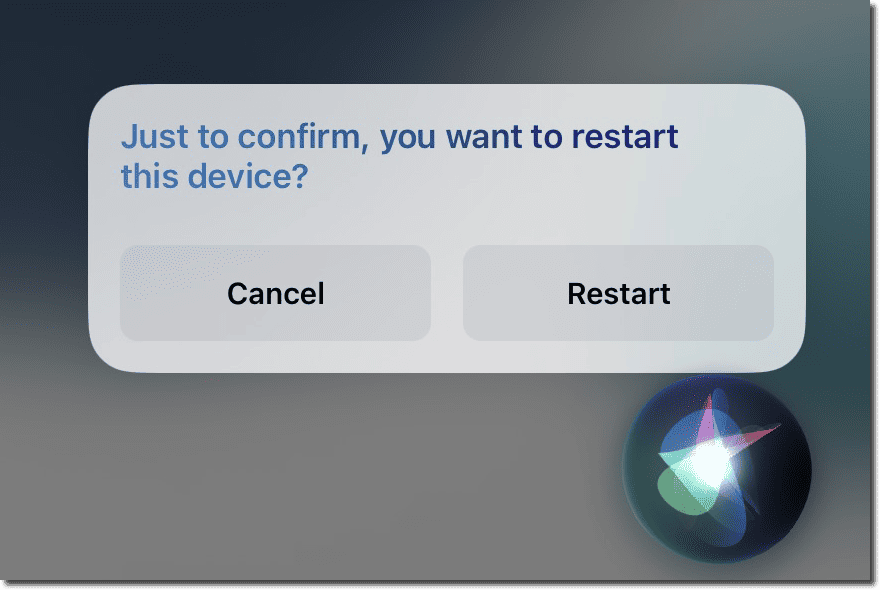
- Confirm the shutdown on-screen.

Check out our guide on how to Restart your iPad or iPhone using Siri.
5. Accessibility features

- Enable AssistiveTouch: Settings > Accessibility > Touch > AssistiveTouch.
- Use the floating menu to trigger shutdown or a shortcut.
6. Force restart for frozen devices
Only use this when the phone is unresponsive:
- iPhone 8 and later: Press Volume Up, then Volume Down, then hold the Side button until the Apple logo appears.
- iPhone 7/7 Plus: Hold Volume Down + Side button until the Apple logo appears.
- iPhone 6s or earlier: Hold Home + Top/Side button until the Apple logo appears.
Sometimes restarting with Siri helps but if your iPhone’s frozen, our article on how to restart using Siri walks you through that step.
Tips to Switch Off iPhone Safely
- Use Settings > General > Shut Down if Side or Top buttons don’t work.
- Remember: Face ID models use Side + Volume button for shutdown.
- Avoid accidental Emergency SOS by swiping Power Off immediately.
- Add shutdown to AssistiveTouch for quick, button-free control.
- For freezes, follow the correct force restart sequence.
FAQs
Hold the Side and either Volume button, then drag Power Off (works on iPhone X and later).
Yes. A powered-off iPhone will not ring alarms.
No. Force restart reboots the device when frozen, meanwhile shutdown powers it off fully.
Use Settings, Siri, or AssistiveTouch to safely turn off the iPhone.
Summary
- Face ID models: Hold Side + Volume button, then slide.
- Home button models: Hold Top/Side button, then slide.
- All models: Go to Settings > General > Shut Down.
- Siri: Say “Turn off my iPhone,” then confirm.
- AssistiveTouch/Shortcuts: Button-free shutdown options.
- Frozen iPhone: Perform a model-specific force restart.
- Power on again by holding the Side or Top button until Apple logo appears.
Conclusion
Learning how to switch off iPhone ensures you can power down safely in any situation. Apple gives you multiple options: hardware buttons, Settings, Siri, and accessibility tools. If the device freezes, force restart gets it working again. By knowing these methods, you stay prepared for troubleshooting, saving battery, or simply powering off when you need to.


