
You can give your HomePod a unique name, or change the name you already gave it. Read on to learn how.
To change your HomePod name, do this:
- Launch the Home app on your iPhone or iPad
- Tap the Home tab
- Press and hold the HomePod tile to see its details
- Tap your HomePod’s current name, then enter its new name
- Tap Done
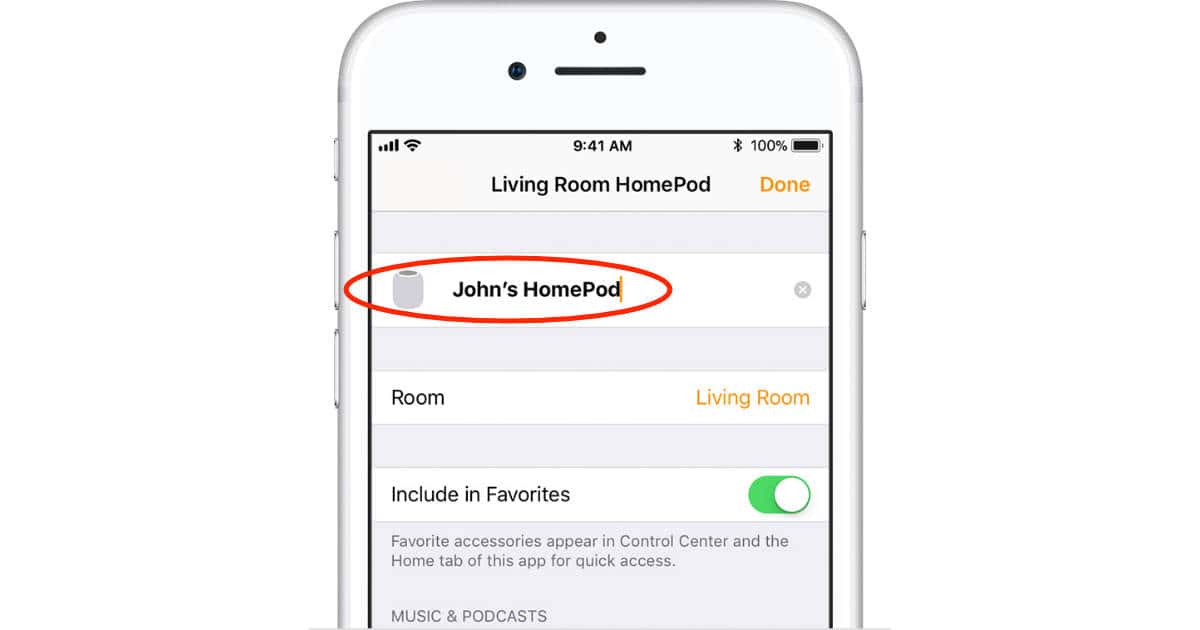
You can also assign your HomePod to a specific room and add it to the Home app’s Favorites list from here.
Don’t miss the best of The Mac Observer
Set us as a preferred source and our Apple reporting ranks higher in your Google Search results and Discover feed — one tap, no account changes.



Discussion