

If you’ve encountered the message “Error while SRP initial authentication: Unexpected response from IDMS server” while trying to sign in to your Apple ID, you’re not alone. This error has affected many users across various Apple devices, including iPhones, iPads, Macs, and even Apple TV.
The issue often arises during the authentication process, particularly when the Secure Remote Password (SRP) protocol is involved.
We will walk you through all the fixes for the authentication error!
Don’t miss the best of The Mac Observer
Set us as a preferred source and our Apple reporting ranks higher in your Google Search results and Discover feed — one tap, no account changes.
Table of contents
How to Fix “Error While SRP Initial Authentication”
1. Check Apple’s System Status
Before diving into device-specific solutions, it’s essential to verify if the issue is on Apple’s end. Apple occasionally experiences server outages that can disrupt authentication services. To check the current status:
- Visit Apple’s System Status page.
- Look for any red or yellow indicators next to services like Apple ID or iCloud.
- If there are issues, it’s best to wait until Apple resolves them.

2. Restart Your Device
A simple restart can often resolve temporary glitches affecting the authentication process. To restart your device:
- Press and hold the Power button (or Power + Volume Up) until the slide to power off slider appears.
- Slide to turn off your device.
- After a few seconds, press and hold the power button again to turn it back on.
If this doesn’t work, hard reset the iPhone.
3. Verify Date and Time Settings
Incorrect date and time settings can interfere with the authentication process. Ensure your device’s date and time are set correctly:
- Go to Settings > General > Date & Time.
- Toggle on Set Automatically.
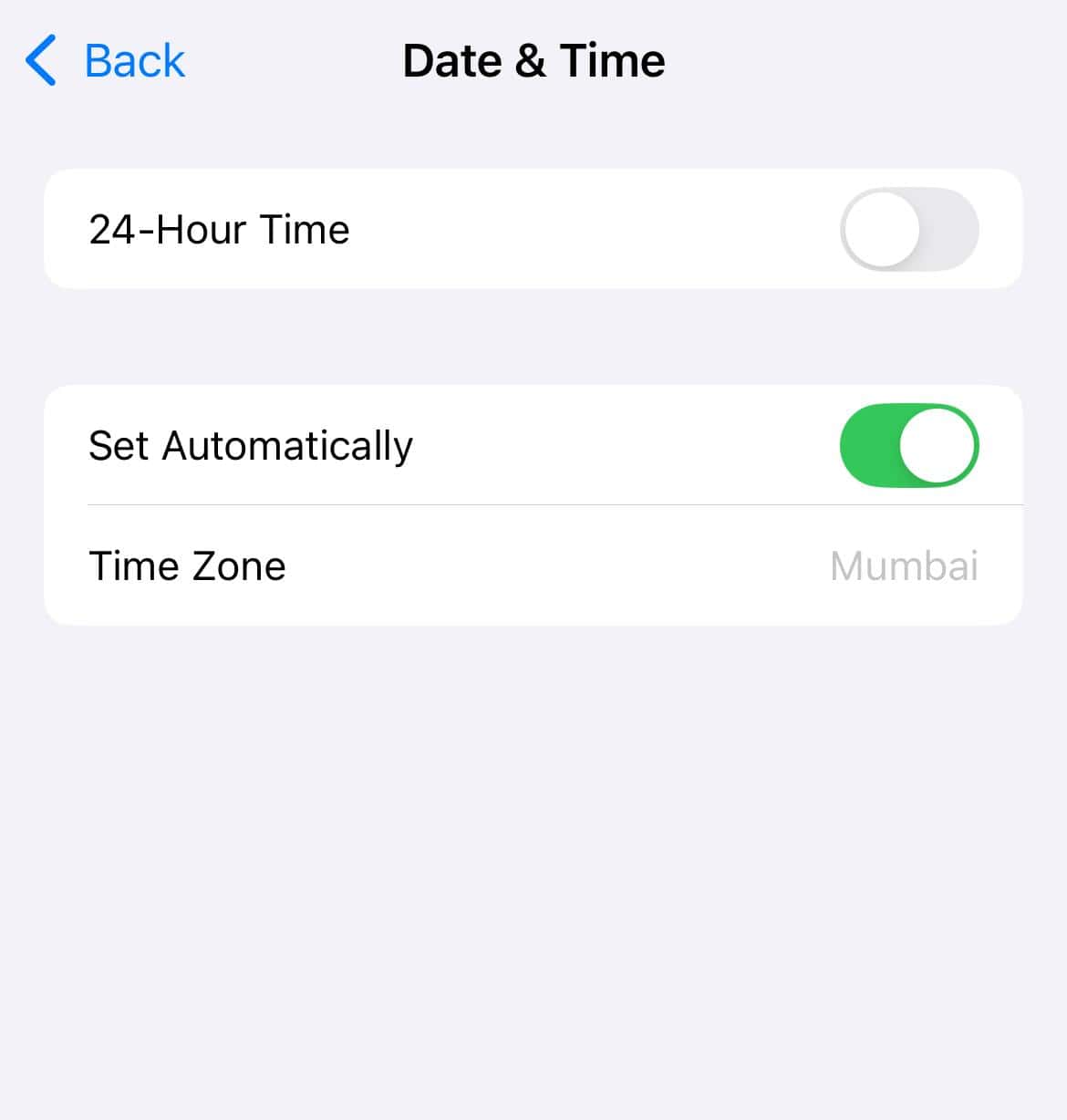
- Ensure your time zone is correct.

4. Switch to a Stable Network
An unstable or slow internet connection can cause authentication failures. To ensure a stable connection:
- Connect to a reliable Wi-Fi network.
- If using mobile data, ensure you have a strong signal.
- Avoid using VPNs or proxies that might interfere with the connection.
5. Update Your Device’s Software
Outdated software can lead to compatibility issues with Apple’s authentication services. To update your device:
- Go to Settings > General > Software Update.
- If an update is available, follow the on-screen instructions to install it.
6. Sign Out and Sign Back Into Your Apple ID
Refreshing your Apple ID credentials can resolve authentication errors:
- Go to Settings > Your Name > Sign Out.
- Follow the prompts to sign out.
- Restart your device.
- Sign back in by going to Settings > Sign in to your iPhone.
7. Reset Network Settings
Resetting network settings can resolve issues related to connectivity:
- Go to Settings > General > Transfer or Reset iPhone > Reset > Reset Network Settings.
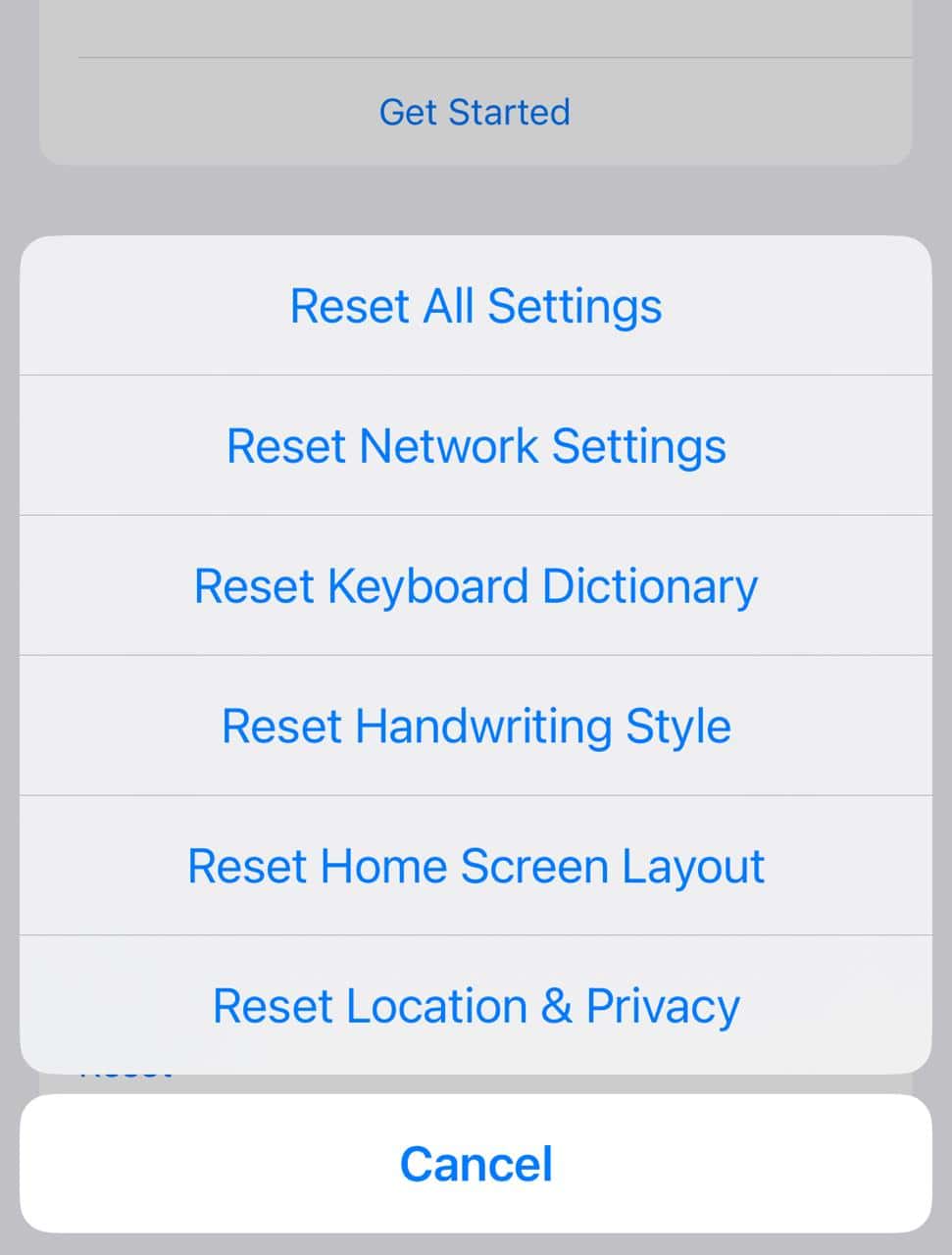
- Enter your device passcode if prompted.
- Confirm the reset.

Note: This will erase saved Wi-Fi networks and passwords, VPN settings, and cellular settings
 Tip
Tip
Tips
- Ensure your Apple ID password is strong and unique
- Enable Two-Factor Authentication to add an extra layer of security to your account
- Avoid third-party security software, as some interfere with Apple’s authentication process
- Keep your device updated since regular updates ensure compatibility with Apple’s services
Frequently Asked Questions
SRP stands for Secure Remote Password protocol. It’s a cryptographic protocol used by Apple to securely authenticate users without transmitting passwords over the network.
While some users have reported issues with ProtonMail, it’s unlikely to be the sole cause. It’s more probable that the error stems from server-side issues or device settings.
Updates can sometimes introduce changes that affect network settings or authentication protocols, leading to errors.
Resolution times vary. It’s best to monitor Apple’s System Status page for updates on the issue’s resolution.
Summary
- Check Apple’s System Status for any ongoing issues
- Restart your device to resolve temporary glitches
- Ensure your date and time settings are correct
- Connect to a stable and reliable network
- Update your device’s software to the latest version
- Sign out and sign back into your Apple ID
- Reset network settings if connectivity issues persist
- Contact Apple Support if the problem continues
Conclusion
Encountering the “Error while SRP initial authentication” can be frustrating, but with the steps outlined above, you can troubleshoot and resolve the issue effectively. Remember, while some issues may stem from Apple’s servers, many can be addressed through device settings and updates.
By following these guidelines, you can restore access to your Apple services and continue enjoying the seamless experience Apple aims to provide.
Before you leave, find out how to boost the internet speed on your iPhone!


Discussion