

If you frequently send out texts, finding one in iMessage can feel overwhelming. But with the right steps and the use of filters, you can search through messages easily and quickly.
In this guide, I’ll show exactly how to search text in iMessage just the way I do it, step by step!
Table of contents
How to Search Text in iMessage?
1. Swipe to Reveal Search Field
- Open your Messages app on iPhone. Swipe down from the top of your conversation list to reveal the search field at the top of the screen.

2. Enter a Search Term
- Tap the search field and type what you’re looking for. It could be a word, name, or phrase. Suggestions like conversations, photos, links, and locations may appear below.
With a search term, you can also find the first message on iMessage without scrolling for any contact.
Don’t miss the best of The Mac Observer
Set us as a preferred source and our Apple reporting ranks higher in your Google Search results and Discover feed — one tap, no account changes.
3. Use Filters to Narrow Results (iOS 17+)
If you run iOS 17 or later, you can filter your search:
- Enter a contact name or look for specific message types like Photos or Links.
- Tap filters like Messages, Links, Photos, or Locations to refine results.
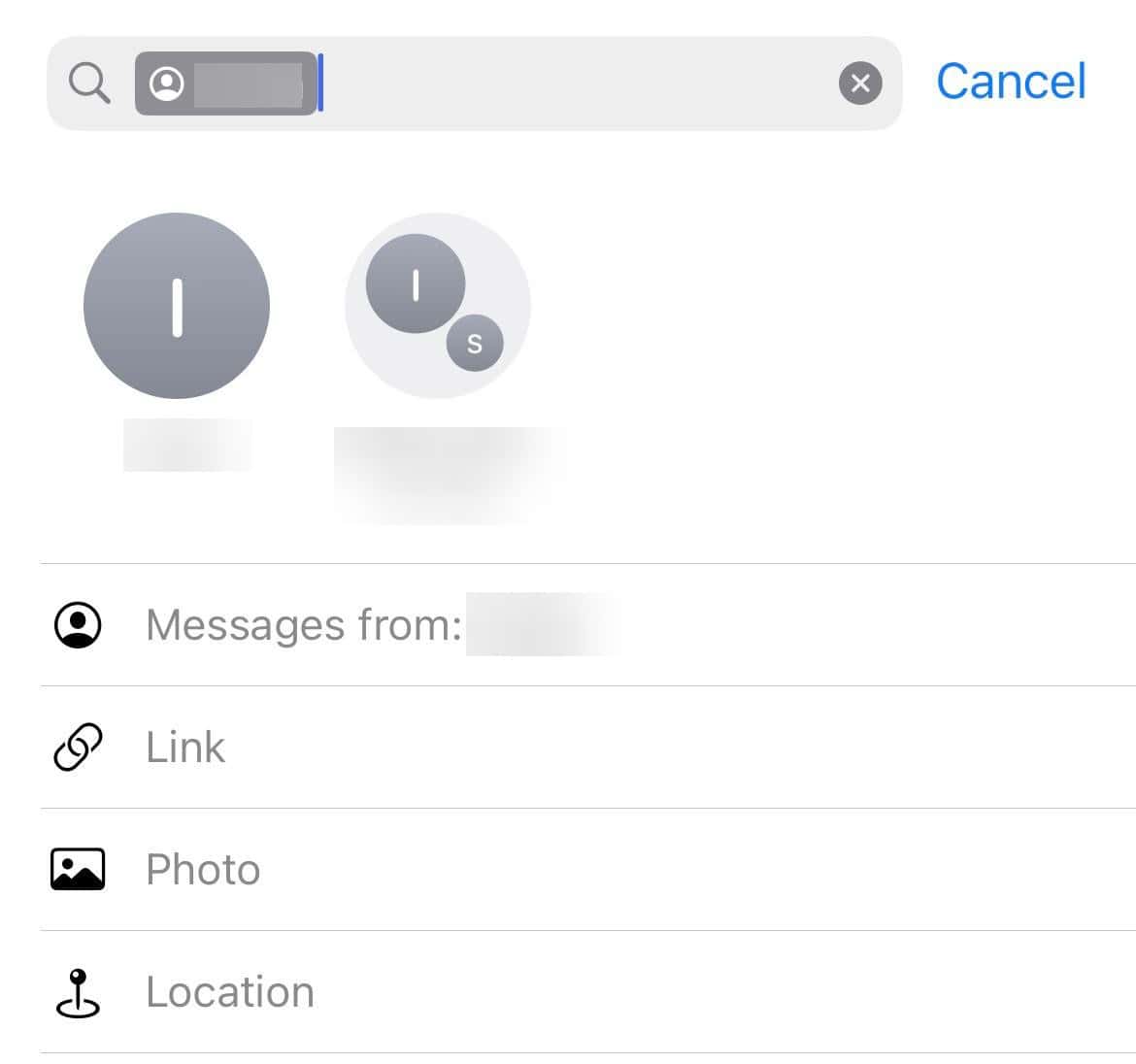
- You will now see results that align with the search filters.



Did you know that you can also search for photos and videos on an iPhone? And it’s surprisingly simple!
4. Combine Filters with Keywords
- Once a filter is active, you can still add specific keywords or phrases to narrow your results even further.
5. Tap to View Context
- Tap any result to jump right into that part of the conversation. This helps you view the message in full context.
6. Use Spotlight Search (Alternative Method)
- Swipe down from the Home screen to access Spotlight. Type keywords or names there, and results from messages will appear too. Tap a result to open it in Messages.

If this doesn’t work, learn how to fix Spotlight search on iPhone.
Tips
- Be specific with your search words to narrow results faster.
- Double-check spellings; it makes a big difference.
- If you remember who sent something, start your search with their name.
- Use filters like Photos or Links in iOS 17 and newer for smart refinements.
- If messages seem missing, ensure they are not deleted or in Recently Deleted.
Frequently Asked Questions
Yes. Open Messages and swipe down, then type the person’s name or use filters like Messages with [Contact], and add search terms.
No. Search only works on messages that still exist. Deleted messages will not show up unless recovered.
Not inside Messages. But you can scroll manually by tapping the top of the screen to jump faster, or use Spotlight with keywords near that date.
Ensure indexing is enabled in Spotlight settings. If messages were deleted, you cannot search them unless you use backups or recovery tools.
Summary
- Open Messages and swipe down to show the search bar.
- Type your search term, such as a word, name, or phrase.
- On iOS 17 and newer, use and combine filters like Photos, Links, or Messages with a person.
- Tap a result to open the message in context.
- Use Spotlight search from the Home screen as an alternative.
Conclusion
Searching text in iMessage is simple once you know how. Swipe to reveal the search bar, type your term, and on newer iOS versions, use filters to zero in quickly. Whether it’s an old joke, a link, or a shared photo, you can find it in seconds.
Try it out now. Once you get the hang of combining search terms and filters, you’ll feel like a search pro.
Before you leave, learn how to search for anything on your iPhone!


Discussion