

Making certain words bold in iMessage helps your message stand out and look more expressive. Since iOS 18, Apple has added real formatting tools to iMessage, so bolding text is easier than ever. The process remains seamless even on macOS.
This blog walks you through ways to make words bold in iMessage, step by step, to help you master formatted texting.
Table of contents
How to Make Text Bold in iMessage
iPhone or iPad (iOS 18 or later)
1. Using the Text Effects (A) button
- Open Messages and go into a conversation.
- Type your message or select the words you want to format.
- Tap the A icon (Text Effects) above the keyboard.

- Choose B (Bold) to apply bold formatting to the selected text or to any new text you type.
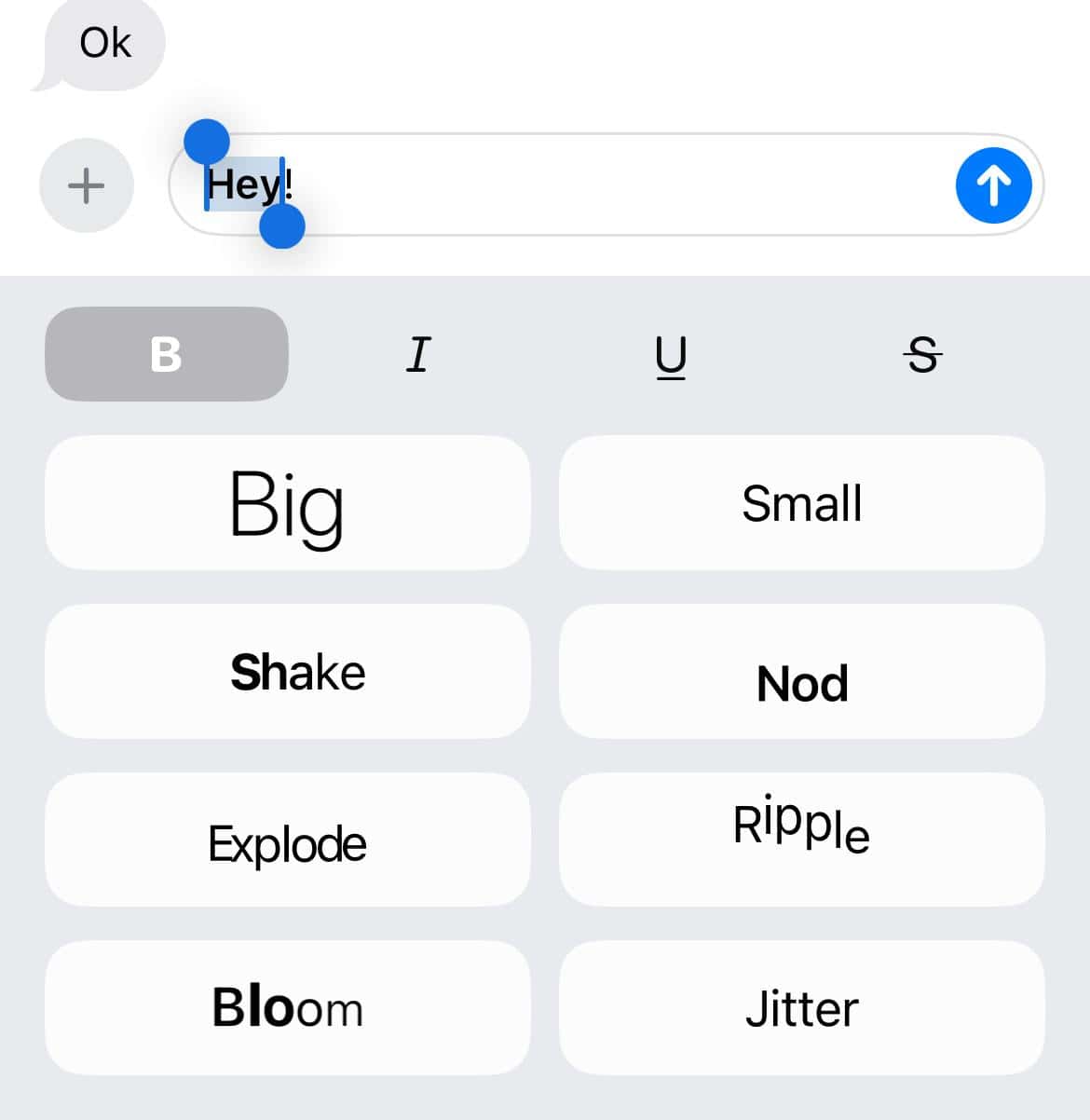
- Tap the send arrow to send the message.


2. Using the contextual menu
- Tap or long-press in the message field or select the text.
- Tap Text Effects in the menu that appears.
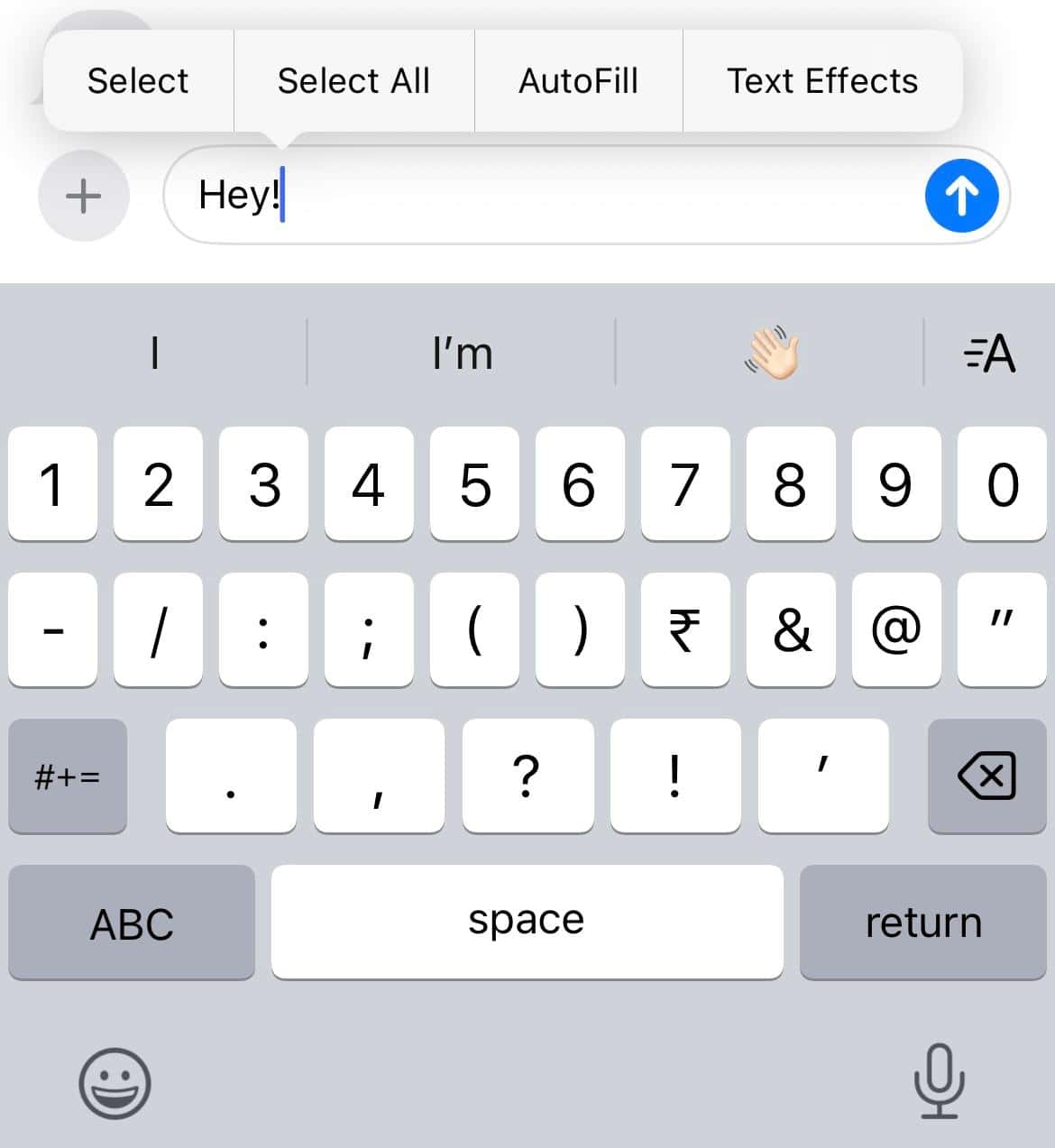
- Choose Bold to apply formatting.

Mac (macOS Sequoia or later)
You have three simple options:
Don’t miss the best of The Mac Observer
Set us as a preferred source and our Apple reporting ranks higher in your Google Search results and Discover feed — one tap, no account changes.
- Keyboard shortcut: Select text, then press Command + B for bold.
- Context menu: Right-click selected text, choose Format, then Bold (or use Text Effects for animated effects).
- Menu bar: Go to Format > Bold to apply formatting.
Did you know, you can also get iMessage for Windows?
Legacy method (older iOS versions)
You could “fake” bold text by using the subject line:
- Go to Settings > Messages, enable Show Subject Field.
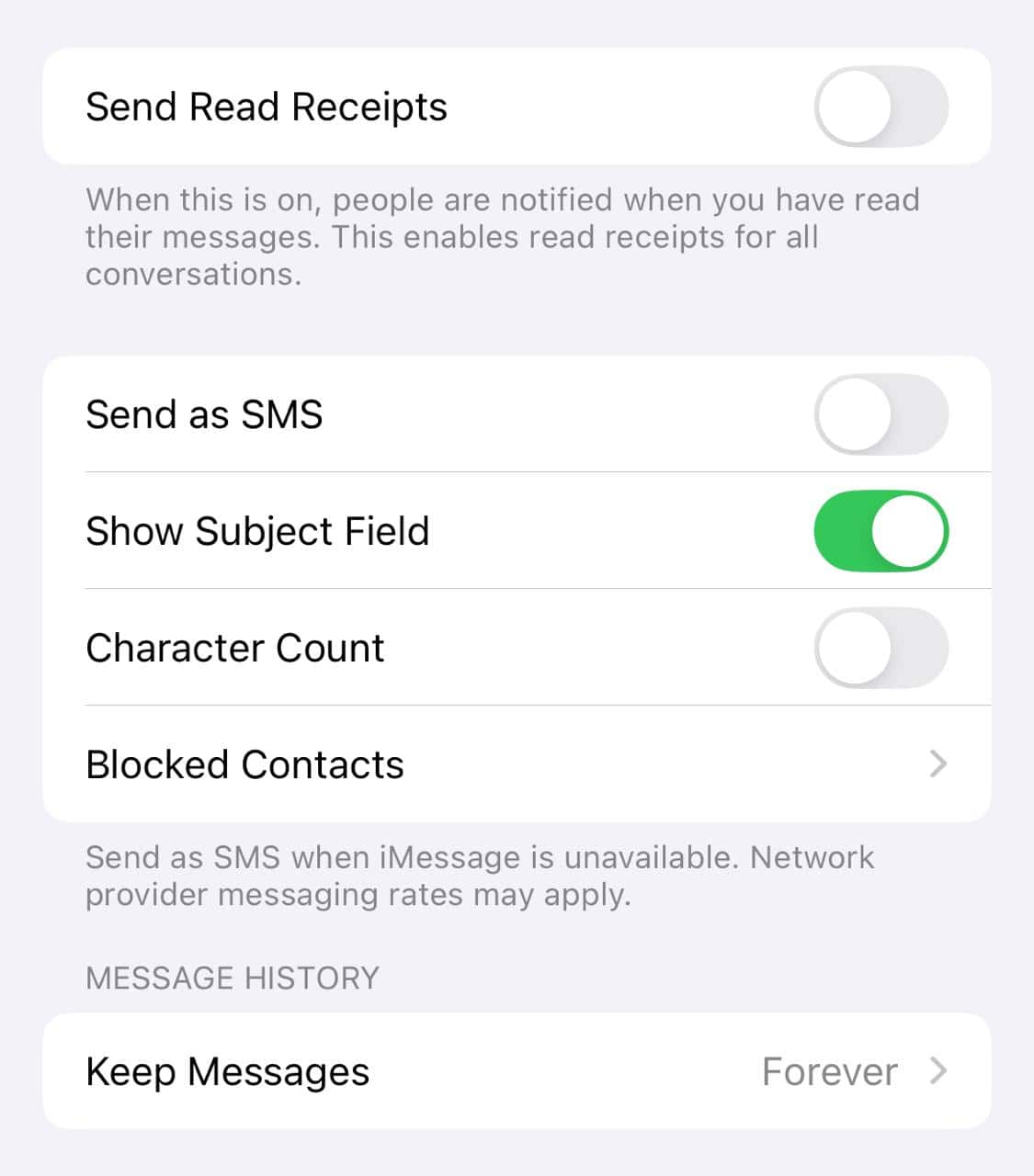
- Type bolded words in the Subject field. That text will automatically appear bold in the message.
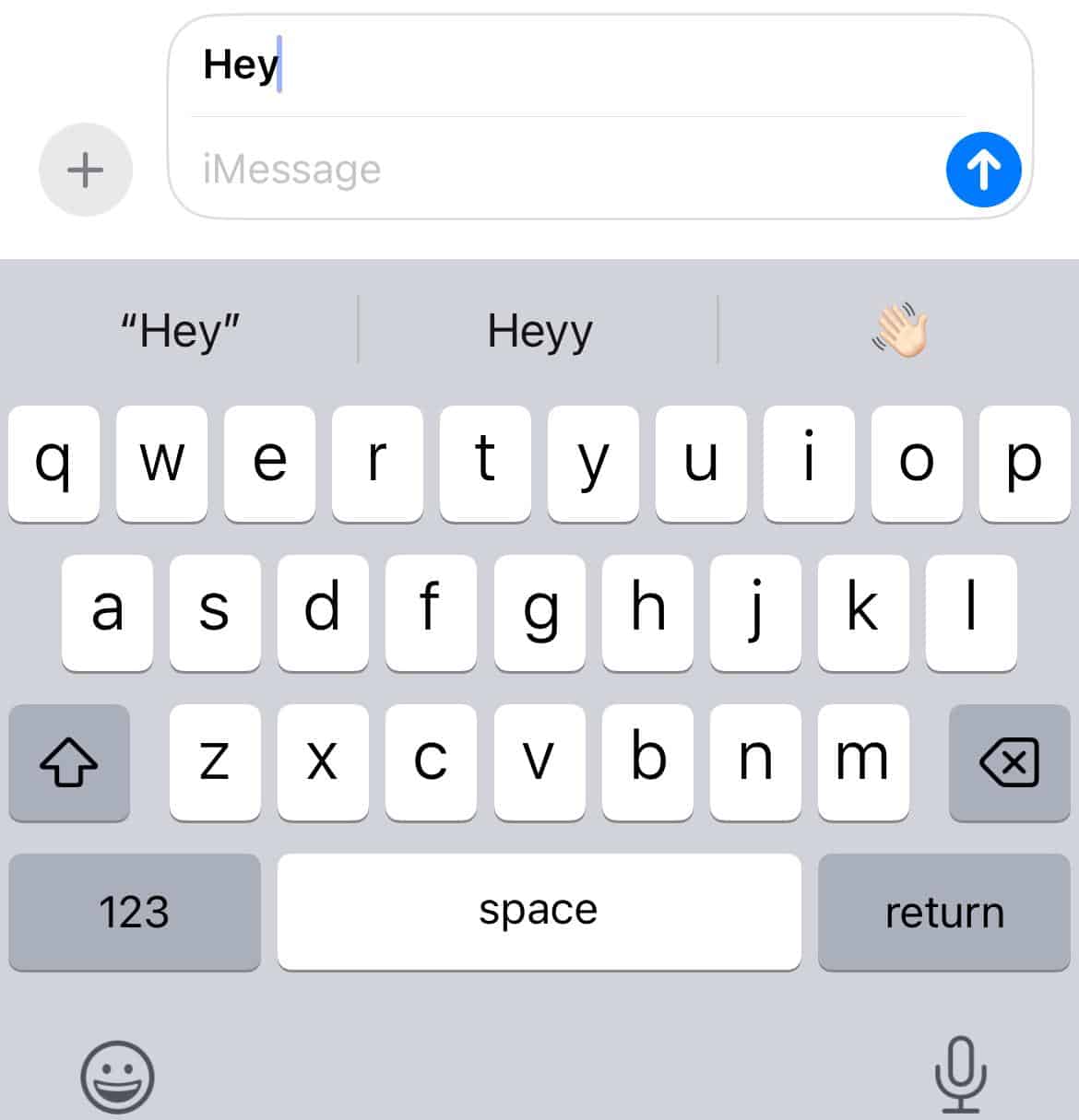


This method is limited because only whole subject lines can be bolded, and it is not flexible.
You might also in interested in learning about animating text messages on iPhone.
Tips
- Make sure both you and your recipient are using iOS 18, iPadOS 18, or macOS Sequoia or later. Otherwise, formatting appears as plain text.
- You can apply bold, italics, underline, and strikethrough in the same message, but not on the same text, with animated effects.
- Beyond bold, iMessage also offers animated text effects like Shake, Ripple, Bloom, and more to add movement to words.
- On Mac, you can combine formatting and animated effects using shortcuts or menus.
- If you do not see the A icon, enable Predictive Text in settings or make sure your device is updated. You can also use Predictive Text to share your location.
Frequently Asked Questions
No. Formatting works only with iMessage on modern Apple devices. Android devices or older software will display plain text.
No. You can use formatting or text effects in the same message, but they cannot be applied to the same text at once.
Make sure Predictive Text is on, you are using iMessage (not SMS), and your device is up to date with iOS 18 or later.
It works, but it is old, limited to the whole subject bold, and not very flexible. The built-in formatting tools in iOS 18 or later are much better.
Summary
- Bold text in iMessage works only on iOS 18, iPadOS 18, or macOS Sequoia and later.
- On iPhone or iPad, use the A icon or Text Effects menu to apply bold.
- On Mac, use Command + B, context menu, or Format menu for bolding.
- Formatting and animated effects cannot be applied to the exact same text.
- Make sure everyone is updated to see formatting; otherwise, the text appears plain.
Conclusion
Bold text in iMessage has never been simpler. Whether you are on an iPhone, iPad, or Mac, formatting options are just a tap or key press away, so your messages look vivid and clear. Just keep your device updated and explore the A icon or formatting menus.
Want to find out more about Apple’s native text feature, learn how to use iMessage to its full potential!


Discussion