

Text messages are quick, but sometimes your voice says it better. With iMessage, you can send voice messages directly to friends and family without a third-party app.
In this guide, I’ll walk you through how to send a voice message in iMessage, step by step.
How to Send a Voice Message in iMessage?
Step 1: Open iMessage
- Unlock your iPhone or iPad.
- Tap the Messages app.

- Open an existing conversation or start a new one with the person you want to send a voice message to.

If you haven’t already, enable iMessage on your iPhone.
Don’t miss the best of The Mac Observer
Set us as a preferred source and our Apple reporting ranks higher in your Google Search results and Discover feed — one tap, no account changes.
Step 2: Locate the Microphone Icon
- In iOS 16 and earlier, the microphone icon is right inside the text box area.
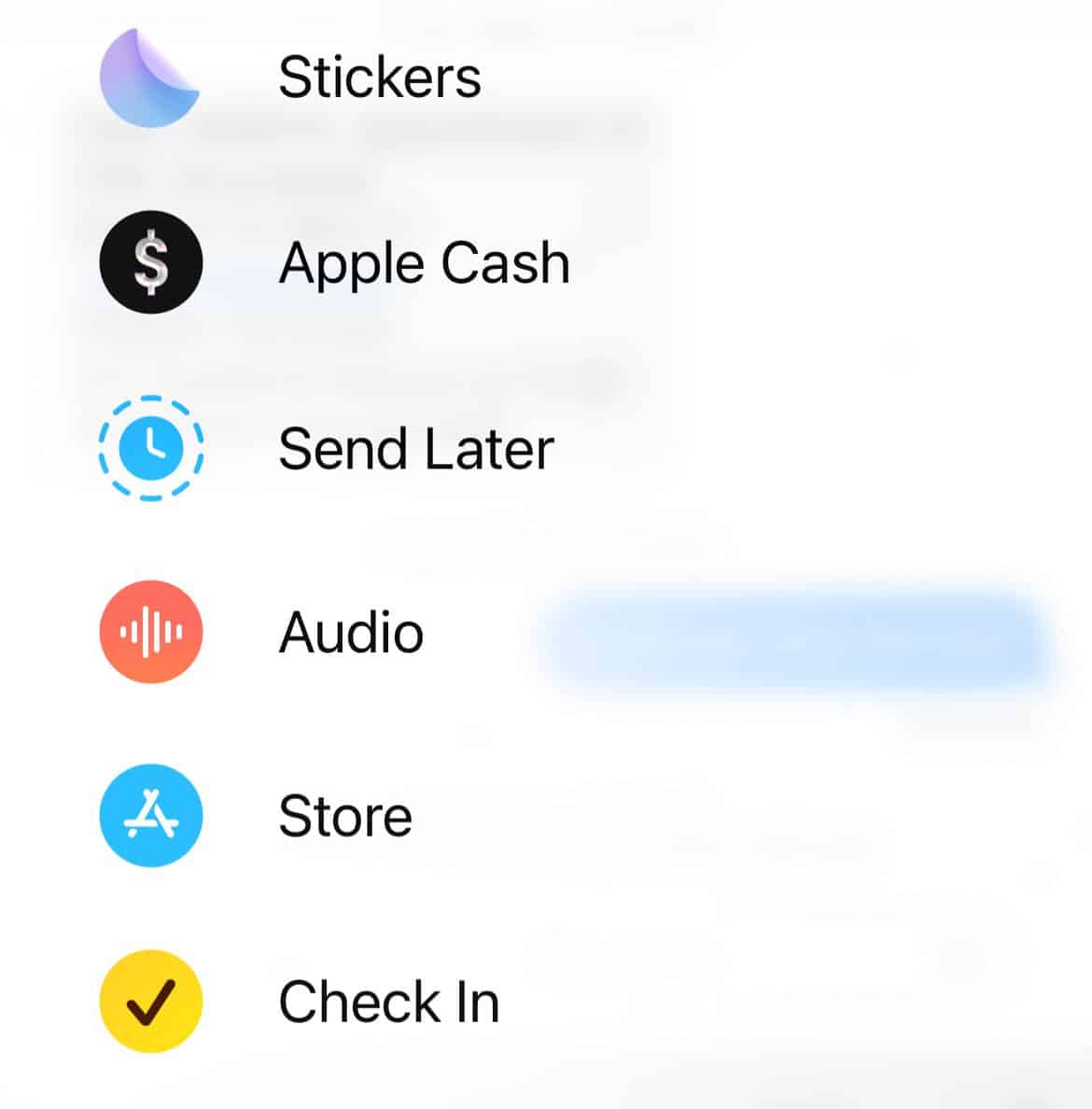
- In iOS 17 and later, Apple moved the voice message option to the “+” (plus button) on the left side of the typing bar. Tap on it and select Audio.

Step 3: Record Your Message
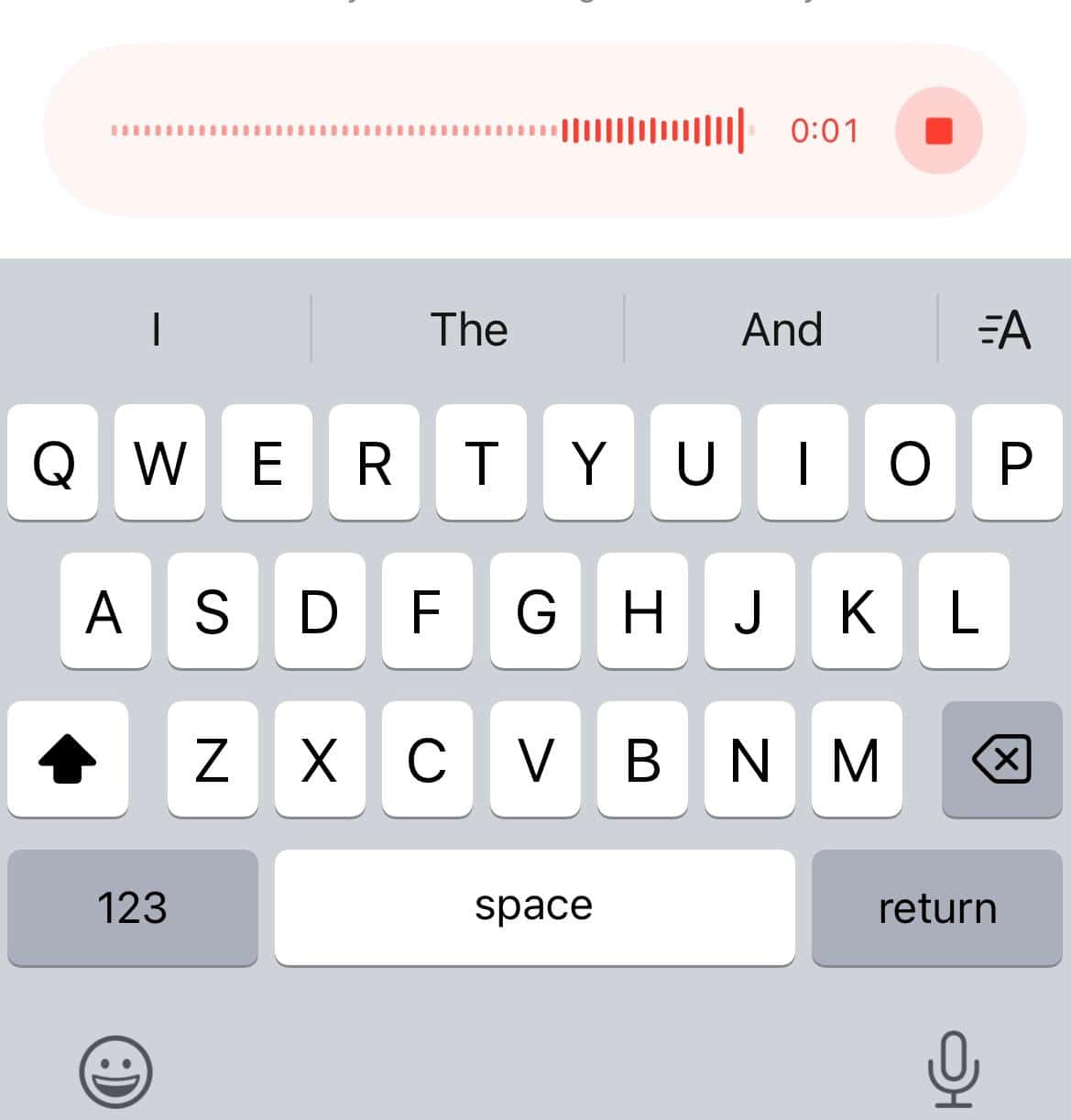
- Start speaking clearly into your device to record the message.

Step 4: Preview and Send
- In iOS 16 and earlier, your message will appear with a small play button. Tap play to listen before sending.
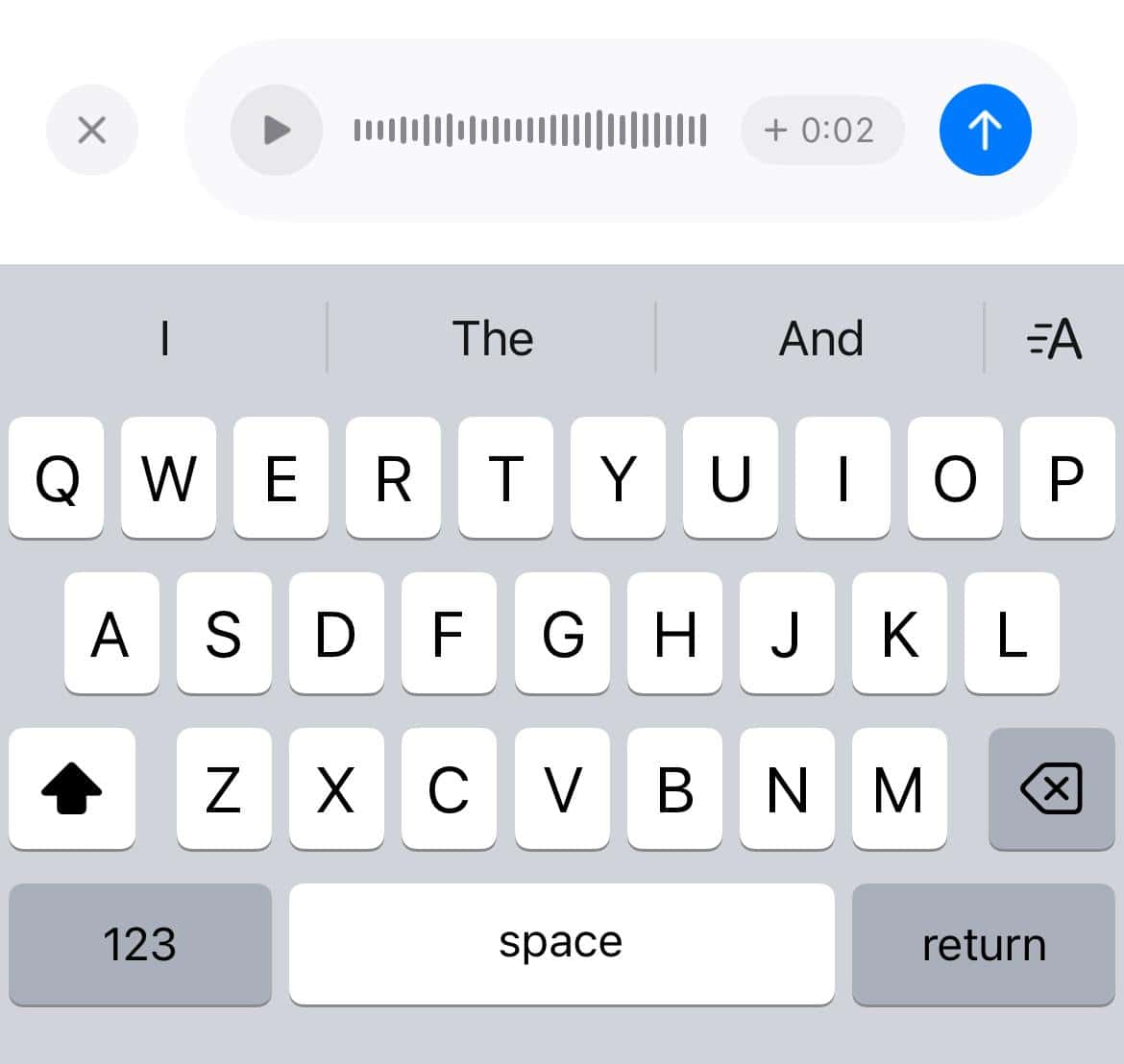
- In iOS 17 and later, after recording, you will see options to play, cancel, or send. Tap the send arrow when ready.

Step 5: Listen to a Voice Message You Receive
- When someone sends you a voice message, simply tap the play button inside the message bubble.
- On some devices, the message may auto-play once you open it.
If this doesn’t work, find out why you can’t send an audio message in iMessage.
Tips
- Keep your message short for better clarity.
- Use voice messages when you need to explain something quickly instead of typing long texts.
- Be mindful of background noise while recording.
- Remember that by default, voice messages in iMessage expire after 2 minutes once played. You can change this in Settings > Messages > Expire to keep them permanently.
Frequently Asked Questions
Yes. By default, they expire after 2 minutes, but you can tap Keep under the message to save it.
Voice messages in iMessage use your internet connection, either Wi-Fi or mobile data, not SMS balance.
No. Voice messages only work between Apple devices using iMessage. If you send one to an Android phone, it will not deliver.
If you are using iOS 17 or newer, Apple has moved the voice message option. Tap the “+” button in the text field, then select Audio to record.
Summary
- Open the iMessage conversation.
- Tap the microphone icon or the plus button, depending on your iOS version.
- Record your message.
- Preview and send your recording.
- Listen to voice messages you receive by tapping play.
Conclusion
Sending a voice message on iMessage is simple once you know where to look. Whether you are using iOS 16 or the redesigned iOS 17 and later interface, the steps are quick and easy. With just a few taps, you can make your conversations feel more personal and expressive.
And if you are not a fan of it, learn how to turn off audio in messages!


Discussion