

Misplacing an iPhone is common. You can locate a misplaced iPhone quickly from your Apple Watch. Use the Control Center ping for an immediate tone, hold the ping to add a flashlight flash in dark rooms, or use Find Devices to play a sound remotely over iCloud when the phone is out of Bluetooth range. This article explains each method, the exact steps to follow, and practical tips to make the find quicker.
Table of contents
Methods to do it
Apple Watch offers three primary locating options. Two work best when the devices are in Bluetooth or local Wi-Fi range. The third uses iCloud to reach an iPhone that is online but out of immediate range. Below are the methods, full descriptions, and step-by-step instructions you can follow now.
1. Control Center Ping (Sound only)
Use this when you suspect the iPhone is nearby, such as under a cushion or in another room. The ping plays a loud locating tone even if the phone is muted.
Don’t miss the best of The Mac Observer
Set us as a preferred source and our Apple reporting ranks higher in your Google Search results and Discover feed — one tap, no account changes.
- Press the Apple Watch side button once to open Control Center.
- Tap the Ping iPhone button, shown as an iPhone with radiating waves.

- The iPhone immediately plays a locating sound.
- If you do not hear it, move toward likely hiding spots and tap the button again.

First, make sure you know how to open Control Center on Apple Watch to use the ping feature.
2. Control Center Ping with Flashlight (Sound plus LED flash)
When the room is dark, add the iPhone’s LED flash to the locating tone. This uses a press-and-hold gesture on the same ping control and gives a short burst of flash plus sound to guide you visually.
- Press the Apple Watch side button once to open Control Center.
- Touch and hold the Ping iPhone button.
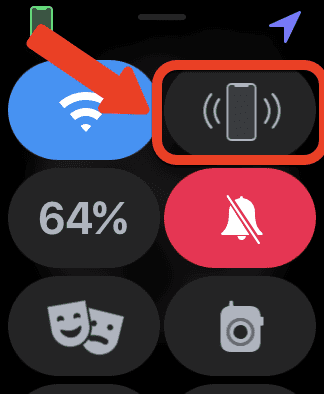
- The iPhone plays a tone and flashes the rear LED briefly to help you spot it visually.
- Repeat the hold if you need another cycle of sound and flashes while you search.

You can also trigger the flashlight, see how to flash iPhone’s LED from Apple Watch.
3. Find Devices App on Apple Watch (Long-range option)
If your iPhone is out of Bluetooth range but online via cellular or Wi-Fi, use the Find Devices app on Apple Watch. This sends a Play Sound command through iCloud. The sound ramps up after a short delay and plays for a longer period, which helps when the phone is farther away or in another room in a large house.
- Open the Find Devices app on your Apple Watch.
- Select your iPhone from the device list.
- Tap Play Sound. After a short delay, the iPhone plays a locating sound for about two minutes.
- Check the device status or the on-screen map to see its last known or current location. If the phone is offline, Play Sound will queue until it reconnects.
Another way to locate devices is explained here: connect Apple Watch to iPhone for seamless pairing.
4. iPhone to Watch (Reciprocal locate)
For two-way findability, add Ping My Watch to iPhone Control Center. This makes the watch play a sound from the phone. It helps when both devices are commonly misplaced.
- On iPhone open Settings > Control Center.
- Add Ping My Watch to Included Controls (requires iOS 17 or later).
- Open Control Center on the iPhone and tap Ping My Watch to make the watch play a locating tone.
- If you own multiple watches, the ping targets the watch selected under All Watches in the Watch app.
Want the reverse method in more detail? Here’s how to ping Apple Watch from iPhone.
Tips
- Press the Apple Watch side button to open Control Center; tap Ping iPhone for an immediate sound.
- Touch and hold the Ping button to add the iPhone LED flash in low light.
- If you do not hear the tone, move around while tapping the ping repeatedly.
- Use the Find Devices app on Apple Watch to play a sound remotely when the iPhone is out of Bluetooth range.
- Keep iOS and watchOS updated to ensure Control Center and Find Devices work correctly.
- Add Ping My Watch to iPhone Control Center (iOS 17+) for two-way locating.
FAQs
Press the side button once to open Control Center. Swiping up is no longer the default gesture on recent watchOS versions.
It looks like an iPhone icon with radiating waves. Tap for sound, touch and hold for sound plus LED flash.
Yes. The locating tone overrides Silent Mode when you trigger the ping from Apple Watch or Find Devices.
Yes. Use the Find Devices app on Apple Watch to play a sound via iCloud when the iPhone is online on cellular or Wi Fi.
Summary
- Open Control Center on Apple Watch and tap Ping iPhone to play an immediate locating sound.
- Hold the Ping button to add a brief LED flash for visual detection in dark spaces.
- Use the Find Devices app to play a sound remotely when the iPhone is out of Bluetooth range.
- Add Ping My Watch to iPhone Control Center on iOS 17 or later for two-way findability.
- Keep both devices updated and connected for the most reliable results.
Conclusion
Use the Control Center Ping for the fastest way to find a nearby iPhone. Hold the ping for a flash in dark rooms. When the phone is too far, use the Find Devices app to trigger a remote sound. Enable Ping My Watch on iPhone for two-way recovery.


Discussion