

Got a new email password and now your iPhone Mail app won’t fetch messages? Updating it only takes a few taps. This guide shows you how to change your email password on an iPhone, whether you’re using iCloud, Gmail, Outlook, Yahoo, or another provider.
Before you start
- Make sure you know your new password before updating it.
- Confirm your iPhone is connected to the internet.
- If you use two-factor authentication, keep your device or backup codes handy.
- Update to the latest version of iOS for smoother Mail app compatibility.
How to Change Email Password on iPhone
- Tap the Settings app from your Home Screen.
- On recent iOS versions: tap Mail > Accounts.
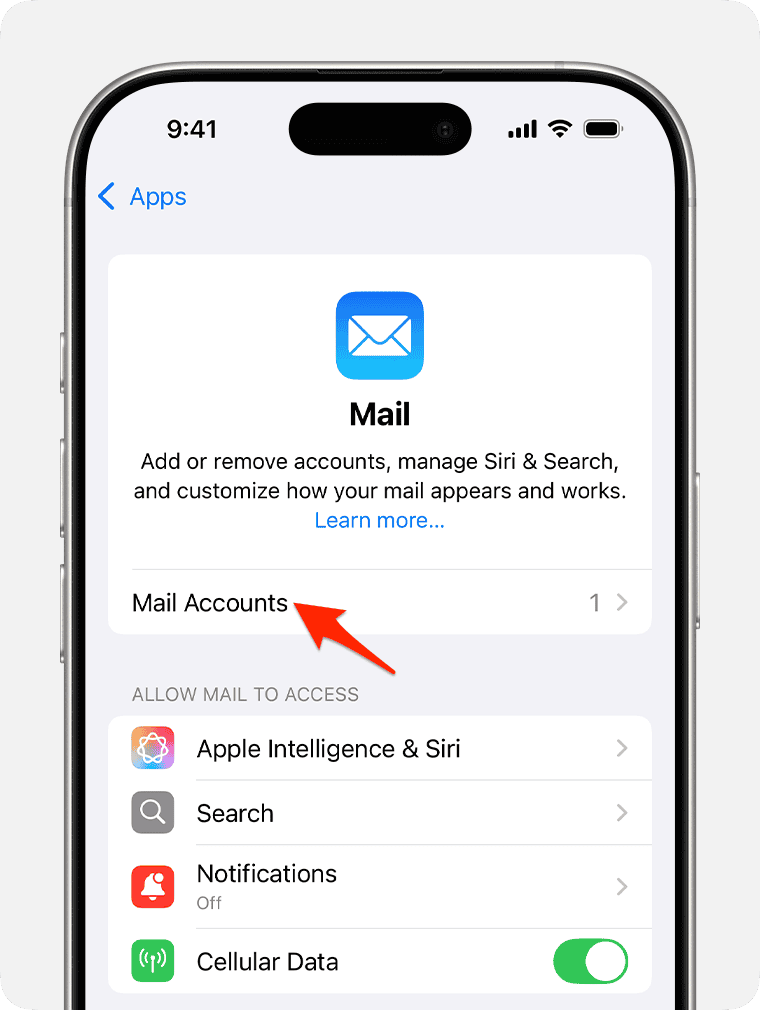
- On older iOS versions: tap Passwords & Accounts.
- Choose the account (Gmail, Outlook, Yahoo, iCloud, etc.) you need to update.
- For iCloud: You must change it through your Apple ID settings.
- For Gmail/Outlook/Yahoo: tap Account > Password (or Re-enter password) and enter the new one.
- Some providers will open a login screen in Safari. Enter your new password or app-specific password if prompted.
- Return to the Mail app and try sending or receiving mail. If it works, your password is updated.

For further reading, check out where to find your passwords on iPhone.
Tips
- If you can’t find the password field, delete and re-add your account instead.
- For Gmail, make sure “Allow apps” is enabled if you’re not using OAuth.
- Use a password manager to keep email logins safe.
- For work accounts, ask your IT department about app-specific credentials.
FAQs
Some providers (like iCloud, Gmail, Outlook, Yahoo) require you to update the password through their own login portals, not just in iOS settings.
Go to your email provider’s website (Apple ID, Google, Microsoft, Yahoo) and use their Forgot password option. Then return to iPhone Settings to update it.
Not usually. But if Mail won’t accept your new password, removing and re-adding the account often fixes it.
Yes, if you use iCloud Mail, changing your Apple ID password automatically applies to Mail and other iCloud services.
No, you’ll need to update each account individually under Settings > Mail > Accounts.
Summary
- Open Settings
- Go to Mail > Accounts (or Passwords & Accounts)
- Tap your email account
- Update your password (via provider login if required)
- Save changes and test in the Mail app
Conclusion
Changing your email password on an iPhone is quick once you know where to look. Whether you’re using iCloud, Gmail, Outlook, or Yahoo, the process usually takes less than a minute, and keeps your account secure. If the Mail app refuses your new password, just re-add the account and you’re good to go.
Don’t miss the best of The Mac Observer
Set us as a preferred source and our Apple reporting ranks higher in your Google Search results and Discover feed — one tap, no account changes.


My email not massage