

Moving your Apple Watch to a new iPhone is straightforward when you follow the right steps. Quick Start during iPhone setup is the fastest way to keep your watch faces and settings. If Quick Start does not work, you can unpair the Watch from the old iPhone and restore from backup on the new phone. If your old iPhone is lost or unavailable, erase the Watch and pair it to the new iPhone. Each method preserves different types of data, so pick the one that matches your backup situation.
Table of contents
Methods
Below are five supported methods. Each method includes what you need before you start, a concise description, and step by step actions you can follow now.
1. Quick Start during new iPhone setup
Quick Start transfers your Apple Watch pairing and most settings while you set up the new iPhone. This avoids manual unpairing in most cases and saves time.
Don’t miss the best of The Mac Observer
Set us as a preferred source and our Apple reporting ranks higher in your Google Search results and Discover feed — one tap, no account changes.
- Update both iPhones and your Apple Watch to the latest software and connect them to Wi Fi. Charge devices above 50 percent.
- Turn on the new iPhone and place it near the old iPhone. Follow the Quick Start prompts to transfer settings or restore from an iCloud or computer backup.
- When the new iPhone asks to use the Apple Watch, keep the Watch on your wrist, unlock it if needed, and tap
Continue. - Enter the Watch passcode if requested.
- Keep the devices close until the sync finishes. If no Watch prompt appears, open the Watch app on the new iPhone or use Method 2.
For a detailed walkthrough, see how to connect Apple Watch to iPhone directly.
2. Unpair on old iPhone, then pair and restore on new iPhone
Unpairing on the old iPhone creates a fresh Watch backup and removes Activation Lock. Use this method when Quick Start does not detect the Watch or when you want a reliable backup restore.
- Back up the old iPhone. Enable Health in iCloud or create an encrypted computer backup so Health and Activity data are preserved.
- On the old iPhone open the Watch app, go to
My WatchthenAll Watches. Tap the info icon next to the Watch and chooseUnpair Apple Watch. Enter your Apple ID password to disable Activation Lock. Keep the cellular plan if you intend to use it on the new iPhone.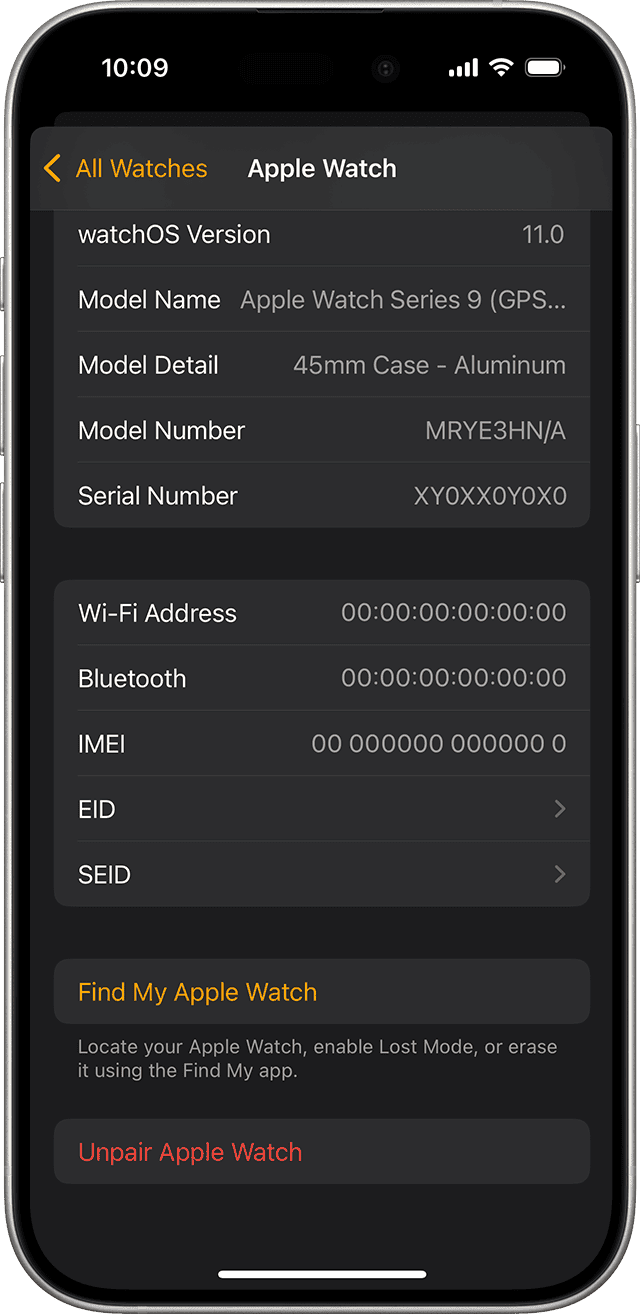
- Set up the new iPhone and restore from the most recent backup that contains the Watch data.
- Open the Watch app on the new iPhone, place the Watch on your wrist, and tap
Start Pairing. ChooseRestore from Backupwhen prompted.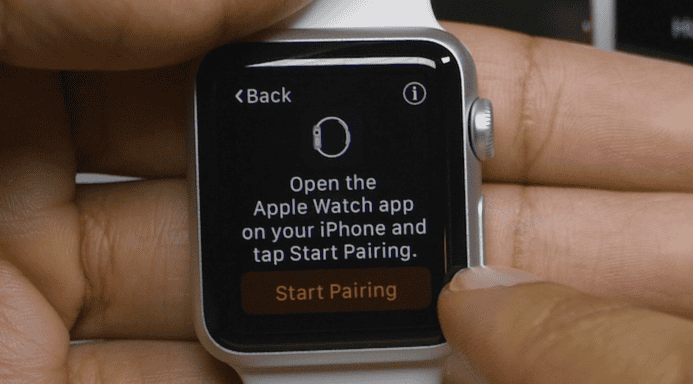
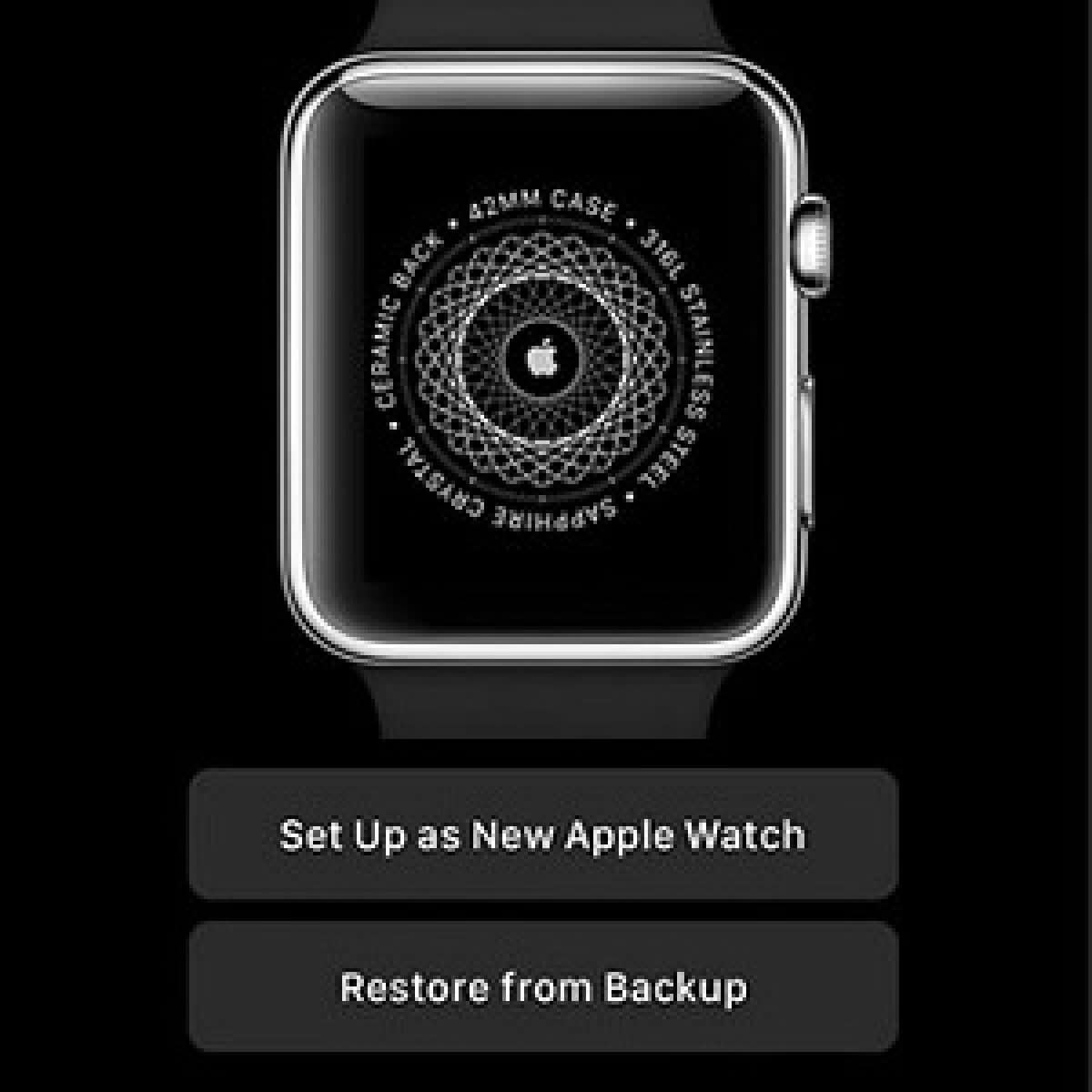
- Keep the devices close until restoration completes. Verify Health and Activity appear after the initial sync.


Once paired, you can explore the basics of how to use Apple Watch effectively.
3. Pair manually in the Watch app on the new iPhone
Use manual pairing when Quick Start completed without transferring the Watch, or when you set up the iPhone without restoring from a backup.
- On the new iPhone open the Watch app while the Watch is unlocked and nearby.
- Tap
Start Pairing. Use the iPhone camera to scan the Watch animation. If that fails choosePair Apple Watch Manuallyand enter the code shown on the Watch.
- Choose
Restore from Backupif a backup exists, orSet Up as Newto start fresh.
- Sign in with your Apple ID. Re-enable Apple Pay cards and other services as needed. Keep the devices close until apps and settings finish syncing.

If you use a cellular model, check out how to set up and use cellular on Apple Watch.
4. If the old iPhone is unavailable
If you no longer have the old iPhone because it was lost, sold, or is not working, erase the Watch directly and pair it to the new iPhone. You will need your Apple ID credentials to remove Activation Lock.
- On the Watch go to
Settings > General > Resetand chooseErase All Content and Settings.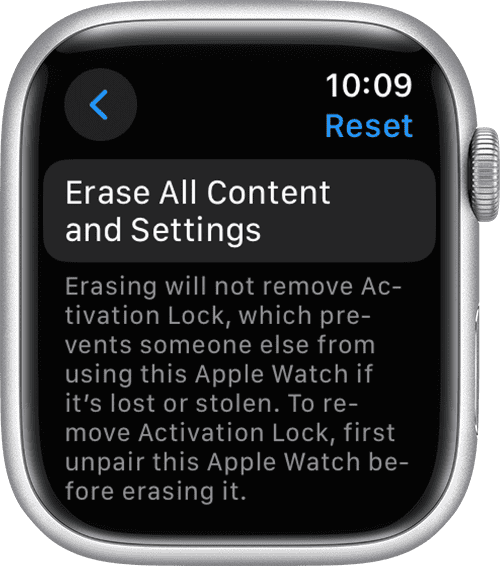
- On the new iPhone open the Watch app and tap
Start Pairing. Scan the animation or pair manually. - Sign in with the Apple ID that is linked to the Watch if prompted to remove Activation Lock.
- If iCloud or iPhone backups include a Watch backup choose
Restore from Backup. If no backup exists chooseSet Up as Newand reconfigure watch faces, apps, and Wallet items. - For GPS plus Cellular models re-add your carrier plan in the Watch app once pairing finishes.

In case you misplace your phone, here’s how to ping iPhone from Apple Watch.
5. Troubleshooting when pairing fails
If the Watch will not pair or the prompt never appears follow these checks and recovery steps.
- Keep devices close. Make sure Bluetooth and Wi Fi are on and both devices are updated and charged.
- On the new iPhone open the Watch app and go to
My Watch > All Watches. Remove any stale listings using the info icon next to a listed Watch then try pairing again. - If the setup asks for Apple ID credentials use the account tied to the Watch. If Activation Lock remains, unpair on the old iPhone or erase the Watch and sign in during setup.
- If nothing else works reset the Watch in
Settings > General > Resetand start pairing from scratch. Check Apple Support pages for additional guided diagnostics.
You may also want to know how to lock Apple Watch screen for added security.
Tips
- Enable Health in iCloud before migration, or use encrypted computer backups to keep Health and Activity data intact.
- Keep your Apple Watch on your wrist and unlocked during pairing so the new iPhone can authenticate quickly.
- For GPS + Cellular models, choose to keep the mobile plan when unpairing if you will continue using the same carrier and plan. Remove the plan only if switching carriers.
- If Quick Start does not show a Watch prompt, finish iPhone setup and then use the Watch app to pair or unpair and repair as needed.
- Unpairing from the old iPhone is the cleanest method to remove Activation Lock and generate a fresh backup for restoration.
FAQs
Yes. Quick Start usually prompts to use your existing Apple Watch during new iPhone setup. If it does not, follow unpair and repair steps.
Yes, unpairing erases the Watch, but it first creates a backup on the iPhone. You can restore this backup during pairing on the new iPhone.
Apple Watch backups are stored on the paired iPhone and included in iCloud or encrypted computer backups. Proximity backups also occur automatically.
Sign in with the Apple Account previously used on the Watch. Unpairing from the old iPhone removes Activation Lock automatically.
Erase the Watch directly, then pair it to the new iPhone. You can restore from a backup if one exists or set it up as new.
Use the Watch app’s All Watches section to remove stale entries, confirm updates and connectivity, then reset the Watch and retry pairing.
Summary
- Use Quick Start to transfer and accept the Watch prompt for the fastest setup without manual unpairing.
- If Quick Start does not show a prompt, unpair on the old iPhone to create a backup and remove Activation Lock before restoring on the new iPhone.
- If the old iPhone is not available, erase the Watch and pair it to the new iPhone, restoring from backup if possible.
- Preserve Health data by enabling Health in iCloud or using encrypted computer backups, and keep devices charged and nearby during setup.
- For issues, rely on Apple’s troubleshooting guidance and the Watch app’s All Watches tools to clear obstacles and complete pairing.
Conclusion
The most seamless option is to let Quick Start transfer your Apple Watch during new iPhone setup while keeping the Watch on your wrist and unlocked. If Quick Start does not work, unpairing on the old iPhone creates a clean backup and removes Activation Lock before restoring to the new phone. When the old iPhone is unavailable, erasing the Watch and pairing as new is still possible, with restoration depending on available backups in iCloud or encrypted computer backups.


Discussion