
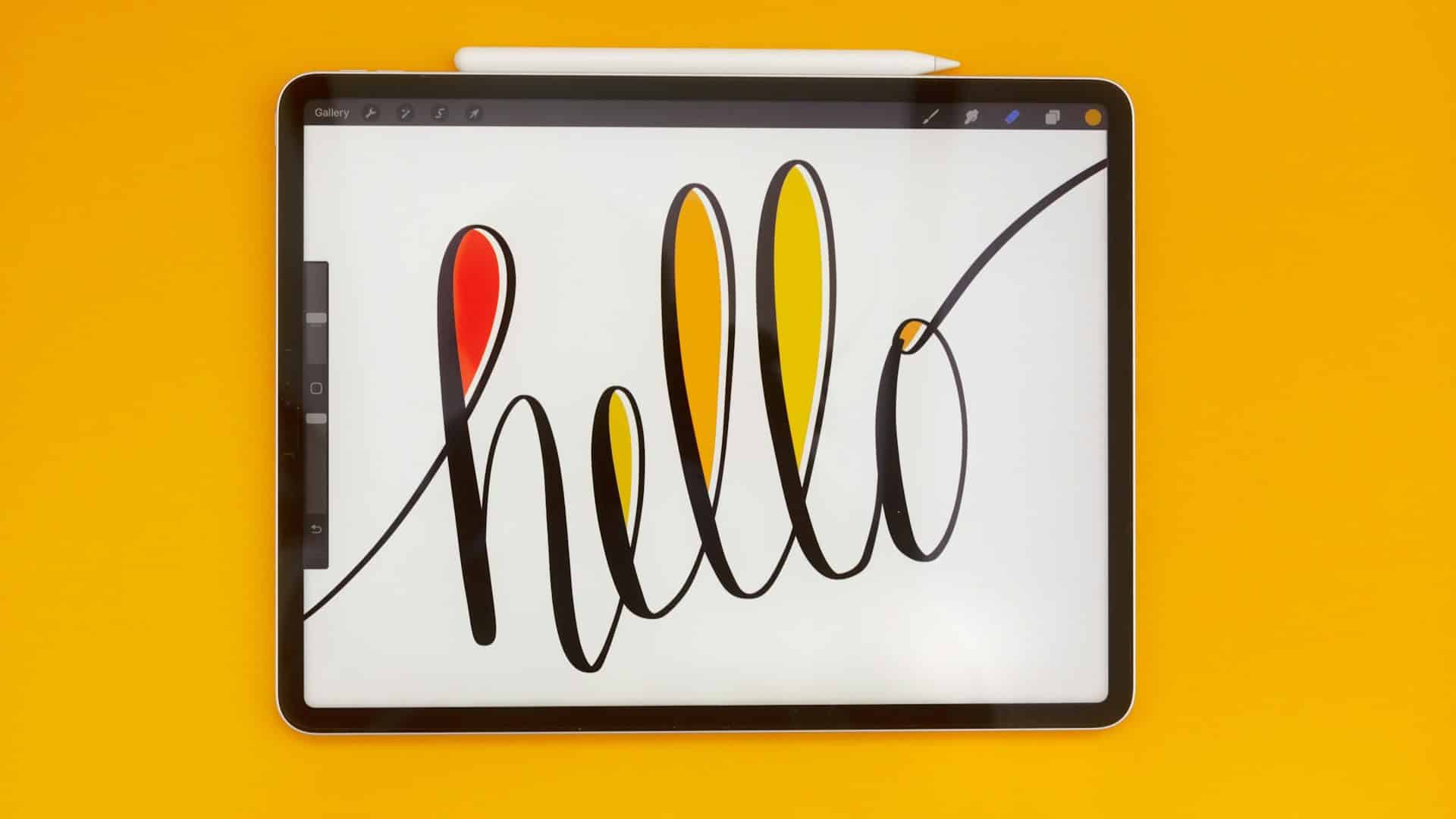
While Apple’s built-in apps cover basics, third-party editing apps open the door to advanced features, especially with an Apple Pencil, where every stroke or adjustment feels natural. They’re built for creators who want speed, control, and versatility in one place.
In this guide, I have listed the best editing apps on iPad for Apple Pencil users, which make editing all the more seamless and fun!
Table of contents
- How We Made The List
- Things to Consider
- 1. Adobe Lightroom – Professional-grade editing
- 2. Snapseed – Photo editing powerhouse
- 3. Affinity Photo – Desktop-class Photoshop alternative
- 4. Photomator – Smart AI-assisted photo editor
- 5. Darkroom – Sleek, iPad-native editing experience
- Tips
- Frequently Asked Questions
- Summary
- Conclusion
How We Made The List
To make this list of the best Apple Pencil apps for editing on iPad, we looked at the factors that matter most to real users. Each app was tested against the following parameters:
Don’t miss the best of The Mac Observer
Set us as a preferred source and our Apple reporting ranks higher in your Google Search results and Discover feed — one tap, no account changes.
- Responsiveness – How well the app recognizes and reacts to Apple Pencil input without lag.
- Feature Set – The range of editing tools offered, from photo filters and vector options to 3D modeling and markup.
- Apple Pencil Optimization – Pressure sensitivity, tilt control, and precision performance unique to the Pencil.
- Ease of Use – A clean interface that balances powerful tools with intuitive navigation.
- Cross-Platform Support – Syncing projects across iPad, desktop, or cloud services for flexible workflows.
- Regular Updates – How often the app improves with bug fixes, new features, and Apple Pencil-specific enhancements.
- Community & Support – Tutorials, user communities, and customer support to help you get the most out of the app.
This way, the list isn’t just about what’s popular. It’s about what actually delivers the best editing experience with Apple Pencil.
Things to Consider
Before you pick the right Apple Pencil editing app, it’s worth weighing a few factors to make sure it fits your workflow and budget:
- Type of Editing – Decide if you’ll mostly be working on photos, PDFs, 3D models, or illustrations. Each app specializes in different areas.
- Learning Curve – Some apps are beginner-friendly, while others require time to master advanced tools.
- Pricing Model – Check if the app is a one-time purchase or subscription-based, and whether the features justify the cost.
- File Compatibility – Make sure the app supports the formats you need, whether it’s RAW images, vector files, or CAD exports.
- Device Performance – Heavier apps may demand the latest iPad hardware to run smoothly with Apple Pencil.
1. Adobe Lightroom – Professional-grade editing

Adobe Lightroom is a subscription-based app, with plans starting at $4.99/month, built for professional photo editing and management. It supports RAW files, advanced color grading, and cloud syncing across devices.
With Apple Pencil, local adjustments like dodging, burning, or masking feel precise, making Lightroom a top choice for serious photographers.
Key Features
- Full RAW editing with non-destructive workflow
- Advanced color grading, tone curves, and lens corrections
- AI-powered subject and sky masking for quick, selective edits
- Customizable presets and the ability to create your own
- Cloud sync across iPad, desktop, and mobile for seamless workflow
- Integration with Photoshop for deeper editing tasks
- Built-in camera with professional shooting controls
How It Performed in Our Tests
- Responsiveness: Apple Pencil input is quick and fluid, even with large RAW files
- Feature Set: One of the most complete sets available, especially for color and exposure adjustments
- Apple Pencil Optimization: Local adjustments, such as gradient masks and brushes, are intuitive with Pencil precision
- Ease of Use: Can feel complex for beginners, but professionals find the layout logical and customizable
- Cross-Platform Support: Excellent, with synced edits across iPad, desktop, and phone
- Regular Updates: Frequent feature updates and performance improvements
- Community and Support: Backed by Adobe’s extensive tutorials, forums, and a large active community
Pros and Cons
Another Adobe app, Fresco, made it to our list of the best drawing apps for Apple Pencil.
2. Snapseed – Photo editing powerhouse
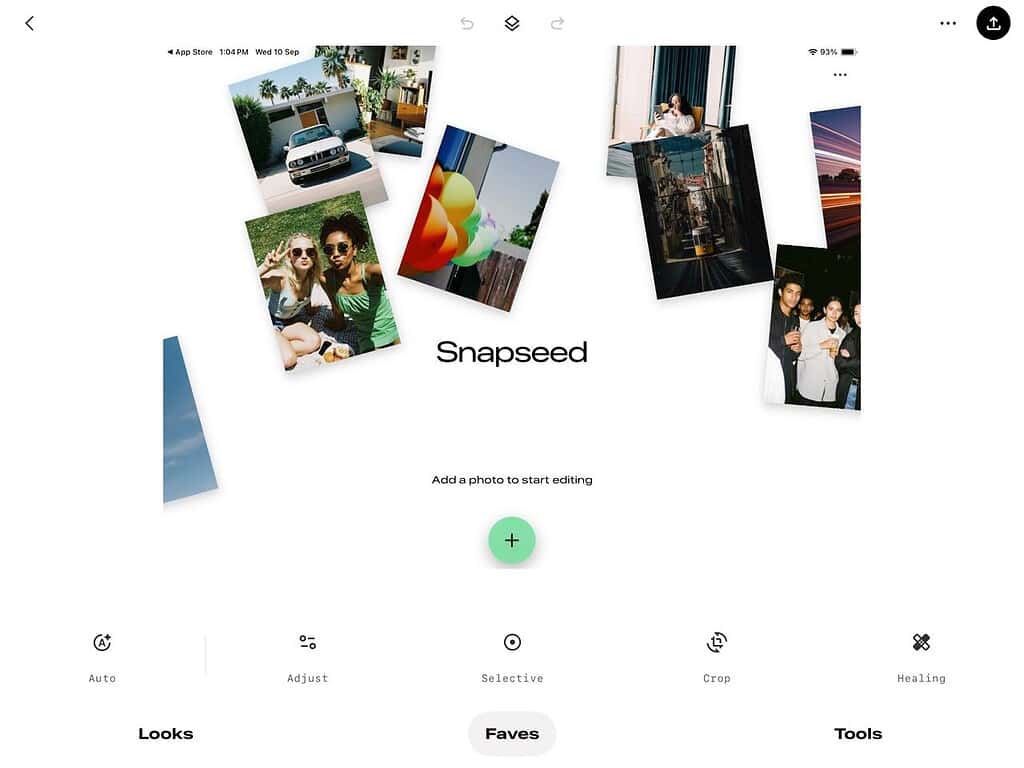
Snapseed is a free photo editing app from Google that combines power with simplicity. It supports RAW and JPG editing, offers professional-grade tools, and has no ads or hidden costs. With Apple Pencil, you can make precise edits and use gesture-based controls that feel natural and responsive.
Key Features
- Over 25 editing tools, including healing, HDR, and perspective adjustments
- Non-destructive RAW editing for maximum flexibility
- Selective Control Points for pinpoint adjustments
- Customizable Looks that can be saved and applied later
- A favorites toolbar for quick access to most-used tools
- Clean interface with straightforward export options
How It Performed in Our Tests
- Responsiveness: Very smooth, with Apple Pencil input registering instantly
- Feature Set: Comprehensive for a free app, though more focused on photography than design
- Apple Pencil Optimization: Gestures and selective adjustments are easy to handle with Pencil precision
- Ease of Use: Intuitive interface, beginner-friendly yet capable for advanced editing
- Cross-Platform Support: Works on iPad and iPhone, but no desktop version
- Regular Updates: Recently refreshed design and added features show it’s still supported
- Community and Support: Large user base and tutorials available, though official support is limited
Pros and Cons
Snapseed also makes it to our list of the top Adobe Photoshop alternatives for iPhone.
3. Affinity Photo – Desktop-class Photoshop alternative
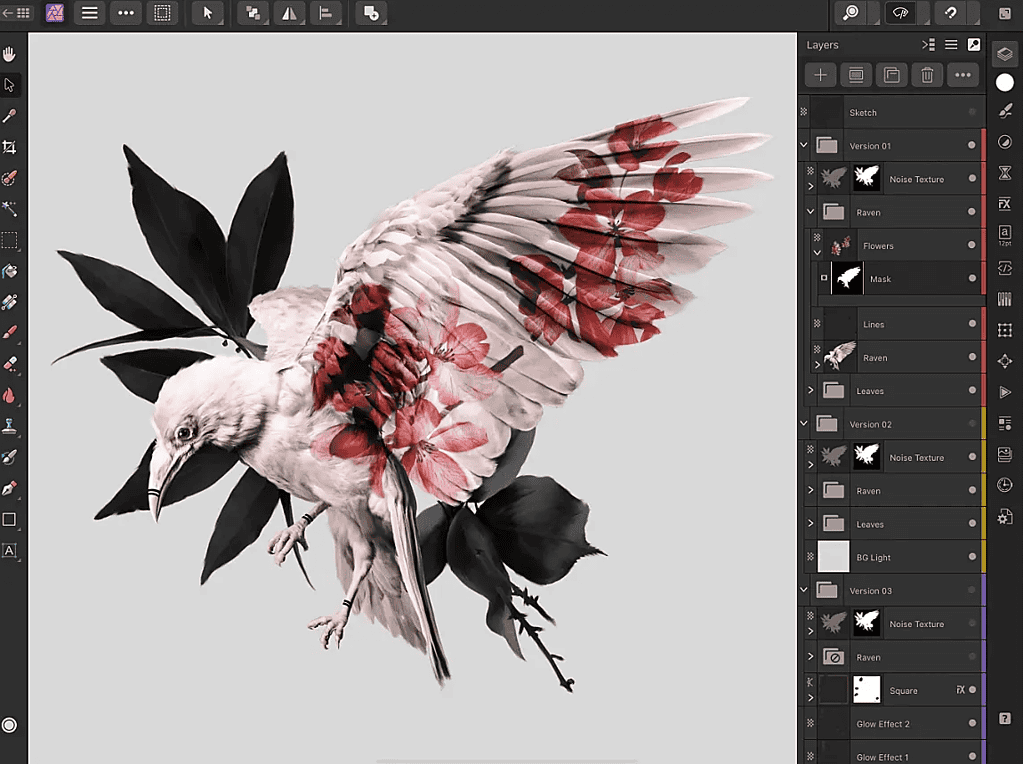
Affinity Photo is a professional photo editing app available as a one-time purchase, with an iPad-only license for $18.49, while the universal license costs $164.99.
It brings desktop-class power to the iPad with unlimited layers, advanced retouching tools, RAW support, and real-time performance. Apple Pencil integration makes tasks like selections, brushing, and retouching feel precise and natural.
Key Features
- One-time purchase with no subscription fees
- Unlimited layers and real-time blend modes
- Complete RAW development workflow, including 32-bit editing
- Advanced retouching tools such as clone, patch, inpainting, and frequency separation
- Liquify workspace for creative distortions and adjustments
- Precise selection tools capable of handling fine details like hair
- Customizable brush engine with support for imported brushes
How It Performed in Our Tests
- Responsiveness: Handled large files smoothly, with fast performance even on older iPads
- Feature Set: Extremely rich, offering professional tools that rival desktop software
- Apple Pencil Optimization: Excellent, especially for brushing, retouching, and detailed selections
- Ease of Use: Steep learning curve at first, but rewards time invested with powerful workflows
- Cross-Platform Support: Strong compatibility with Mac and Windows, making it great for mixed-device setups
- Regular Updates: Frequently updated with stability improvements and new features
- Community and Support: Active user community with tutorials and forums for learning and troubleshooting
Pros and Cons
4. Photomator – Smart AI-assisted photo editor
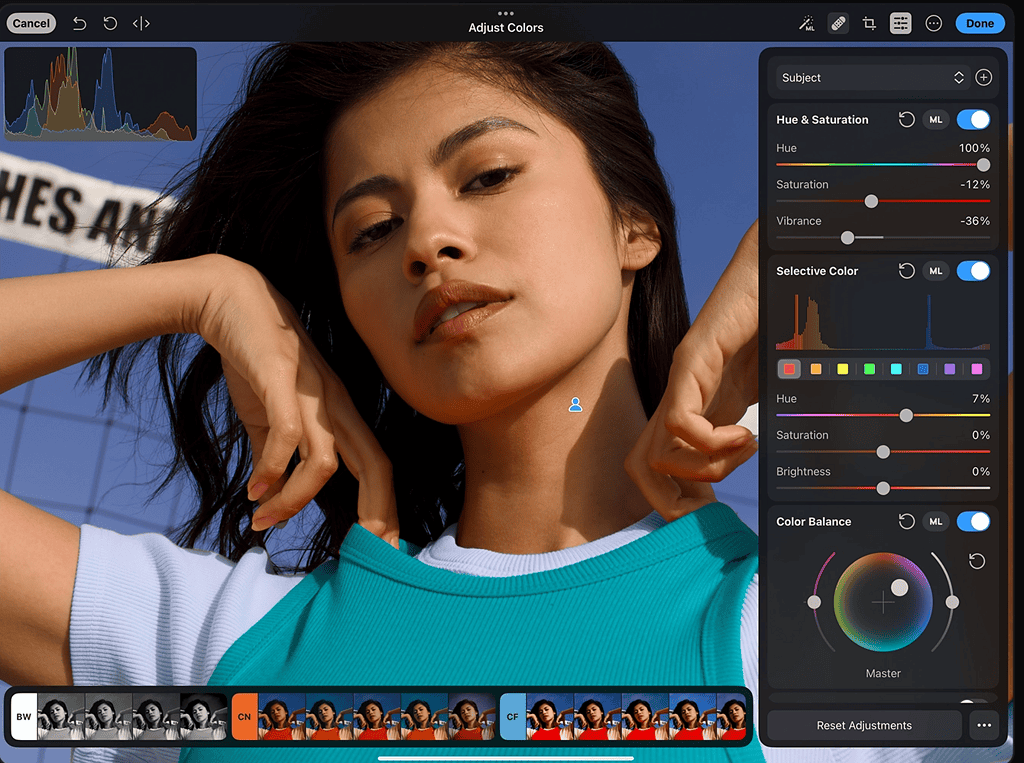
Photomator is a fast, Apple Pencil-friendly photo editor focused on smart, machine learning driven tools. It offers RAW support, AI subject and sky selection, clone and repair, and batch processing.
Photomator is paid with monthly, yearly, or lifetime options; typical pricing is $4.99 monthly, $29.99 yearly, or $99.99 lifetime.
Key Features
- AI subject and sky selection for instant, accurate masks
- Support for more than 750 RAW formats, including Apple ProRAW
- Clone and Repair tools designed for detailed touch and Pencil work
- Batch editing and export with watermarking options
- Native iPadOS integration with Apple Pencil hover, Split View, and fast GPU acceleration
How It Performed in Our Tests
- Responsiveness: Very fast, even with large RAW files, thanks to system-level acceleration
- Feature Set: Strong for photography with a balance of AI tools and manual controls
- Apple Pencil Optimization: Hover, pressure sensitivity, and precise brushes make refinements smooth
- Ease of Use: The Interface feels approachable, similar to Apple Photos, yet deeper tools are available
- Cross-Platform Support: Works on iPad, iPhone, and Mac with one subscription covering all
- Regular Updates: Frequent updates keep RAW support and AI tools current
- Community and Support: Tutorials and community feedback are strong, though power users note limits compared to desktop apps
Pros and Cons
5. Darkroom – Sleek, iPad-native editing experience
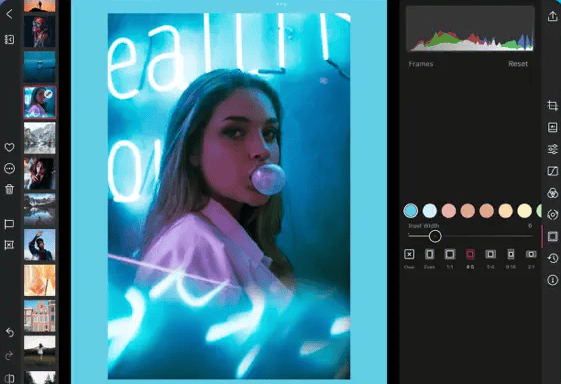
Darkroom is a mobile-first photo and video editor focused on fast, professional color work and intelligent masks. The app is free to download, with a premium Darkroom+ membership that unlocks AI masks, video processing, and advanced tools. Pricing is about $6.99 per month, $39.99 per year, or $99.99 lifetime.
Key Features
- Mobile-first color grading tools and LUT support for creative looks
- AI-powered masks for subject and sky selection
- Photo and video editing in one app, including 4K video color grading
- RAW support and batch export for fast workflows across many images
- Library management with flagging, rejecting, and custom presets
- Optimized performance for iPad with smooth editing and exporting
How It Performed in Our Tests
- Responsiveness: Very fast on modern iPads, with smooth zooming, scrubbing, and editing even on large files
- Feature Set: Strong for both photo and video color work, with AI masks and batch tools suited for mobile workflows
- Apple Pencil Optimization: Works well with the Pencil for local edits, brushing, and detailed refinements
- Ease of Use: The Interface is clean and intuitive, making it easy for beginners while offering advanced tools for professionals
- Cross-Platform Support: Available on iPhone, iPad, and Mac for seamless workflows
- Regular Updates: Receives frequent updates that add features and improve performance
- Community and Support: Good documentation and user support, though some feedback notes occasional bugs and missing tools
Pros and Cons
Tips
- Learn the shortcuts: Each app has gesture or Pencil shortcuts that speed up editing, from quick undo in Snapseed to masking brushes in Lightroom.
- Use RAW files when possible: Apps like Lightroom, Affinity Photo, and Photomator shine when working with RAW for maximum editing flexibility.
- Save custom presets: Create and reuse your favorite looks across projects instead of starting from scratch each time.
- Take advantage of batch editing: Darkroom and Photomator allow editing multiple images at once, a huge time-saver.
- Keep experimenting: Many tools are tucked away; try new brushes, AI masks, and layer effects to unlock more creative options.
Frequently Asked Questions
No, all of these apps work with touch input. However, Apple Pencil adds precision and pressure sensitivity that makes detailed editing much easier.
Snapseed is the most beginner-friendly since it is free, simple to navigate, and still powerful enough for serious edits.
Yes, Darkroom supports both photo and video editing, including 4K color grading. The other apps are primarily focused on photos.
Adobe Lightroom and Affinity Photo are preferred by professionals. Lightroom integrates seamlessly with Adobe Creative Cloud, while Affinity Photo delivers desktop-class power with no subscription.
Summary
- Adobe Lightroom – Best for professionals who want cloud sync, advanced tools, and an integrated workflow with other Adobe apps.
- Snapseed – Best for beginners or casual users who want a powerful yet free app with an easy learning curve.
- Affinity Photo – Best for serious editors who prefer a one-time purchase and desktop-class tools without subscriptions.
- Photomator – Best for users who want fast AI-powered selections, strong RAW support, and efficient batch editing.
- Darkroom – Best for creators who want mobile-first photo and video editing with streamlined color grading and organization.
Conclusion
Choosing the right editing app for iPad depends on your workflow, budget, and skill level. If you want pro-grade tools and cloud sync, Lightroom is hard to beat. Snapseed is perfect for quick, free edits, while Affinity Photo offers serious power without subscriptions. Photomator and Darkroom excel with AI tools and mobile-first design, making them ideal for fast, efficient editing.
Whatever your choice, pairing these apps with Apple Pencil unlocks a level of precision that makes editing more natural and enjoyable.
Before you leave, learn how to use an Apple Pencil, including features and functionalities you didn’t know about!




Discussion