

Audio Mix is a powerful feature introduced with iPhone 16 and enhanced in iPhone 17, allowing users to fine-tune the sound in recorded videos. Whether you’re aiming to reduce background noise, highlight voices, or add cinematic depth, Audio Mix offers intuitive controls to elevate your content. Let’s look at how to use Audio Mix effectively, ensuring your videos sound as good as they look.
Table of contents
What Is Audio Mix and Why Does It Matter?
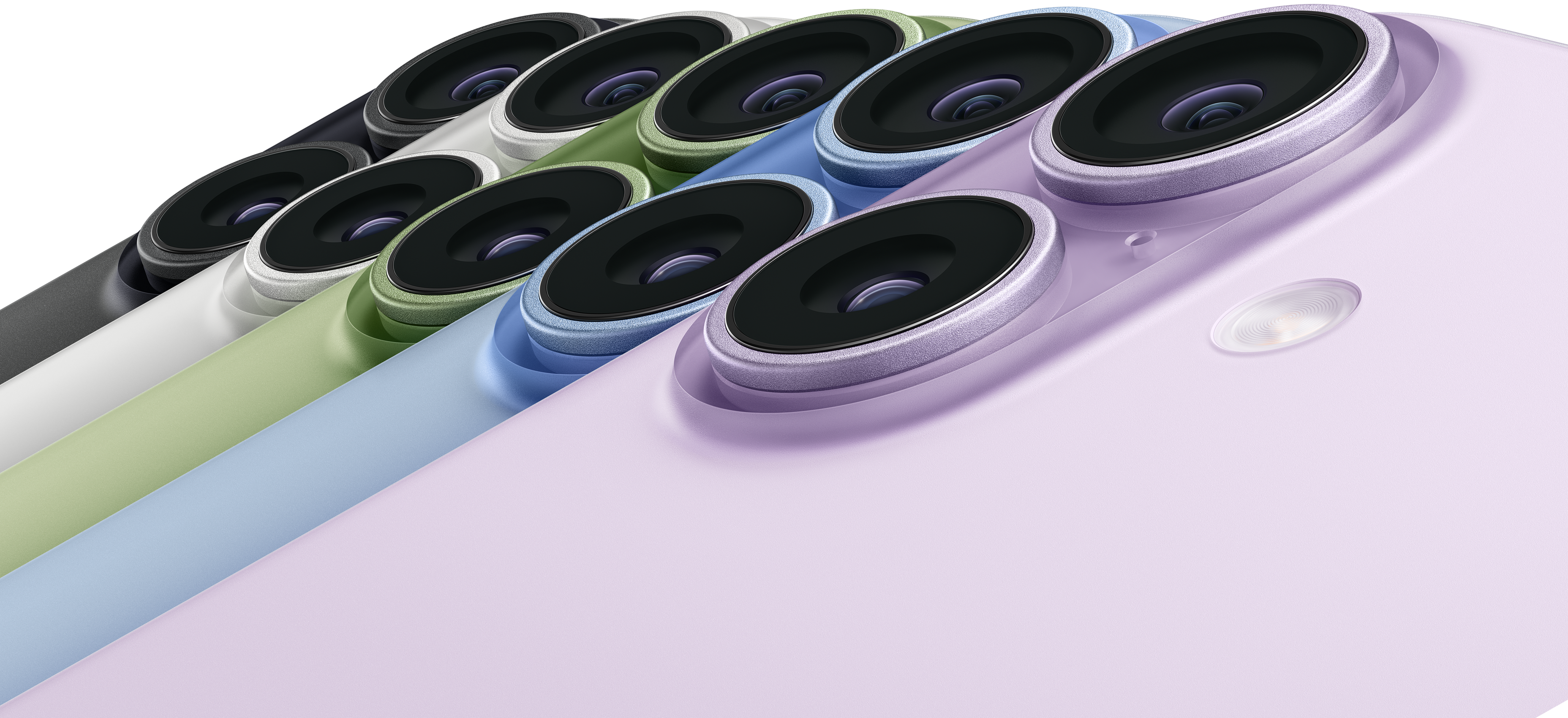
Audio Mix lets you edit spatial audio in videos captured with your iPhone’s built-in microphones. It’s available directly in the Photos app and supports four distinct modes: Standard, In-Frame, Studio, and Cinematic. Each mode is tailored to different recording environments and goals, from preserving ambient sound to isolating voices.
Don’t miss the best of The Mac Observer
Set us as a preferred source and our Apple reporting ranks higher in your Google Search results and Discover feed — one tap, no account changes.

Before you begin, ensure your device meets these requirements:
- You’re using an iPhone 16 or newer.
- The video was recorded with your iPhone’s native camera.
- Your iPhone is running iOS 18 or later, and if not, update your iOS version.
- You’re not using external microphones, as Audio Mix only supports built-in audio.
Note: iOS 26 adds support for Audio Mix in third-party apps.

How to Use Audio Mix on iPhone
Follow these steps to apply Audio Mix to your video:
- Capture a video clip using the Camera app (you can also use a previously-recorded video).
- Open the Photos app.
- Tap the clip you want to edit.
- Tap Edit in the bottom-right corner.
- Tap Audio Mix in the menu.
- Pick a mode:
- Standard: Keeps original sound with spatial audio.
- In-Frame: Isolates the voices of people visible in the frame.
- Studio: Enhances voice clarity, simulating studio-quality audio.
- Cinematic: Balances ambient noise and voice clarity. Some iOS versions may offer a slider for additional control.
- Adjust the intensity slider below the options to increase or decrease the effect and background noise levels.
- Tap Done to save your edits.
Tip: Use Studio mode for interviews, In-Frame for on-camera dialogue, and Cinematic for travel vlogs with natural soundscapes. If you encounter issues, here’s how to fix Audio Mix not working.
FAQ
No. It only supports videos recorded with your iPhone’s camera.
No. The feature is designed for the iPhone’s built-in mics.
Only iPhone 16 and newer support Audio Mix.
Studio enhances voice clarity regardless of position, while In-Frame isolates the voices of visible subjects.
Elevate Your Video Sound with Audio Mix
Audio Mix is a game-changer for mobile video editing, especially when paired with the iPhone’s three cameras that capture stunning visuals. Whether you’re filming a vlog, tutorial, or travel montage, mastering Audio Mix ensures your audio matches the quality of your footage. And with ongoing improvements—Audio Mix is also part of iPhone 17’s camera features—it’s clear Apple is investing in spatial audio as a core creative tool.




Discussion