

One of the most convenient ways for you to find and customize the best wallpapers for your iPhone is by using the Nugget wallpaper engine. The wallpapers that you get with Nugget go beyond the standard settings on your iPhone.
What you get is animated visuals with pleasing aesthetics that work great on iOS 26. The best part is that you can install it easily and without jailbreaking.
Table of contents
What is Nugget?
Nugget is a third-party computer application that also allows for a community-based custom animated wallpaper for an iPhone that is customizable and easy to use. It’s like a wallpaper platform that lets you insert wallpapers on your iPhone that are not natively supported by iOS.
Don’t miss the best of The Mac Observer
Set us as a preferred source and our Apple reporting ranks higher in your Google Search results and Discover feed — one tap, no account changes.
It llows users to add dynamic wallpapers, also known as Poster Boards to their device’s native wallpaper settings without a jailbreak.
Nugget injects custom, community-created animated wallpapers called Poster Boards into your device’s wallpaper library. However, this is a modification of your device’s files, so it’s important to back up your data first, in case something goes wrong.
Prerequisites for Nugget Wallpapers
To install and use Nugget wallpapers, there are a few things to consider before you do anything else:
Computer: A Mac or Windows PC necessary to run the Nugget application which will help you install your wallpapers on your iPhone.
iOS Device: An iPhone or iPad running iOS 17 or iOS 26 is required.
Data Cable: A USB cable that can transfer data is needed to connect your iOS device to your computer.
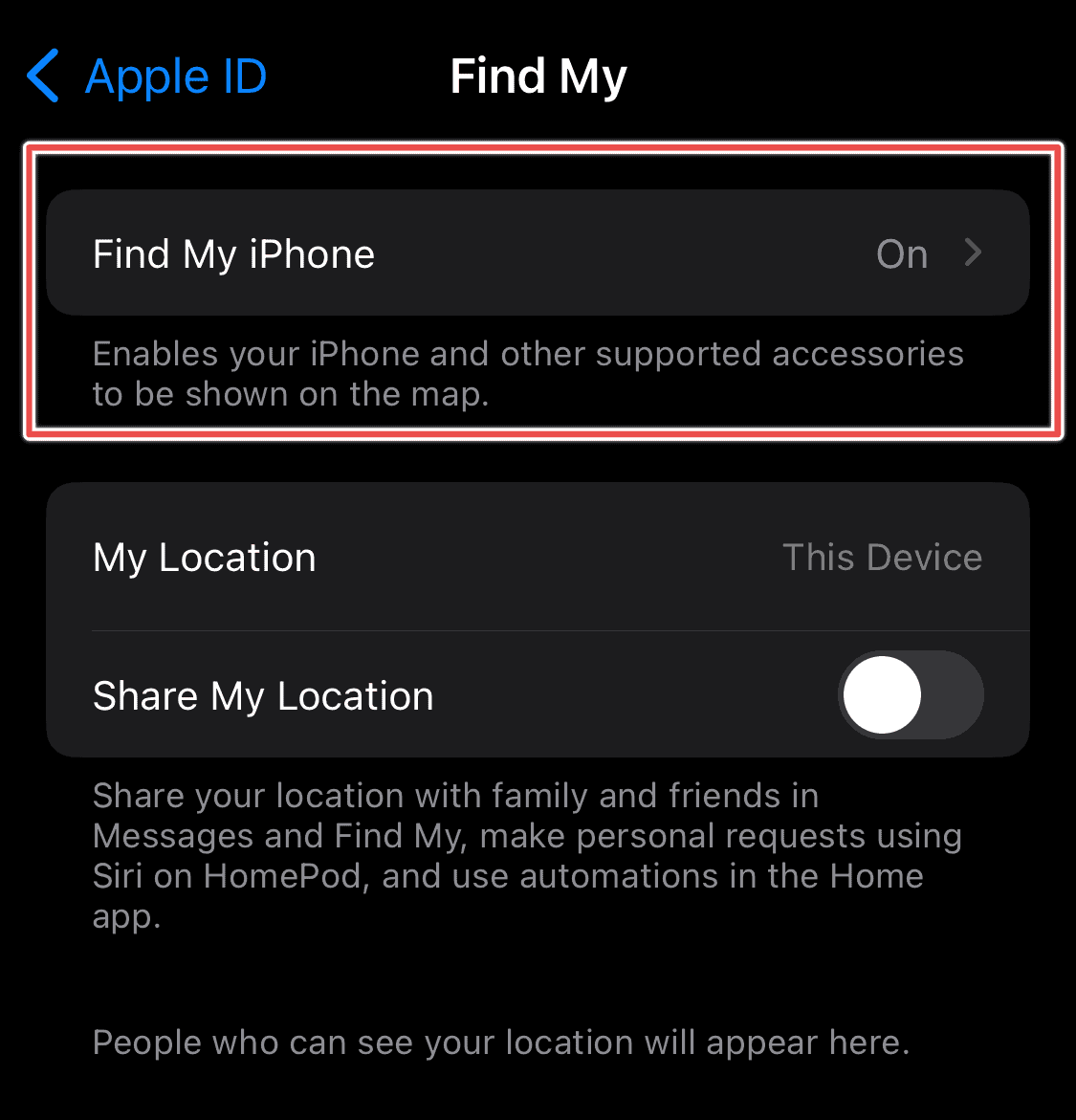
Turning off your Find My iPhone: Before applying any changes, you should turn off your Find My iPhone feature. This is a security measure to protect your device during the modification process, and it’s important that it’s off while you modify essential changes to your mainframe.
How to Install and Use Nugget Wallpapers
1. Download and Install Nugget
- On your PC, go to the Nugget GitHub page and download the latest Nugget release for your operating system (Windows or Mac).
- Install and launch the Nugget application on your computer.
2. Prepare Your iPhone
- Temporarily disable Find My iPhone by going to Settings > [Your Name] > Find My > Find My iPhone.
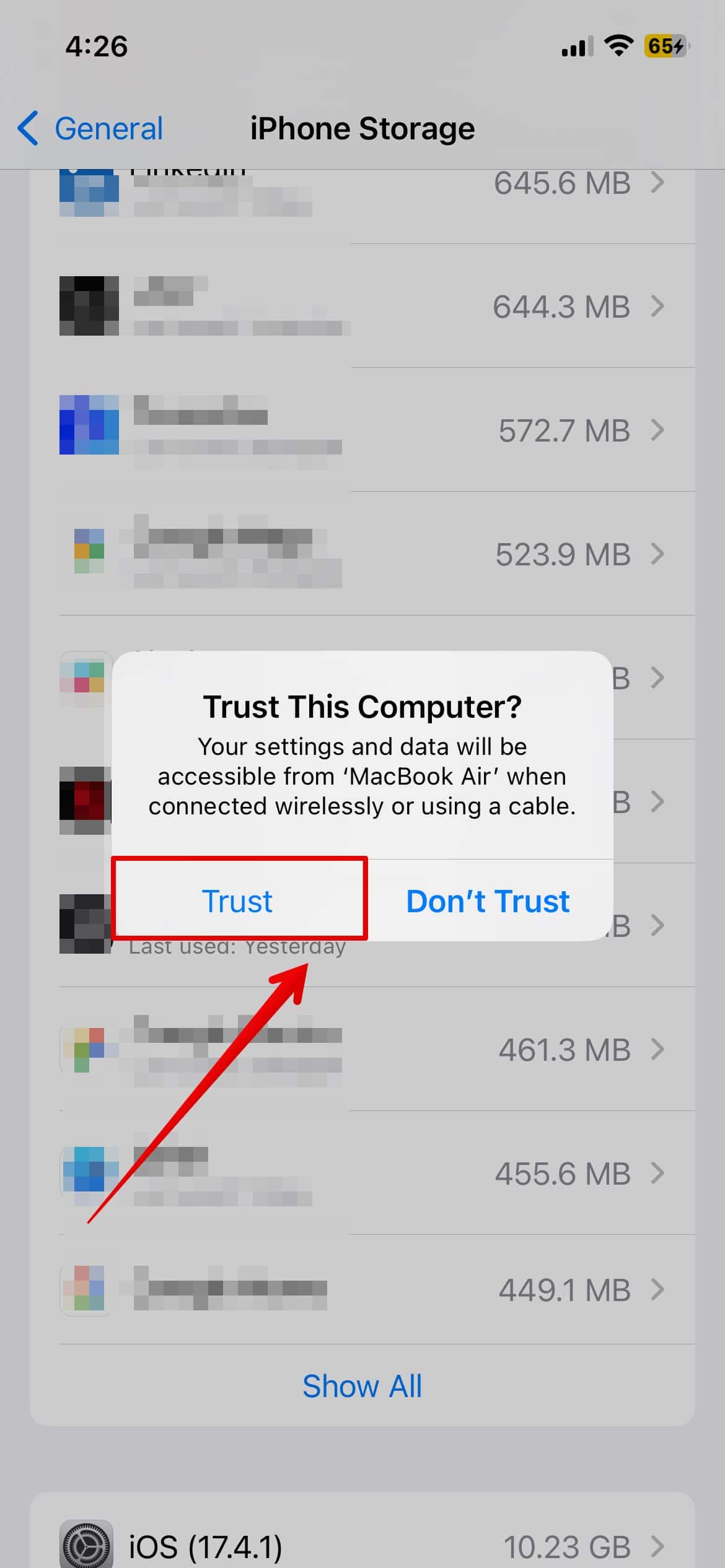
- Connect your iPhone to your computer with a USB data cable.
- When prompted, tap Trust This Computer.

3. Import Nugget Wallpapers
- In the Nugget app, click the Refresh button so your iPhone appears in the interface.
- Go to the PosterBoard tab.
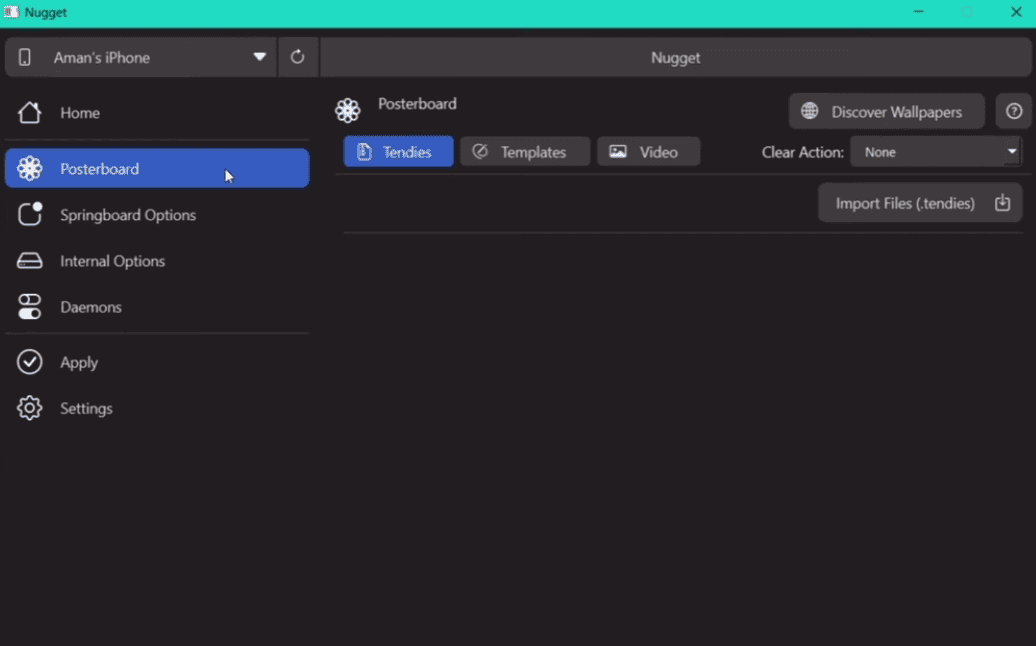
- Click the Discover Wallpapers on the interface to find and download Nugget wallpapers.
- Save the wallpaper files to a known location on your computer.
- Return to the Nugget app and click Import.
- Select the wallpaper files you downloaded.

4. Apply Wallpapers and Restore Settings
- Go to the Apply section within the Nugget app.
- Click Apply Changes. Your iPhone will automatically reboot.
- Do not unplug your iPhone while Nugget is applying the changes.
- After your iPhone restarts, open Settings.
- Tap Wallpaper > Add New Wallpaper.
- Scroll down to the Collections section to find your imported Nugget wallpapers.
- Select the animated wallpaper you want to use.
- Tap Set as Wallpaper Pair to apply it to both your Lock Screen and Home Screen, then tap Done.
- Finally, return to Settings > [Your Name] > Find My > Find My iPhone and toggle it back on.

Yes. Nugget wallpapers are safe as long as you download them from the official Nugget GitHub page. Avoid third-party sources to prevent corrupted files or security risks.
Absolutely. You can replace or remove Nugget wallpapers anytime by opening the Settings app > Wallpaper > Add New Wallpaper. From there, choose a different wallpaper or delete the existing one.
If your iPhone seems frozen or the wallpaper doesn’t apply, do not unplug the device immediately. Wait a few minutes to let Nugget complete its process. If it remains unresponsive, restart both your iPhone and computer, reopen Nugget, and try again. Always ensure Find My iPhone is turned off before repeating the process.
Summary
- To use custom Nugget wallpapers on iOS 26, you need a computer (Mac or Windows) to run the Nugget app, which facilitates the installation of animated Poster Board wallpapers.
- The process involves downloading the Nugget utility and wallpaper files, temporarily disabling Find My iPhone, and connecting your iPhone to your computer.
- You then use the Nugget app to import and apply the new wallpaper files, which triggers a reboot of your iPhone.
- After the restart, the new wallpapers will be available in your iPhone’s standard Settings > Wallpaper menu under a new Collections section.
- Once the process is complete, remember to re-enable Find My iPhone for security.
Conclusion
We hope that you find the most suitable wallpaper for your iPhone. There are so many to choose from, and the collections are simply better looking than your regular old iPhone stock images.
Remember to always back up your device before performing system modifications, and enjoy your aesthetically pleasing wallpapers on your iPhone.


Hello, is this also for iPad?
In general, Nugget Wallpapers should also work on iPadOS. Note that the aspect ratio is different (iPhone wallpapers are 19.5:9 or 20:9, while iPads are usually 4:3). This means that while you can set them on iPad, parts of the image may be cropped or zoomed in. So yes, they technically work on iPadOS, but they may not fit perfectly unless Nugget provides iPad-specific versions.
Yep, Nugget wallpapers work on iPad too they install the same way. The only thing to keep in mind is the aspect ratio, so some wallpapers may crop a bit on 4:3 screens. If Nugget releases iPad-specific versions, those will fit perfectly.