

Apple’s iOS 26 update introduced several enhancements, but many users have encountered frustrating issues with iMessage and FaceTime activation. After updating, some iPhones fail to register phone numbers correctly, resulting in undelivered messages and unavailable video calls. These problems are especially common among users with dual SIM configurations or leftover inactive SIMs. Fortunately, Apple has acknowledged the issue and provided actionable solutions.
Table of contents
Why iMessage and FaceTime Fail to Activate in iOS 26
The root cause of activation failures in iOS 26 often stems from SIM conflicts. When two SIMs share the same phone number (one active and one inactive) iOS may struggle to determine which to use. This leads to symptoms such as messages defaulting to email addresses, green bubble texts instead of blue, and FaceTime calls failing to connect. Users may also see duplicate phone numbers under Settings > Apps > Messages > Send & Receive.

Understanding how iMessage differs from SMS and RCS helps clarify why these issues disrupt communication. Unlike traditional texting, iMessage relies on Apple’s servers and requires proper number registration.
Don’t miss the best of The Mac Observer
Set us as a preferred source and our Apple reporting ranks higher in your Google Search results and Discover feed — one tap, no account changes.
How to Fix iMessage and FaceTime Activation Issues
Remove Inactive SIM
If your iPhone has multiple SIMs with the same number, removing the inactive one is essential.
- Open Settings and tap Cellular/Mobile Service.
- Identify the inactive SIM.
- If it is physical, eject it from the SIM tray.
- If it is an eSIM, tap Delete eSIM.
Once removed, revisit Settings > Apps > Messages > Send & Receive and tap your phone number to reactivate iMessage.
Re-enable iMessage and FaceTime
If removing the SIM does not resolve the issue, re-register both services.
- Go to Settings > Apps > Messages and toggle off iMessage.

- Go to Settings > Apps > FaceTime and toggle off FaceTime.
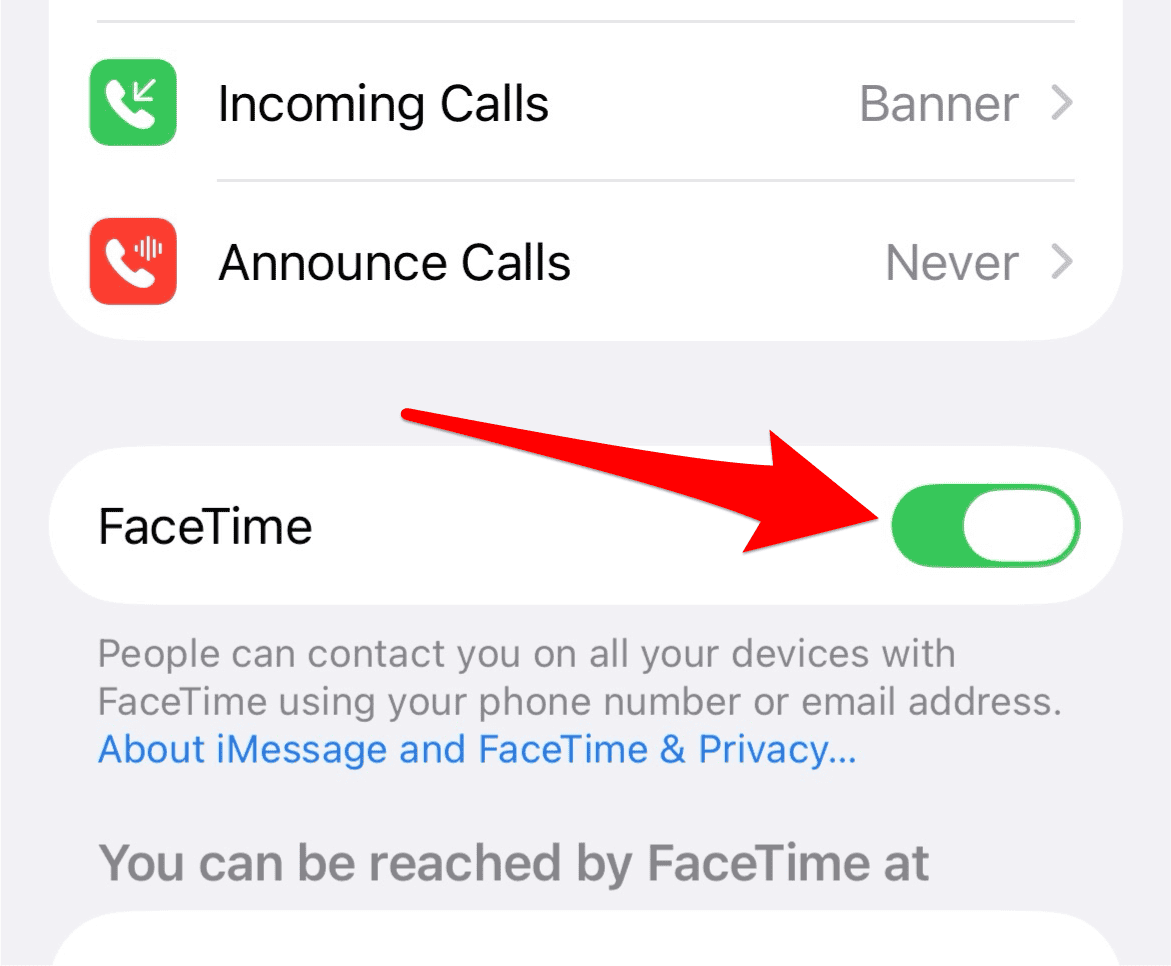
- Restart your iPhone.
- Return to Settings > Messages and toggle on iMessage.
- Return to Settings > FaceTime and toggle on FaceTime.


Allow a few minutes for verification. You may see a spinning gear while the system confirms your number.
Confirm Network and SMS Capability
Activation requires a stable internet connection and the ability to send SMS messages, including international ones.
- Connect to Wi-Fi or cellular data.
- Open Settings > General > Date & Time and enable Set Automatically.
- Ensure your plan allows SMS to international numbers.
- When prompted, allow Apple to send activation SMS.
Sign Out and Back Into Apple ID
One user-reported fix involves signing out of your Apple ID and signing back in manually.
- Go to Settings > [Your Name] and tap Sign Out.
- Choose Sign Out But Don’t Erase, turn off Find My, and keep all data on your device.
- Tap Confirm and Sign Out.
- Restart your iPhone via Settings > General > Shut Down, then power it back on.
- Return to Settings, tap the Apple ID banner, and choose Sign in Manually.
- Enter your Apple ID credentials and follow the prompts.
- Go to Settings > Messages and toggle on iMessage, then go to Settings > FaceTime and toggle on FaceTime.
Use Apple’s Online Activation Flow
Apple now supports online activation for iMessage and FaceTime.
- Visit apple.co/IMFT-mac and click Get Started.
- Sign in with your Apple ID and enter your phone number.
- After receiving confirmation, go to Settings > Messages and toggle on iMessage, then go to Settings > FaceTime and toggle on FaceTime.
For more guidance on how to use iMessage effectively, Apple’s support documentation offers helpful tips.
FAQ
This usually happens when your number is not activated. Check Settings > Messages > Send & Receive and select your number.
Yes. Some users report that FaceTime Audio works even when video calls do not.
It can take up to 24 hours. Ensure your device meets all prerequisites.
Yes. Apple released a patch that improves app stability and connectivity.
Restoring Full Messaging and Calling Functionality
While iOS 26 offers exciting upgrades, including new ways to enjoy iOS 26 FaceTime features, activation issues can hinder the experience. By removing inactive SIMs, confirming network settings, and following Apple’s activation steps, most users can restore full functionality. For beginners, this guide on using FaceTime is a helpful resource.




Discussion