

Listening to music on Apple Music doesn’t always mean you need the app. With the Apple Music Web Player, you can stream your favorite songs, playlists, and albums right from any browser, no downloads, no setup. It’s perfect for when you’re on a shared computer, using a work laptop, or simply prefer keeping things lightweight.
The web player gives you the same familiar Apple Music experience you know from your iPhone or Mac, but with the freedom to access it anywhere.
Table of contents
What You Need before Using Apple Music Web Player
To use the Apple Music Web Player, you’ll need a modern browser like Chrome, Safari, or Edge, along with a stable internet connection. Sign in using your Apple ID linked to an active Apple Music subscription to access your library and playlists. For better sound, you can use headphones or speakers, though it’s optional. If you don’t have a subscription yet, you can still browse and preview songs before joining.
Don’t miss the best of The Mac Observer
Set us as a preferred source and our Apple reporting ranks higher in your Google Search results and Discover feed — one tap, no account changes.
How to Access the Apple Music Web Player
Step 1: Visit the Apple Music Website
Open your preferred web browser and go to music.apple.com. The homepage will display featured albums, playlists, and charts.
Step 2: Sign In with Your Apple ID
- Click the Sign In button in the top-right corner.
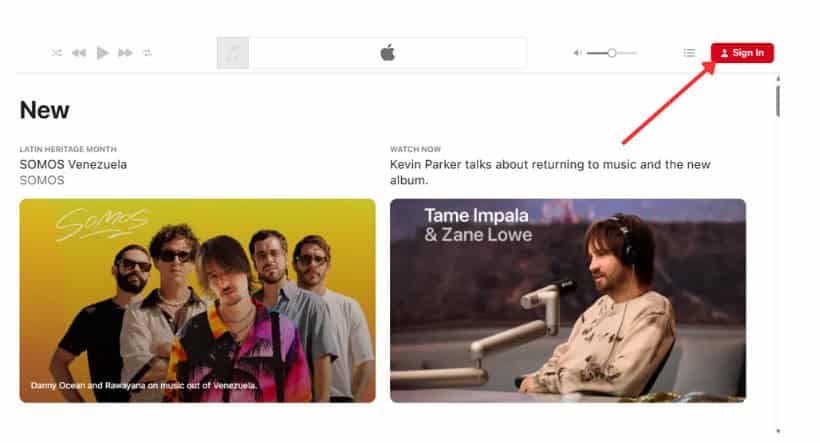
- Enter your Apple ID and password.

- If prompted, verify using two-factor authentication.


Once signed in, your personal library, playlists, and preferences will appear on the left panel.
How to Search and Play Music
Step 1: Use the Search Bar
In the top-left corner, you’ll find the Search option. Type the name of a song, artist, or album.
Step 2: Browse Categories
You can also browse by category:
- Listen Now – personalized recommendations
- Browse – curated playlists, top charts, and new releases
- Radio – Apple Music radio stations
Step 3: Start Playing
Click on a track or playlist to start playback. The player controls will appear at the top of the screen, where you can:

- Play, pause, skip, or repeat songs
- Adjust the volume
- View the current queue
How to Manage Playlists and Library
Step 1: Add to Library
When you find a song or album you like, click the + icon to add it to your library.
Step 2: Create a Playlist
- Go to Library > Playlists
- Click New Playlist
- Name your playlist and start adding tracks
Step 3: Edit or Remove Songs
Right-click any song to see options like Remove from Library, Add to Playlist, or Love to improve recommendations.
Tips for a Better Apple Music Web Experience
- Use Keyboard Shortcuts: Spacebar to pause/play, arrows to skip tracks.
- Enable High-Quality Streaming: Go to settings (gear icon) and choose the highest audio quality available.
- Pin the Tab: Keep the Apple Music tab open for quick access.
- Use Dark Mode: Matches your system theme for comfortable night listening.
- Sync Across Devices: All changes in the web player reflect instantly on your iPhone or iPad.
Conclusion
The Apple Music Web Player offers a simple and convenient way to enjoy your favorite music anywhere, without needing to install an app. With just a browser and your Apple ID, you can stream songs, manage playlists, and explore new artists effortlessly. It’s a flexible option for anyone who wants the full Apple Music experience on any device. So, go ahead and give it a try to have a different music listening experience than the app on your phone.
FAQs
You can browse and preview songs without a subscription, but you’ll need one to play full tracks.
Yes, it works on all modern browsers, including Chrome, Edge, and Firefox.
Currently, these high-quality formats are limited to the Apple Music app on supported devices.
No, downloading for offline use is only available in the Apple Music app.
Yes, it’s an official Apple platform that uses secure login and encrypted data.


Discussion