

Apple’s iPhone 17 Pro running iOS 26 delivers powerful camera upgrades and AI-driven photo organization, but some users have reported an(other) issue: the Photos app keeps crashing or freezing, especially when editing, naming faces, or managing albums. If your Photos app closes unexpectedly or hangs every few seconds, here’s what you can do.
Table of contents
Why the Photos App Keeps Crashing on iPhone 17 Pro
After updating to iOS 26, some users experience crashes when editing or renaming faces in the People album. This issue is most likely caused by:
- Indexing errors in the Photos database after an iOS update.
- Corrupted photos or videos recently downloaded from third-party apps or browsers.
- Incomplete iCloud Photo sync that causes data conflicts.
- System-level bugs introduced in early iOS 26 builds.
If the app freezes whenever you open a specific album, edit face labels, or load older media, try the following fixes to eliminate the problem.
Don’t miss the best of The Mac Observer
Set us as a preferred source and our Apple reporting ranks higher in your Google Search results and Discover feed — one tap, no account changes.
Fixes for Photos App Crashes on iPhone 17 Pro
1. Reboot Your iPhone
A simple restart can clear temporary cache issues that cause Photos to crash.
- Press and hold the Side button and Volume Up or Down until the power slider appears.

- Swipe “slide to power off.”
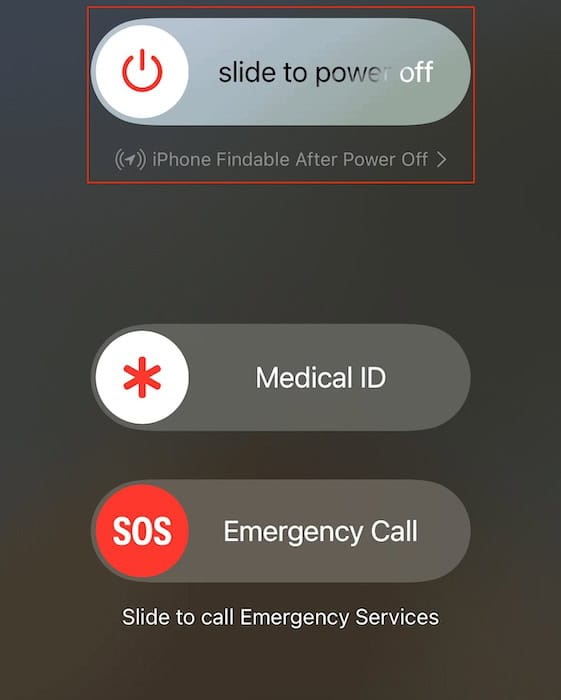
- Wait a few seconds, then hold the Side button again to restart.

If the issue persists, try a force restart:
- Quickly press Volume Up, then Volume Down, and hold the Side button until you see the Apple logo.
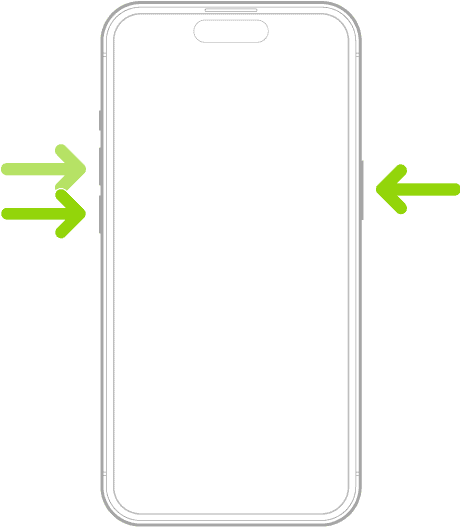

Rebooting often resets the Photos app’s background processes and clears memory conflicts.
2. Quit and Reopen the Photos App
Sometimes the Photos app just needs a quick refresh.
- Swipe up from the bottom of the screen and pause halfway to open the App Switcher.

- Swipe up on the Photos app preview to force quit it.
- Return to the Home screen and relaunch Photos.

This clears the app’s temporary cache and may stop repetitive crashing when browsing albums or editing pictures.
3. Delete Recently Added or Corrupted Photos
Some photos downloaded from social media or third-party sites may have unsupported file formats or corrupted metadata that cause the app to crash.
Try this:
- Open Photos > Albums > Recents.
- Review the last 20–30 images you saved or imported.
- Delete any files that appear blank, broken, or won’t preview.
If the app closes before you can delete anything, try using Files or iCloud.com to remove the problematic items remotely.
 Tip
Tip
4. Update or Downgrade iOS
If the Photos app started crashing right after installing iOS 26, it could be a temporary software bug.
To update:
- Go to Settings > General > Software Update.
- Tap Download and Install if a newer patch (like iOS 26.1 or later) is available.
Apple frequently pushes quick fixes for bugs in early releases.If the problem persists even after updates, you can consider downgrading temporarily to a stable iOS version until Apple issues a fix. Make sure to back up your device first using Finder, iTunes, or iCloud.
FAQ
This is usually due to indexing errors or corrupted face-recognition data after an iOS update. Restarting or re-indexing Photos should resolve it.
If certain files are corrupted, yes. However, always back up before deleting in case legitimate photos are removed.
Yes. Apps that save non-standard image formats (like HEIC variations or edited HDR files) can trigger instability in Photos.
Restoring Stability to the Photos App
The Photos app crashing on iPhone 17 Pro is a known issue affecting some iOS 26 users, especially when editing facial tags or syncing iCloud Photos. In most cases, a restart, cleanup of recent photos, or Recovery Mode refresh restores stability.If you’ve tried all the above and Photos still crashes, contact Apple Support or visit an Apple Store for diagnostic testing. Until then, back up your library regularly to prevent data loss.


Discussion